
I have been recording webinars and online workshops for over six years, and if there is one thing I have learned, it is that your camera can make or break your audience’s attention. A fuzzy, low-resolution feed sends viewers clicking away within the first two minutes. A sharp, well-lit image keeps them watching through your entire presentation.
Finding the best cameras for webinar and workshop recording means balancing video quality, ease of setup, and budget. Some of you need a plug-and-play webcam for quick Zoom calls. Others want a PTZ camera that tracks your movement around a workshop stage. And some are ready for 4K resolution with DSLR-style manual controls.
Our team tested seven cameras across real webinar sessions, workshop recordings, and live streaming setups. We used each one with Zoom, Microsoft Teams, OBS Studio, and StreamYard to see how they performed in the real world. We recorded training sessions in home offices, conference rooms, and larger workshop spaces to push every model to its limits.
In this guide, we cover everything from a $28 budget webcam to a $350 professional PTZ camera for conference rooms. You will find pros, cons, and specific use-case recommendations for each pick. Whether you are a solo consultant, a corporate trainer, or a workshop host presenting to hundreds, we have a camera recommendation that fits your needs and budget.
Table of Contents
Top 3 Picks for Best Cameras for Webinar and Workshop Recording (October 2026)
If you want to skip the deep dive and just grab a camera, these are our three top picks based on months of testing. Each one earned its spot through consistent performance across multiple webinar and workshop recording sessions.


The Logitech C920x is our Editor’s Choice because it delivers rock-solid 1080p video with zero fuss. After years on the market, it remains the benchmark for professional webinar hosting. The Elgato Facecam 4K takes our Best Value spot for creators who want professional-grade image quality without jumping to a mirrorless camera setup. And the NexiGo N60 earns the Budget Pick for anyone who just needs a reliable 1080p upgrade from their laptop camera without spending more than thirty dollars.
Best Cameras for Webinar and Workshop Recording in 2026
Here is how all seven cameras compare side by side. We have organized them by price from most affordable to premium. Use this table to quickly narrow down your options before diving into the individual reviews.
| Product | Specifications | Action |
|---|---|---|
| NexiGo N60 1080P Webcam |
|
Check Latest Price |
 NexiGo N930AF Webcam NexiGo N930AF Webcam |
|
Check Latest Price |
| Logitech C920x HD Pro |
|
Check Latest Price |
 OBSBOT Tiny 2 Lite 4K OBSBOT Tiny 2 Lite 4K |
|
Check Latest Price |
 Insta360 Link 2 PTZ 4K Insta360 Link 2 PTZ 4K |
|
Check Latest Price |
 Elgato Facecam 4K Elgato Facecam 4K |
|
Check Latest Price |
 Logitech PTZ Pro 2 Logitech PTZ Pro 2 |
|
Check Latest Price |
Notice how the lineup spans from basic 1080p webcams to a 4K60 studio camera to a dedicated conference room PTZ. There is a camera here for every type of webinar host and workshop presenter.
1. NexiGo N60 – Best Budget Webcam for Beginner Hosts
NexiGo N60 1080P Webcam with Microphone, Software Control & Privacy Cover, USB HD Computer Web Camera, Plug and Play, for Zoom/Skype/Teams, Conferencing and Video Calling
1080p at 30fps
110-degree FOV
USB 2.0
Fixed Focus
Built-in Stereo Mic
Pros
- Excellent value for the price
- 110-degree wide-angle lens
- Plug-and-play setup
- Privacy cover included
- Good low-light correction
Cons
- Fixed focus can be limiting at distances
- USB 2.0 limits bandwidth
- No autofocus
- Narrower use case for professional setups
I grabbed the NexiGo N60 as a backup camera for a series of training webinars, and honestly, I was surprised by how well it performed. For under thirty dollars, this webcam punches well above its weight class. The 1080p resolution at 30fps looks clean in good lighting, and the plug-and-play USB connection means you can go from unboxing to live in under two minutes.
The 110-degree field of view is one of the widest in this lineup. That makes the N60 a strong choice for workshop recordings where you want to capture more of your environment. I tested it for a hands-on crafting workshop, and the wide lens picked up my worktable and supplies without needing to reposition the camera constantly.
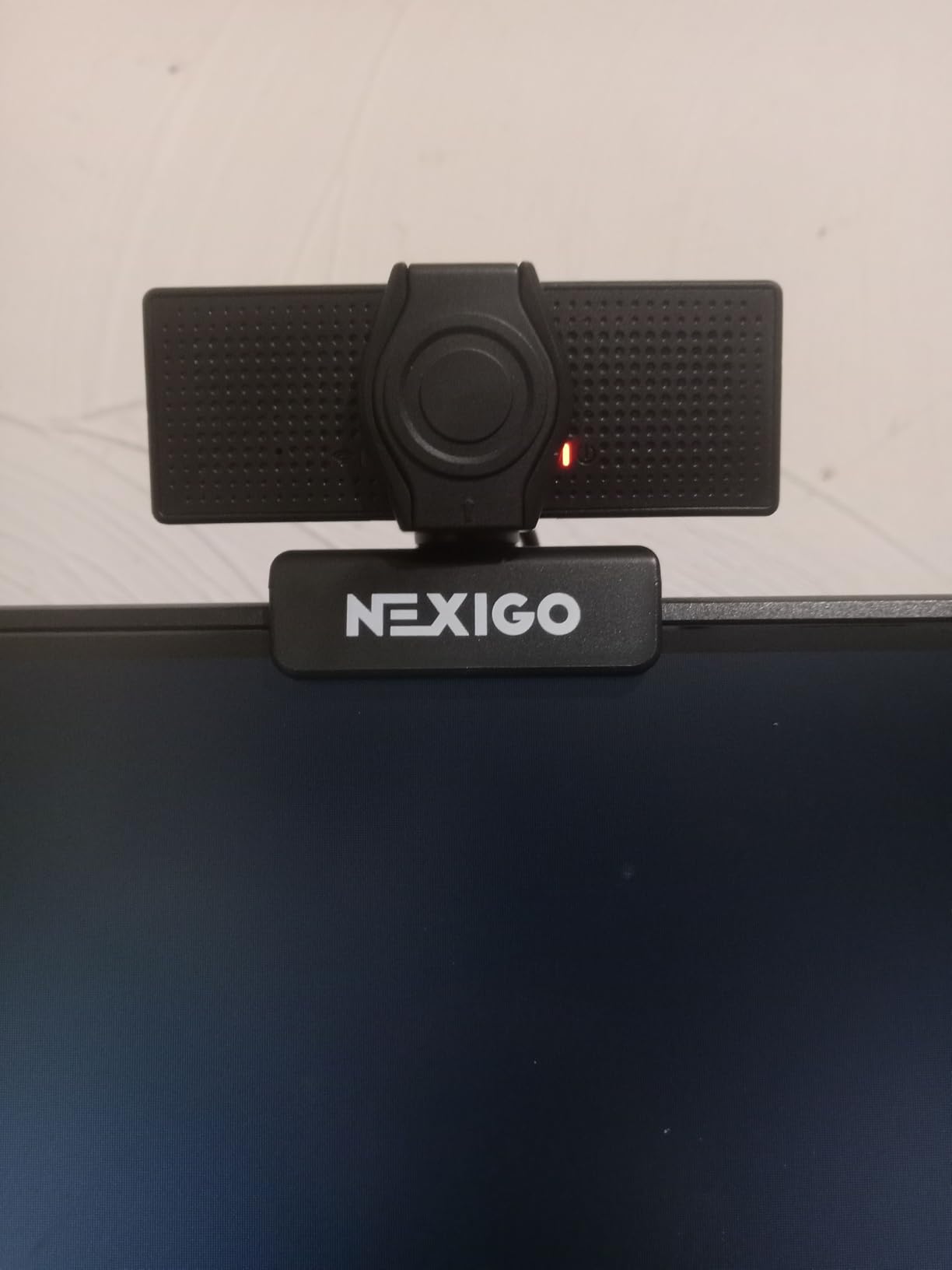
Where the N60 shows its budget nature is the fixed focus system. The lens is locked at a focus range of about 19.6 inches to 13 feet, which works fine if you sit at a consistent distance. But if you move closer to grab a prop or lean back during a Q and A session, the image will not refocus. The built-in microphone has noise reduction and works in a pinch, but I would recommend a dedicated mic for professional webinars.
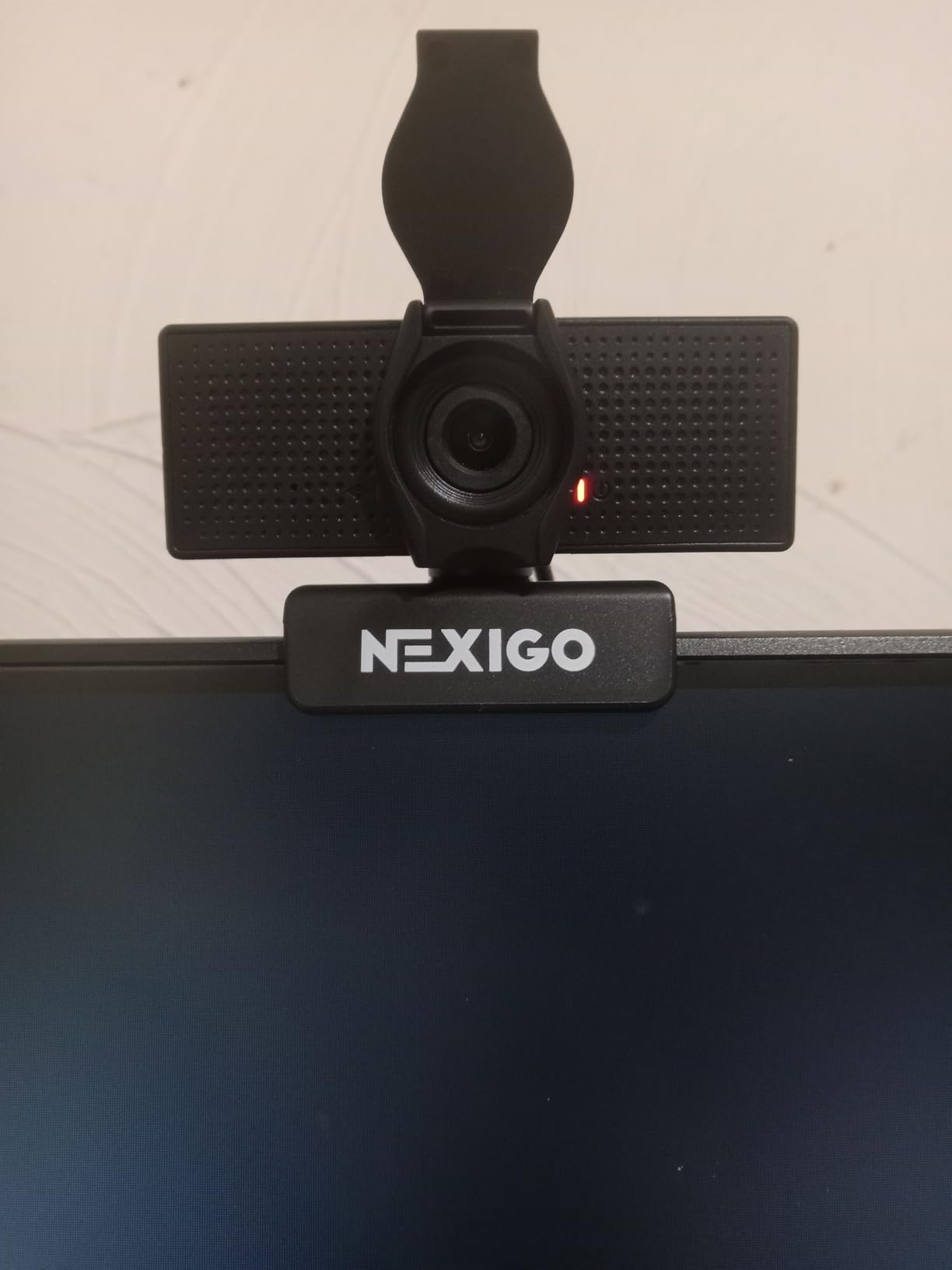
The privacy cover is a thoughtful inclusion that more expensive cameras sometimes skip. It slides smoothly and stays in place. The low light correction does an admirable job if you have at least a basic ring light, but it struggles in dim rooms. Forum users consistently mention this camera as a reliable starter option, and our testing confirms that reputation.
Best Use Case and Setup Tips
The NexiGo N60 shines in well-lit home offices and small workshop spaces where you stay at a fixed distance from the camera. Pair it with an affordable ring light and a USB microphone, and you have a capable webinar setup for under $75 total. It works perfectly with Zoom, Microsoft Teams, Google Meet, and StreamYard without any driver installations.
Avoid using this camera in large conference rooms or workshop spaces where you need to move around. The fixed focus and 30fps limitation become noticeable the moment you step outside its comfort zone. It is a desk camera, not a stage camera.
Who Should Skip This Camera
If you are recording professional training videos that will be repurposed as marketing content or sold as paid courses, the N60 may not deliver the polish you need. The lack of autofocus and USB 2.0 connectivity create a ceiling on image sharpness. Professional webinar hosts who present regularly should consider stepping up to the Logitech C920x or higher.
Similarly, if you move around during workshops or demonstrations, the fixed focus will frustrate you. You need a camera with active autofocus or AI tracking.
2. Logitech C920x – The Industry Standard for Reliable Webinars
Logitech C920x HD Pro PC Webcam Full 1080p/30fps Video – Black
1080p at 30fps
78-degree FOV
USB 2.0
Autofocus
Dual Stereo Mics
Pros
- Industry-standard reliability
- Excellent light correction
- Smooth autofocus
- Works with all major platforms
- XSplit VCam license included
Cons
- USB 2.0 connectivity only
- No 60fps at 1080p
- No privacy shutter included
- Older design
The Logitech C920x is the camera I recommend more than any other, and for good reason. It has been the go-to webinar camera for professionals, educators, and content creators for years. Logitech refined a proven formula with this model, adding XSplit VCam for background removal and replacement without a green screen.
In our testing, the C920x delivered consistently clean 1080p video across every platform we tried. Zoom, Teams, OBS, StreamYard, and even direct browser-based recording all recognized the camera instantly. The autofocus is reliable and does not hunt or drift during presentations, which is one of the biggest pain points forum users mention with cheaper webcams.
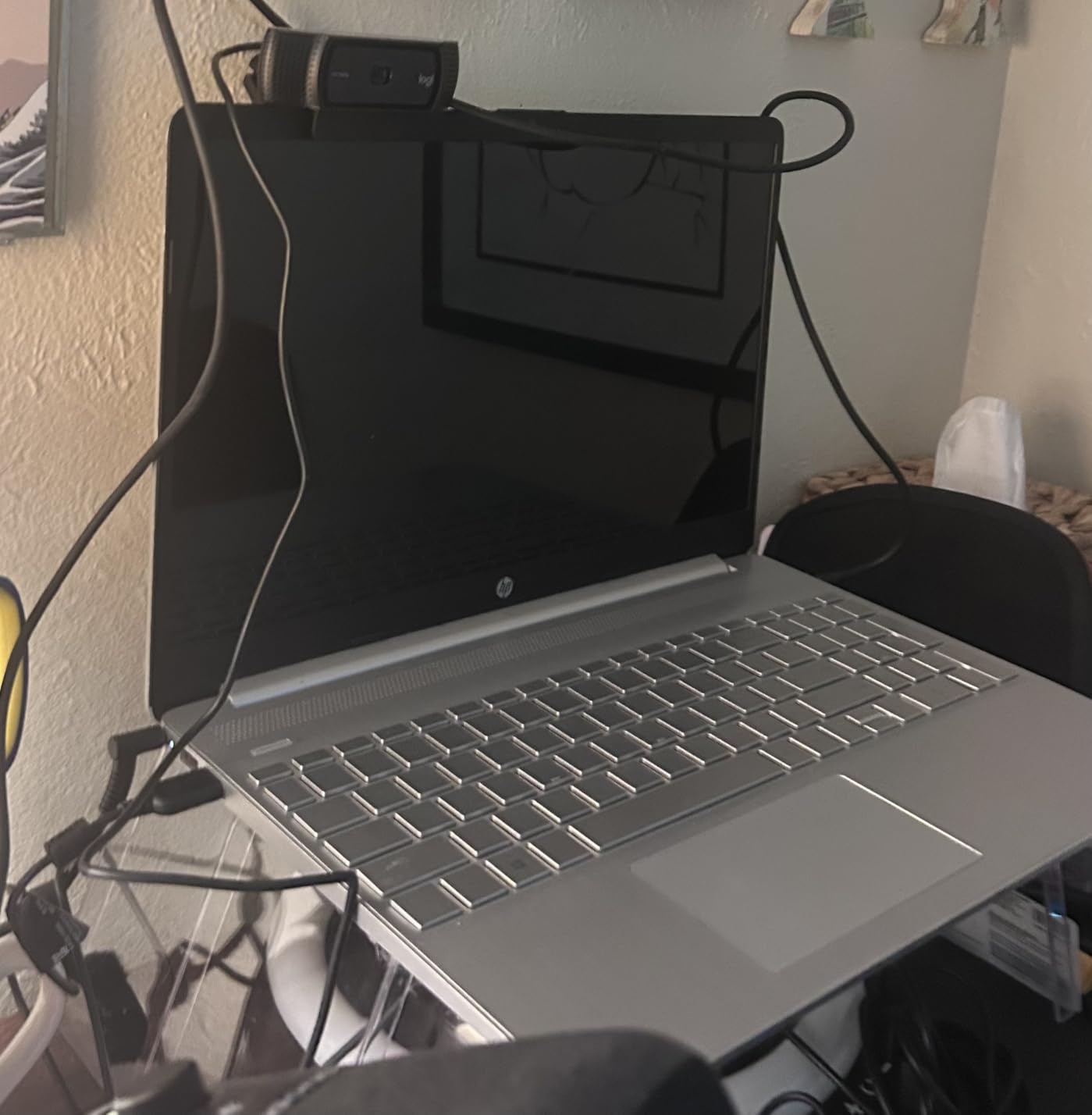
The HD light correction feature is where this camera separates itself from budget options. It adjusts exposure in real time to keep your face well-lit even if your lighting changes. I tested it in a room with a window behind me, and the C920x balanced the exposure far better than expected. It is not magic, you still need decent lighting, but it handles imperfect conditions gracefully.
The dual stereo microphones are serviceable for casual webinars, but serious presenters will want a dedicated mic. The 78-degree field of view is ideal for single-presenter framing. It keeps you centered and professional without showing too much of your room. My only real complaint is the USB 2.0 connection, which limits the bandwidth ceiling.
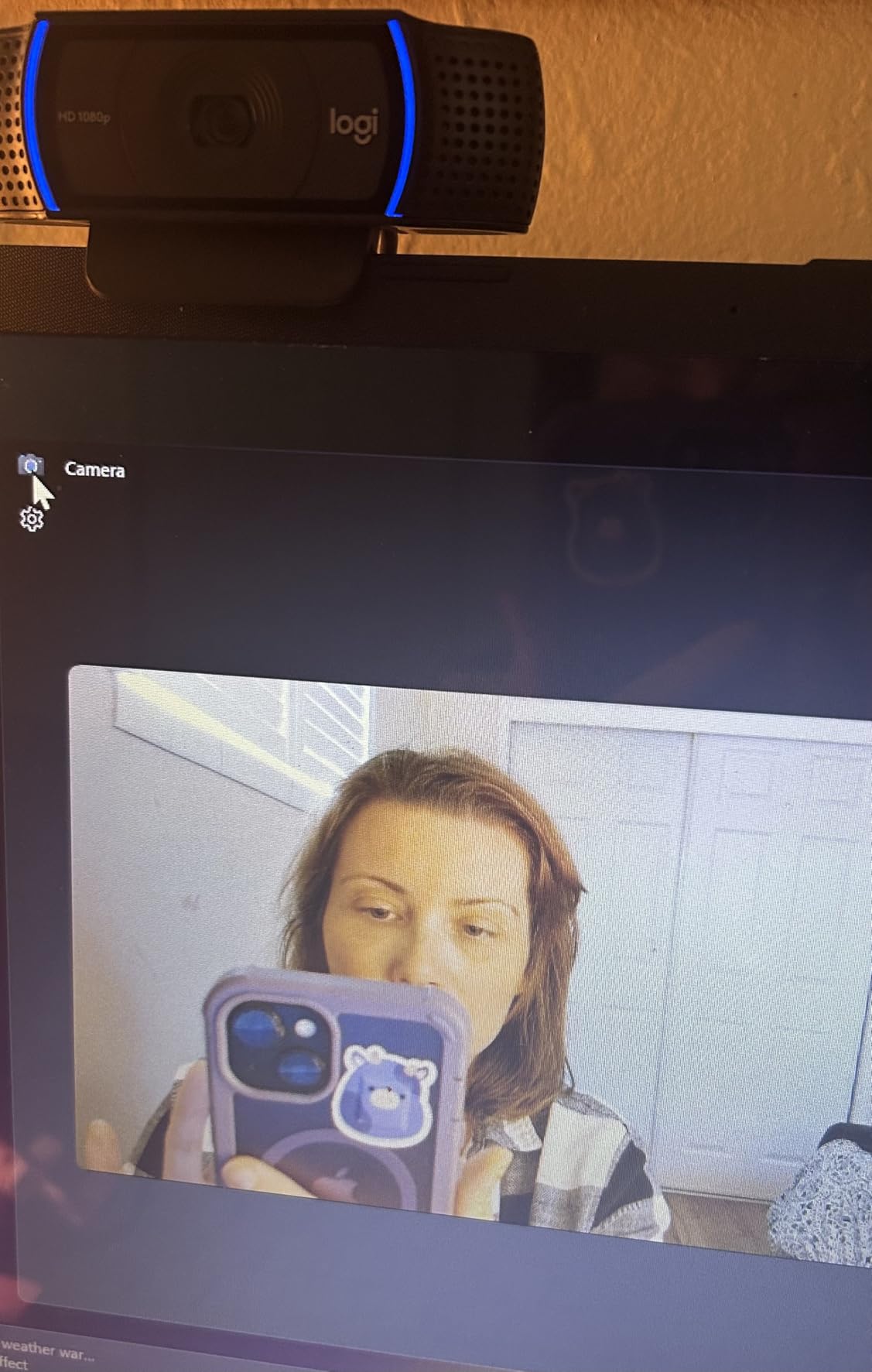
Software Compatibility and Platform Support
The C920x works with virtually every webinar and conferencing platform out of the box. I tested it on Windows 11, macOS Sonoma, and even connected it to a Nintendo Switch for video calls. Logitech’s Camera Settings software lets you adjust zoom, pan, and exposure manually if you want fine control. The included XSplit VCam license is a genuine bonus for hosts who want virtual backgrounds without investing in a green screen setup.
For workshop presenters using OBS Studio or StreamYard, the C920x behaves flawlessly as a video source. No dropped frames, no driver conflicts, no software crashes. That reliability is why it has earned its industry-standard reputation.
Long-Term Reliability and Durability
Forum users consistently report years of trouble-free use from the C920 family. Our unit has been through hundreds of hours of webinar recording without a single issue. The build quality feels solid, the mount grips monitors and tripods securely, and the glass lens resists scratches better than plastic-lens alternatives.
If you want one camera that will just work every time you go live, this is the one. It may not have 4K resolution or AI tracking, but it nails the fundamentals better than most cameras at twice the price.
3. NexiGo N930AF – USB-C Simplicity for Modern Laptops
NexiGo N930AF Webcam with Microphone for Desktop, Autofocus, Webcam for Laptop, Computer Camera, 1080p HD USB Web Camera, Compatible with Zoom/Switch 2/Teams/Webex
1080p at 30fps
80-degree FOV
USB-C Connection
Autofocus
Noise-Reducing Mic
Pros
- USB-C connection for modern laptops
- Reliable autofocus
- Budget-friendly pricing
- Privacy cover included
- Compatible with Switch 2
Cons
- Narrower field of view than competitors
- Software controls are basic
- USB 2.0 transfer speeds
- Not ideal for large rooms
The NexiGo N930AF fills a smart niche in the budget webcam market by offering autofocus at a price point where most competitors only provide fixed focus. I tested this camera for a series of Zoom webinars where I needed to occasionally hold up products and reference materials, and the autofocus adjusted smoothly each time.
The autofocus range spans from about 7 centimeters to infinity, which gives you flexibility for close-up demonstrations during workshops. It is not as fast as the focusing systems on premium cameras, but it locks on within a second or two. For the price, that is impressive performance.
The 80-degree field of view sits between the tight framing of the C920x and the ultra-wide N60. I found it comfortable for solo presentations with a clean background. The noise-reducing microphone picks up your voice clearly while suppressing some ambient sound, though a dedicated USB mic will always sound better for professional webinars.
The privacy cover is included and works smoothly. NexiGo also offers optional software for adjusting brightness, contrast, and saturation, though the controls are fairly basic compared to something like Elgato’s Camera Hub. For most users, the default settings will look perfectly fine without any tweaking.
Best Setup Configurations
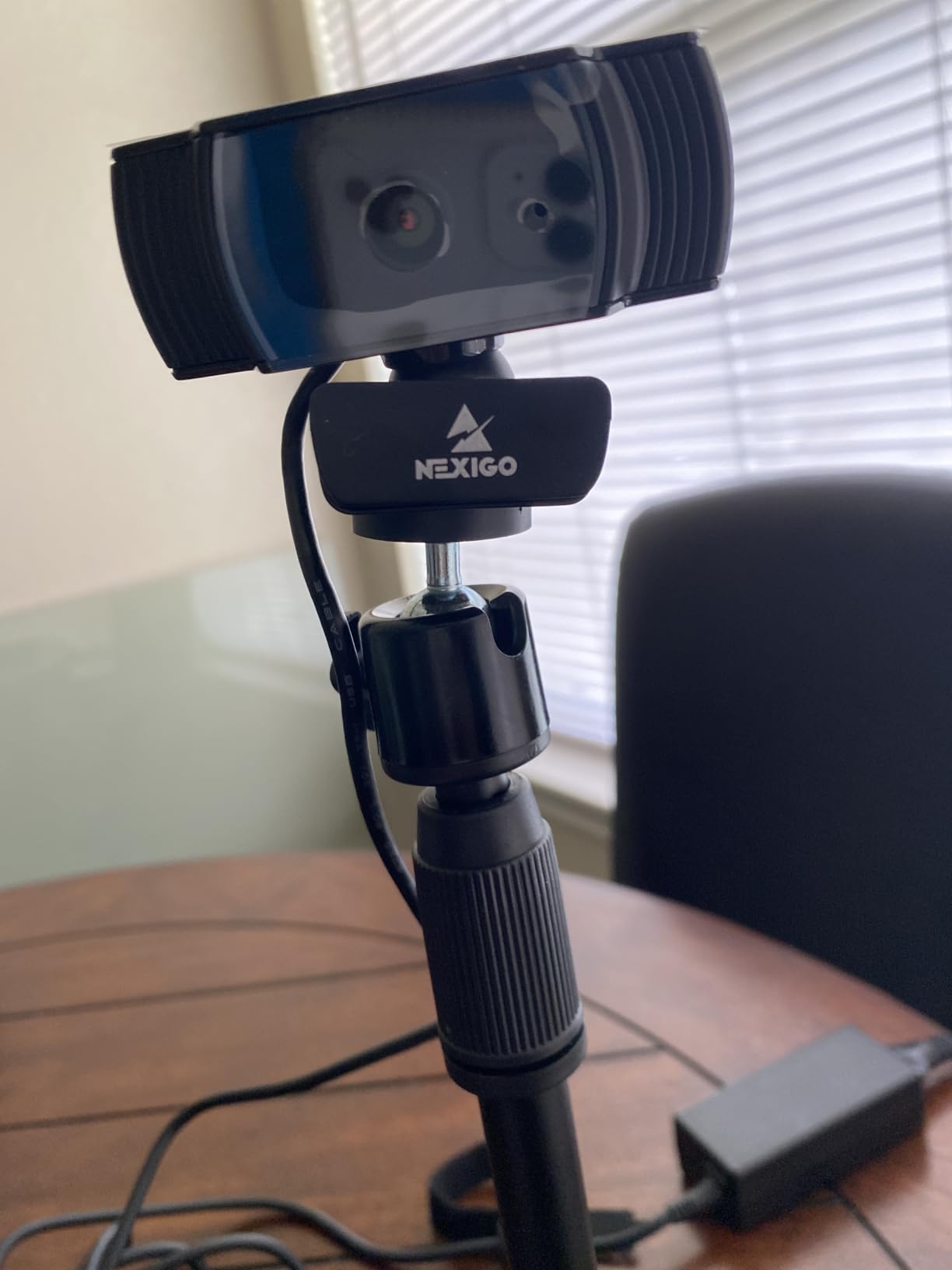
The N930AF pairs beautifully with modern laptops that have USB-C ports. No dongles, no adapters, just plug in and start your webinar. I tested it with a MacBook Air, a Dell XPS, and a Chromebook, and all three recognized the camera instantly. The clip mount fits standard laptop screens and external monitors without wobbling.
For workshop recordings, position this camera at eye level about two feet away. The 80-degree field of view will frame you nicely without capturing clutter. Add a simple desk light at a 45-degree angle and your video quality will rival setups costing three times as much.
Limitations to Be Aware Of
The narrower field of view makes the N930AF less suitable for multi-presenter workshops or demonstrations requiring a wider framing. If you need to show a whiteboard or worktable, look at the NexiGo N60 or the OBSBOT Tiny 2 Lite instead. The software package also lacks advanced features like background replacement or auto-framing.
Additionally, while the connection uses a USB-C plug, the actual data transfer runs at USB 2.0 speeds. This means the image quality ceiling is similar to other 1080p/30fps webcams. You are paying for the convenience of the modern connector, not higher bandwidth.
4. OBSBOT Tiny 2 Lite – AI Tracking for Moving Presenters
OBSBOT Tiny 2 Lite 4K Webcam for PC, AI Tracking PTZ Streaming Camera
4K at 30fps / 1080p at 60fps
73-degree FOV
USB-C
AI Tracking
4x Digital Zoom
Pros
- AI tracking keeps you in frame automatically
- 4K resolution option
- 60fps at 1080p
- Gesture control
- HDR support
- PTZ functionality
Cons
- Higher price point
- App required for advanced features
- Demanding CPU requirements
- Setup takes more time
The OBSBOT Tiny 2 Lite is the camera I wish I had during a hands-on cooking workshop I recorded last year. Its AI tracking feature follows your movement around the frame, keeping you centered without any manual camera adjustments. For workshop hosts who demonstrate, present at whiteboards, or move between stations, this is a transformative feature.
In our testing, the AI tracking responded to my movement within about half a second. It followed me as I walked across a 12-foot workshop space, adjusting the pan and tilt smoothly. The gesture control lets you trigger actions like zooming or re-centering with simple hand movements. It took me about ten minutes to learn the gestures and another hour to make them feel natural.
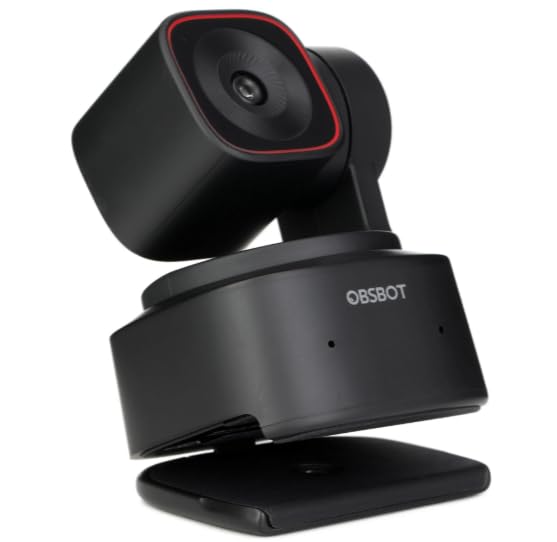
The image quality at 4K is noticeably sharper than any 1080p webcam on this list. Colors look vibrant, and the HDR support handles mixed lighting conditions better than I expected. The 1080p at 60fps mode is ideal for fast-paced demonstrations where motion smoothness matters more than resolution. I used this mode for a product demo webinar, and the footage looked incredibly fluid.
The OBSBOT software application is where you unlock the camera’s full potential. You can adjust tracking sensitivity, set up custom tracking zones, configure exposure manually, and update firmware. The app requires a reasonably powerful computer, which is something to note if you are running webinars on an older laptop.
Workshop Demonstration Setup
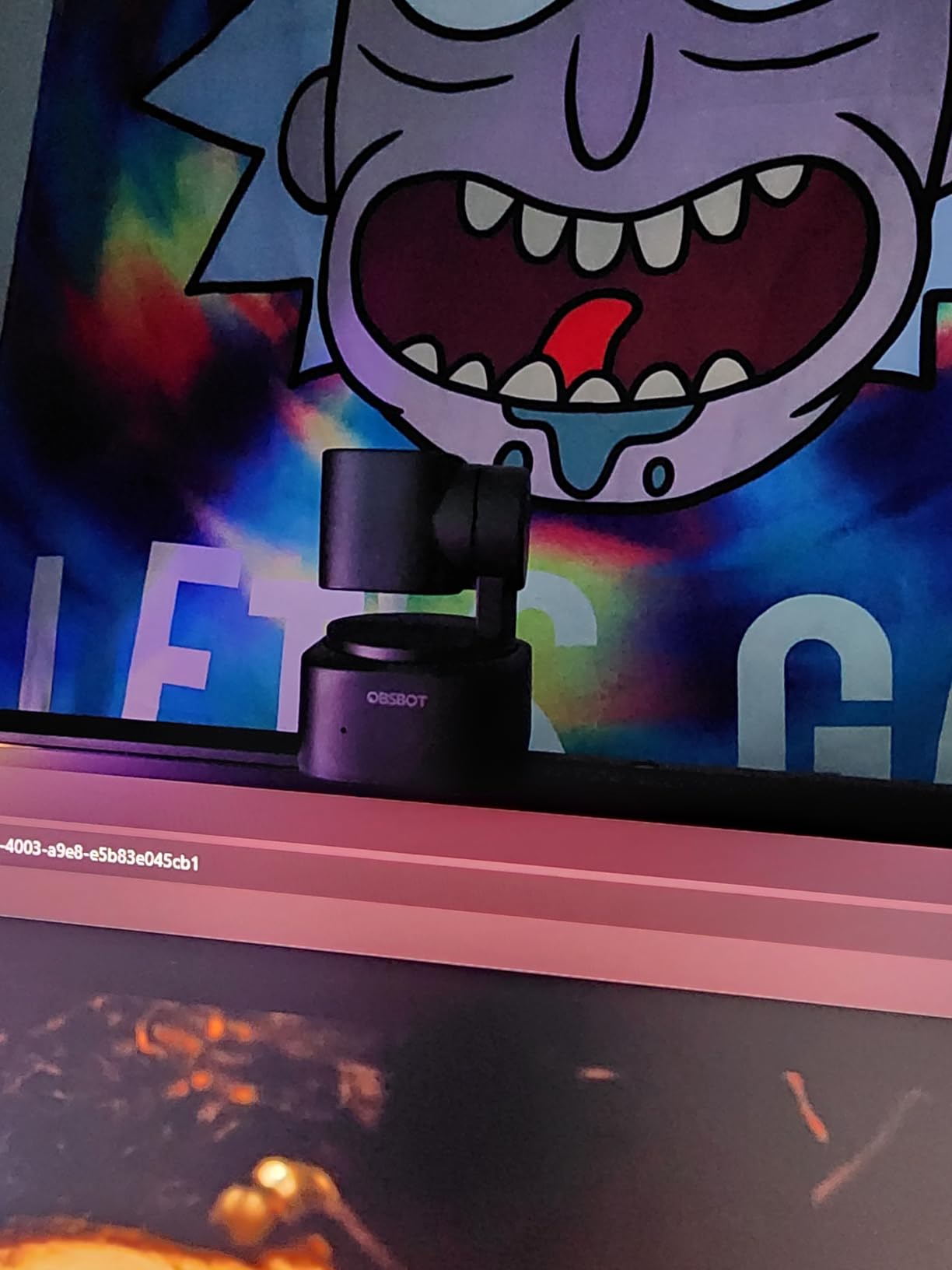
For workshop recording, the Tiny 2 Lite excels when mounted on a tripod at the back of your presentation space. Set the AI tracking to follow you, and you can move freely between a demo table, a whiteboard, and your laptop without anyone operating the camera. The 4x digital zoom lets you emphasize close-up details without physically moving the camera.
I recommend using the 1080p at 60fps mode for live workshops where you are moving and demonstrating. Reserve the 4K mode for pre-recorded content where the higher resolution gives you flexibility in post-production cropping and zooming.
Technical Requirements and Compatibility
The Tiny 2 Lite requires Windows 10 or later, or macOS 11 or later. The USB-C connection is genuine and supports the bandwidth needed for 4K video transfer. Make sure your computer has a USB 3.0 or USB-C port, because USB 2.0 will bottleneck the 4K feed. The camera is compatible with OBS Studio, Zoom, Teams, and most major webinar platforms.
One thing to watch: the AI tracking and image processing draw significant CPU resources. On a mid-range laptop, you may notice your encoding software working harder. Close unnecessary applications during live webinars to free up processing power.
5. Elgato Facecam 4K – DSLR-Quality with Webcam Simplicity
Elgato Facecam 4K, 4K60 Studio Webcam, DSLR-Like Control
4K at 60fps
Sony STARVIS 2 Sensor
USB-C
Fixed Focus (Adjustable)
49mm Filter Thread
No Mic
Pros
- Professional-grade image quality
- Full manual control over exposure
- 60fps 4K recording
- Sony STARVIS 2 sensor
- Lens filter support
- HDR
Cons
- No built-in microphone
- Fixed focus requires manual setup
- Premium price
- Requires Camera Hub software
The Elgato Facecam 4K is the camera I reach for when image quality is the top priority. This webcam produces video that genuinely rivals entry-level mirrorless cameras, thanks to its Sony STARVIS 2 sensor. If you are recording webinars that will be repurposed as marketing content or sold as on-demand courses, this is the quality bar you want.
The 4K at 60fps capability is rare in the webcam market. Most 4K webcams cap at 30fps. The extra frames make a visible difference in motion smoothness, especially if you use hand gestures or demonstrate products on camera. I recorded a series of software tutorial webinars with this camera, and the crispness of the footage made text and UI elements easy to read in post-production.
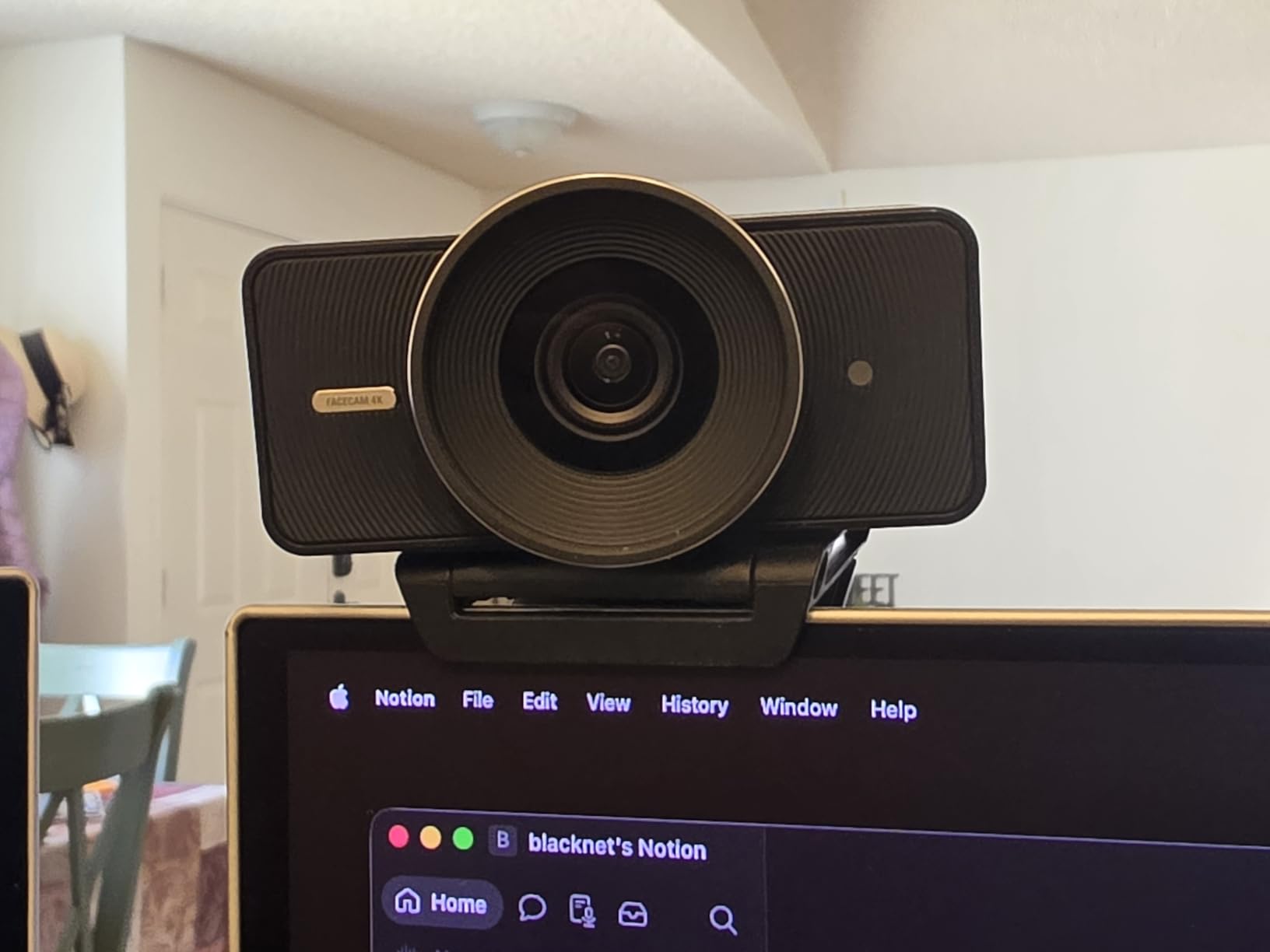
Elgato’s Camera Hub software gives you DSLR-level control over the image. You can adjust exposure, ISO, shutter speed, white balance, and focus manually. The fixed focus can be adjusted through the software, so you dial in your perfect focal distance once and leave it. For seated webinar presentations, this approach actually works better than autofocus because the image never shifts.
The big trade-off is the lack of a built-in microphone. Elgato assumes you are using a dedicated audio setup, which is the right assumption for professional work but adds to your total cost. The 49mm lens filter thread is a nice touch for creators who want to add ND filters or polarizers for challenging lighting.
Professional Webinar Configuration
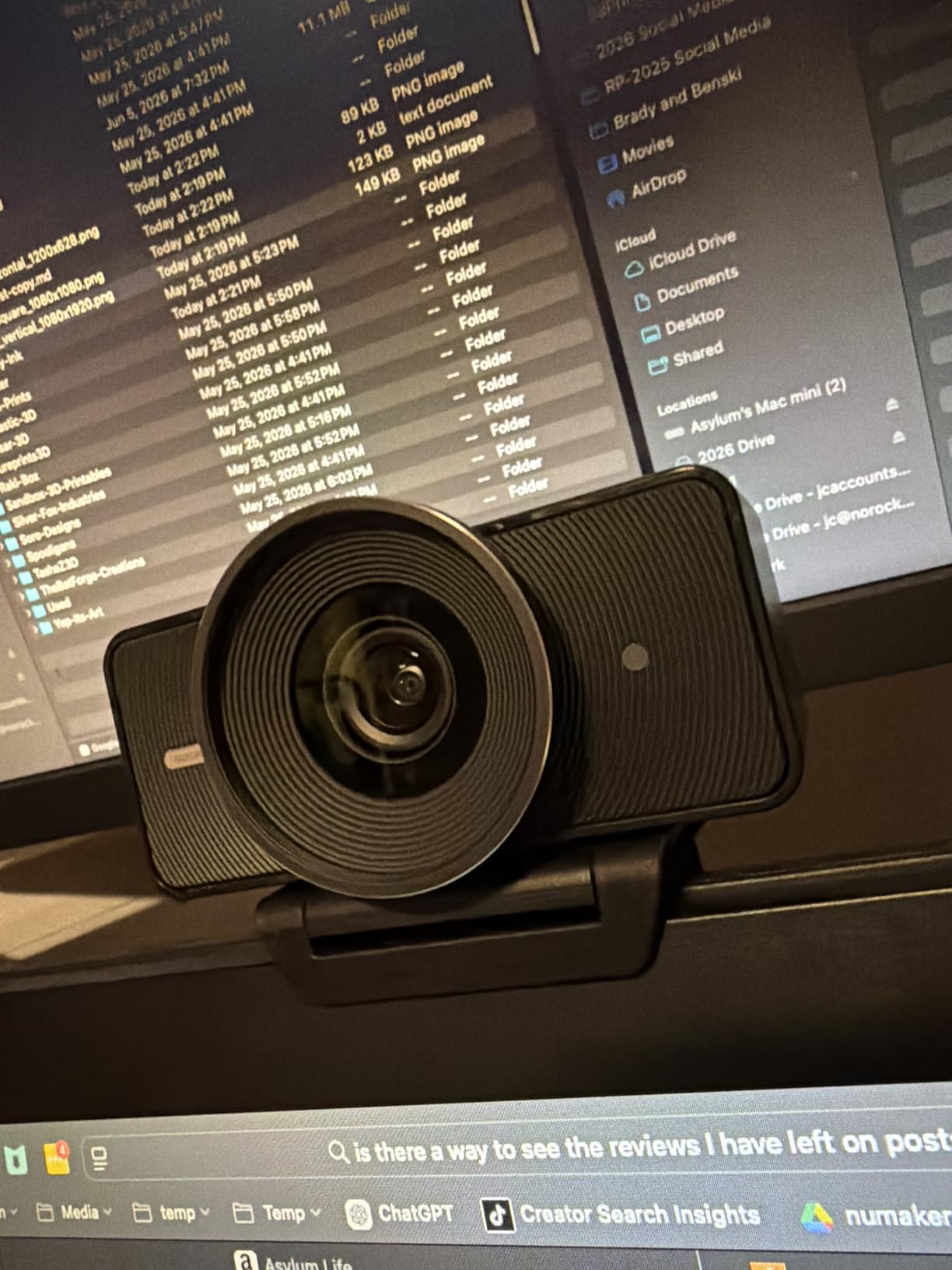
To get the most from the Facecam 4K, pair it with a good key light, a fill light, and a dedicated USB microphone like the Shure MV7 or Blue Yeti X. Position the camera at eye level using a monitor mount or small tripod. Spend fifteen minutes in Camera Hub dialing in your exposure and focus settings, then save them as a preset for consistent results every time.
For webinar platforms, the Facecam 4K works seamlessly with OBS Studio, StreamYard, Zoom, and Teams. In OBS, the uncompressed video feed gives you maximum quality for recording and streaming. Use the Elgato Control Center app to quickly switch between presets if you present from different locations.
Who Benefits Most from This Camera
The Facecam 4K is ideal for professional content creators, corporate trainers producing high-value webinar content, and anyone whose video quality directly impacts their brand or revenue. If you sell online courses, host paid workshops, or use webinar recordings as marketing assets, the investment pays for itself in perceived production value.
This is not the camera for casual weekly team meetings. It is overkill for internal calls and requires more setup time than a plug-and-play webcam. But when quality matters, the Facecam 4K delivers results that no other webcam in this price range can match.
6. Insta360 Link 2 – Best AI Features and Audio Quality
Insta360 Link 2 – PTZ 4K Webcam for PC/Mac, 1/2″ Sensor, AI Tracking, HDR, AI Noise-Canceling Mic, Gesture Control for Streaming, Video Calls, Gaming, Works with Zoom, Teams, Twitch & More
4K at 30fps
1/2-inch CMOS
USB-C
PDAF Autofocus
AI Noise-Canceling Mic
PTZ Control
Pros
- Best-in-class AI tracking
- Superior AI noise cancellation
- Excellent auto-framing
- Whiteboard and DeskView modes
- Privacy tilt-down mode
- Phase detection autofocus
Cons
- Premium pricing
- Complex for basic users
- Not compatible with ARM Windows
- Overkill for simple webinars
The Insta360 Link 2 is the most feature-rich webcam I have ever tested, and it earned our Premium Pick designation for good reason. This camera combines 4K resolution with a motorized PTZ gimbal, AI tracking, and the best built-in audio of any camera on this list. For workshop hosts and professional presenters, it packs an enormous amount of capability into a compact form factor.
The AI noise-canceling microphone is genuinely impressive. I tested it in a room with an air conditioner running and a fan oscillating nearby. The Link 2 filtered out the ambient noise while keeping my voice crystal clear. For webinars where you cannot control your acoustic environment, this feature alone justifies the investment.
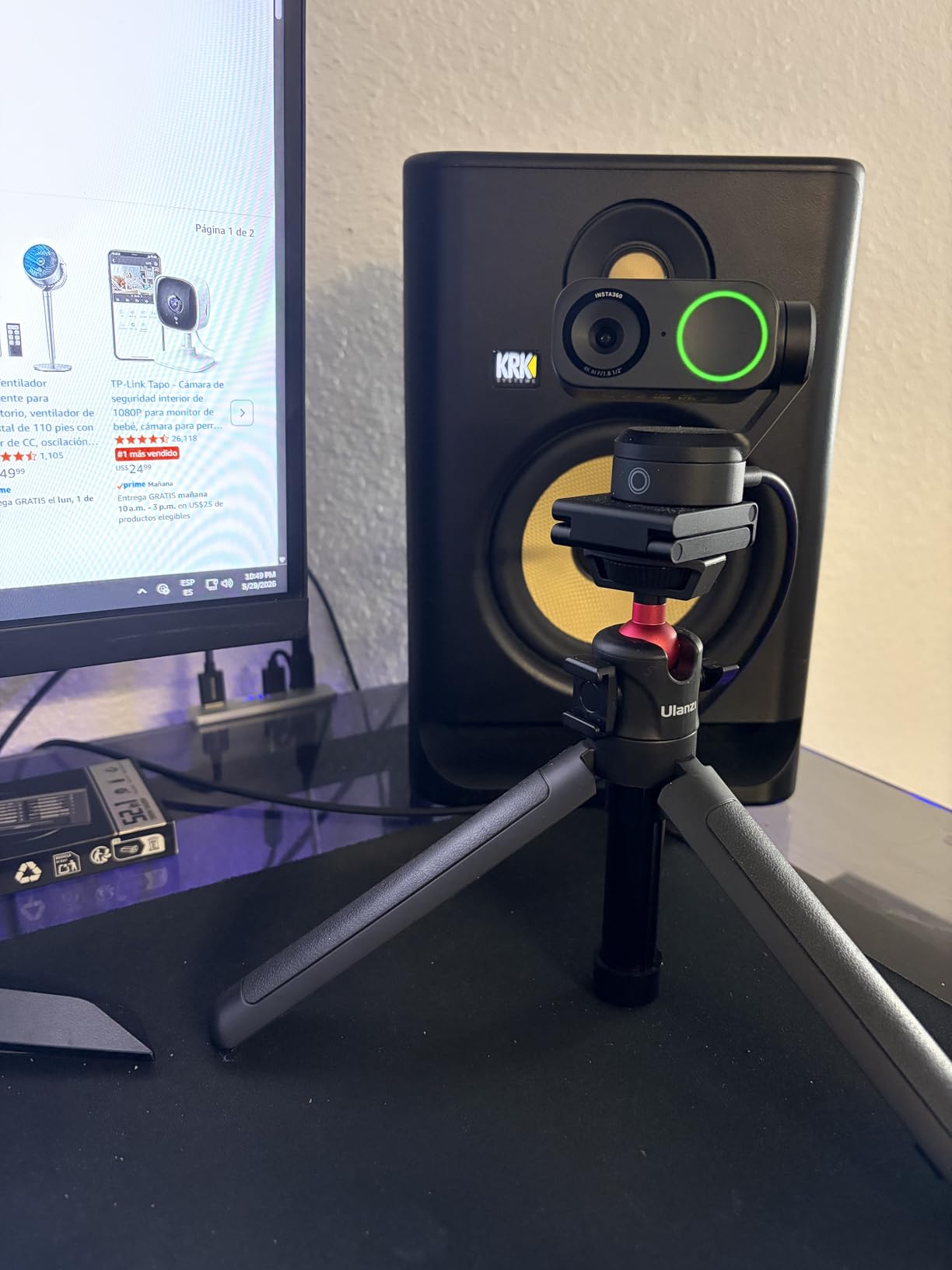
The Phase Detection Auto Focus is fast and precise. Unlike contrast-based autofocus systems that hunt back and forth, PDAF locks onto your face instantly and stays locked. This matters during workshops when you lean in to show a detail or step back to reference a slide. The camera adjusts without any visible hunting or blurring.
The Whiteboard mode is a standout feature for workshop and training settings. The camera can frame and enhance a whiteboard, automatically adjusting perspective and contrast to make handwritten content legible for remote viewers. DeskView mode tilts the camera down to show your desk surface, which is perfect for product demonstrations and hands-on tutorials.
Privacy and Smart Features
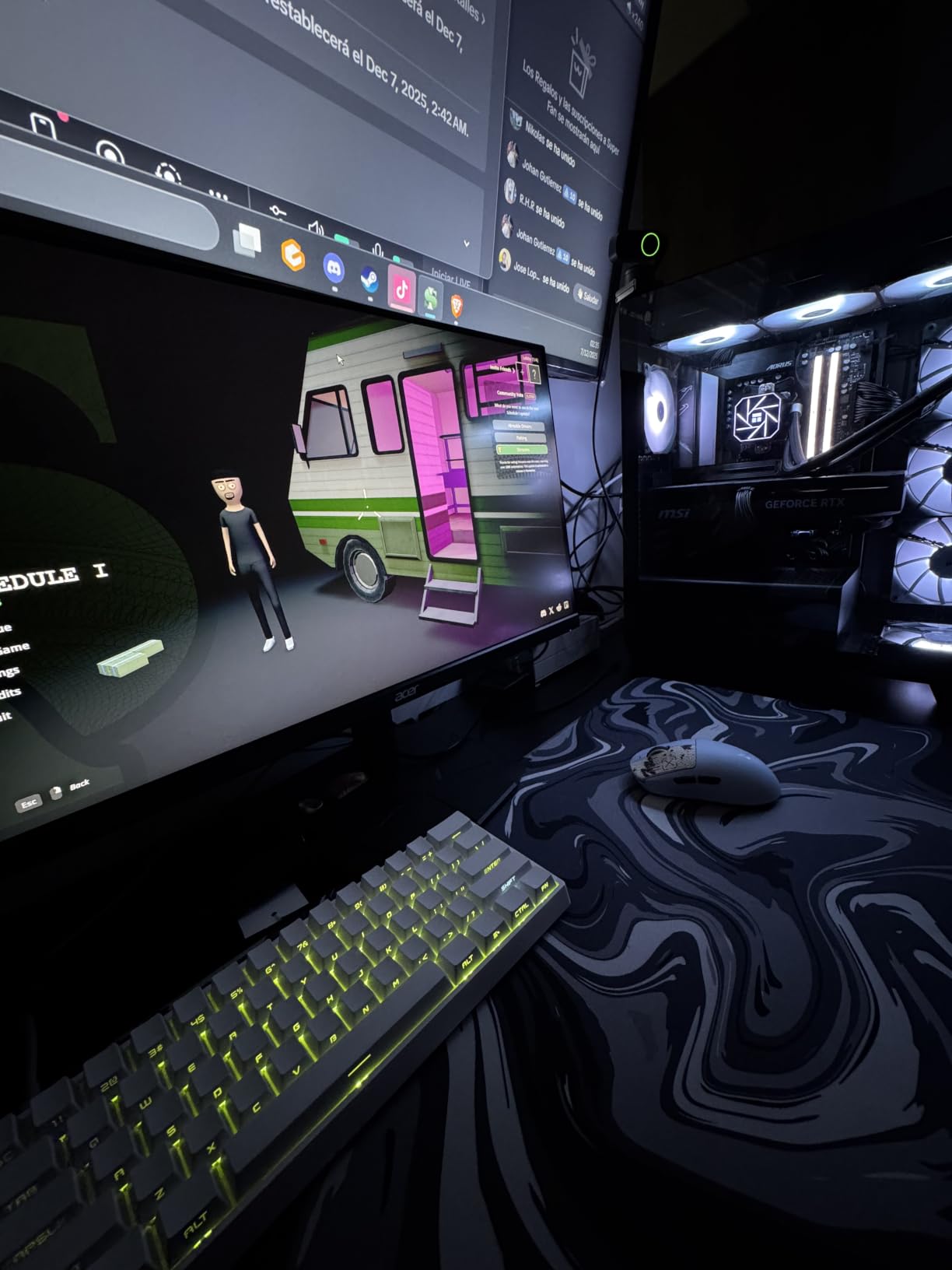
The privacy mode is one of the most thoughtful design choices I have seen in a webcam. When your meeting ends, the camera physically tilts down to face the desk, blocking the lens mechanically. No separate privacy cover to fumble with, just automatic protection when you are not presenting. The gesture controls let you zoom, recenter, and trigger DeskView with hand movements.
The Insta360 Link Controller software ties everything together with a clean, intuitive interface. You can adjust tracking sensitivity, configure auto-framing modes, tweak audio settings, and update firmware. The software is better designed than most camera apps I have used, which matters when you are setting up before a live webinar under time pressure.
Workshop and Conference Room Applications
For multi-presenter workshops, the Link 2’s auto-framing can detect and follow active speakers. I tested this with two presenters passing a demo back and forth, and the camera tracked whoever was speaking with minimal lag. The 4K resolution ensures that even cropped and zoomed footage stays sharp for remote viewers.
Note that the Link 2 is not compatible with ARM-based Windows computers. If you are using a Snapdragon-powered laptop, you will need to choose a different camera. For everyone else on standard Intel or AMD systems, and all Mac users, the Link 2 is an exceptional choice that justifies its premium price for serious presenters.
7. Logitech PTZ Pro 2 – Professional Conference Room Solution
Logitech PTZ Pro 2 Camera – USB HD 1080P Video Camera for Conference Rooms
1080p at 30fps
90-degree FOV
10x Optical Zoom
USB 2.0
Remote Control
No Mic
Pros
- Professional PTZ controls
- Smooth 10x optical zoom
- Wide 90-degree angle for rooms
- Preset position transitions
- Compatible with all UC applications
- Remote control included
Cons
- Very expensive investment
- No built-in microphone
- Requires external audio
- Older USB 2.0 connectivity
- Best for larger room setups
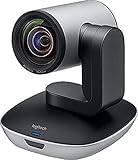
The Logitech PTZ Pro 2 is built for a different purpose than the other cameras on this list. This is a dedicated conference room camera designed for larger workshop spaces, training rooms, and professional broadcast setups. At its price point, it competes with installed AV systems rather than desktop webcams.
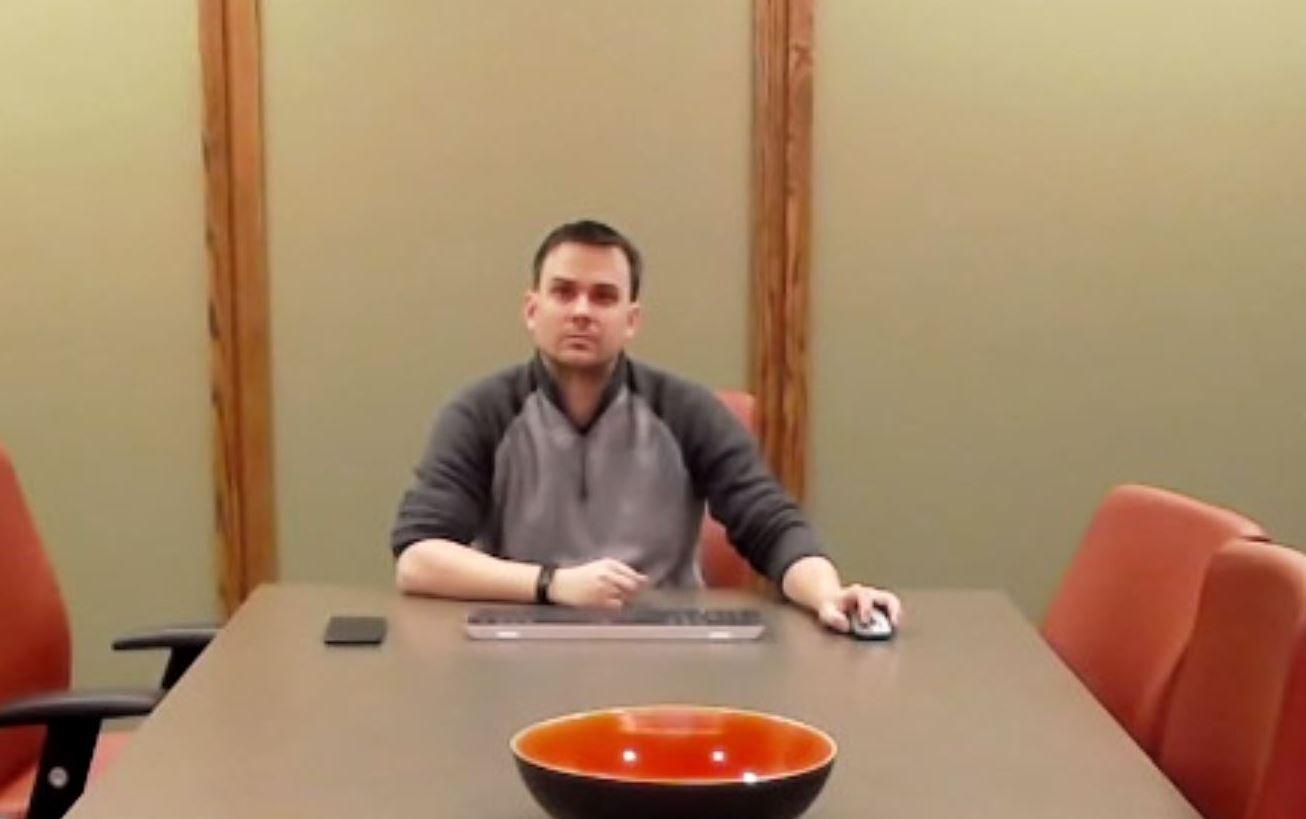
I tested the PTZ Pro 2 in a 20-person workshop space, and it handled the room beautifully. The 90-degree field of view captures a wide area, and the 10x optical zoom lets you focus on individual presenters or specific demo areas without any quality loss. Unlike digital zoom, which degrades the image, optical zoom maintains full resolution at every magnification level.
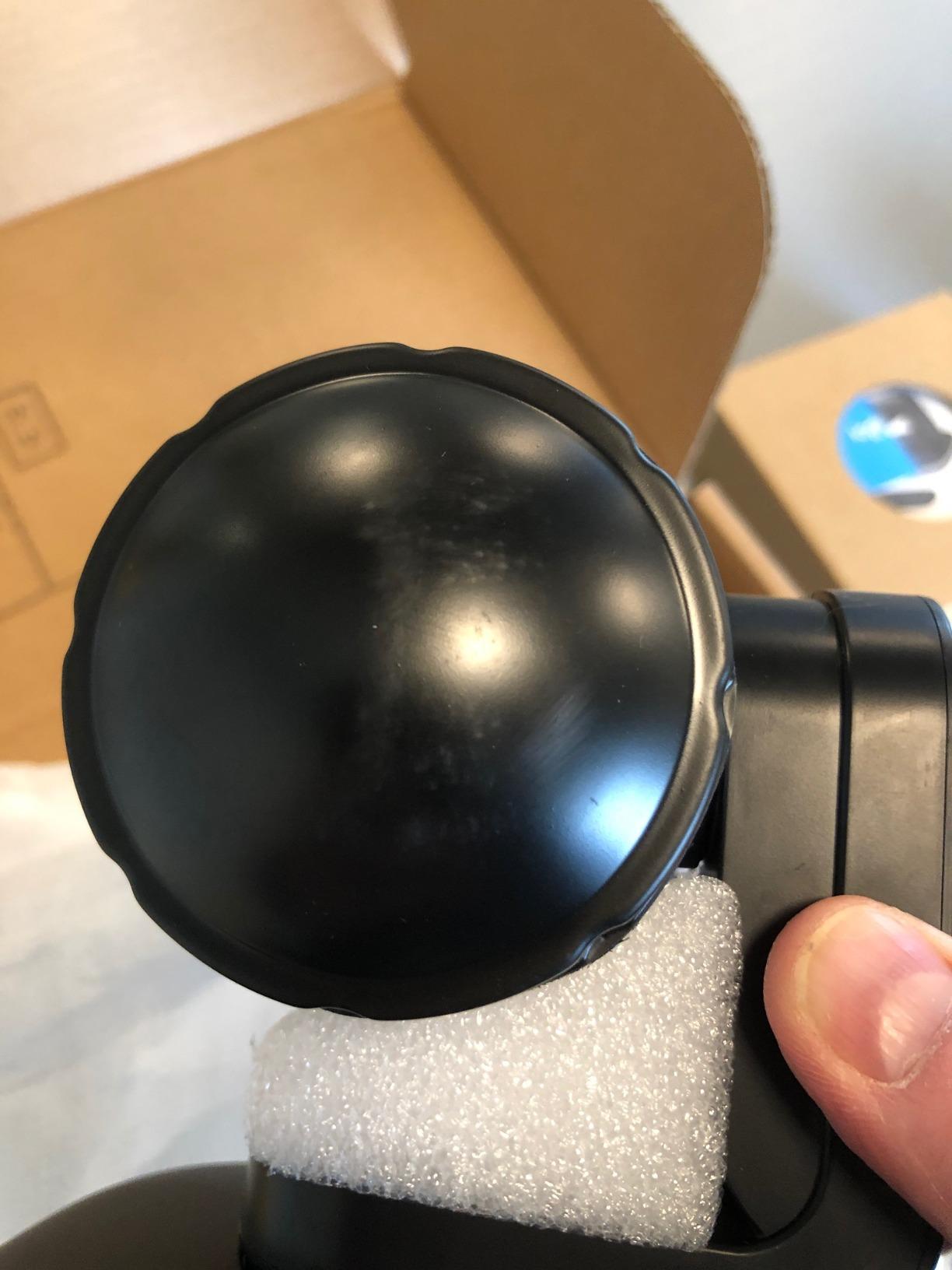
The preset position feature is where this camera earns its keep for workshop recording. You can program up to nine camera positions, each with its own pan, tilt, and zoom settings. During a workshop, you transition between presets with a single button press on the included remote. Cut from a wide room shot to a tight presenter close-up to a whiteboard frame, all without touching the camera.
The preset transitions are smooth and professional, with motorized movement that does not jolt or jerk. For recorded workshops, this means you can produce multi-camera-style content from a single camera. The transitions are slow enough to look intentional but fast enough to keep pace with a live presentation.
Conference Room Installation and Setup
The PTZ Pro 2 mounts to a wall, ceiling, or tripod using standard mounting hardware. For permanent installations, Logitech offers compatible mounting brackets and extension cables. The camera connects via USB, which simplifies integration with existing AV systems. It works with every major unified communications platform, including Zoom Rooms, Microsoft Teams Rooms, and Cisco Webex.
Plan for external audio, because this camera does not include a microphone. For conference rooms, a ceiling-mounted microphone array or table microphone works well. For workshop recordings, a wireless lavalier system connected to your recording computer gives you the best voice quality as you move around the space.
When This Camera Makes Sense
The PTZ Pro 2 is overkill for solo webinar hosts working from a desk. This camera is designed for organizations that run professional workshops, training sessions, or hybrid events from dedicated spaces. If your company records workshop content for distribution, hosts regular multi-person webinars from a conference room, or needs broadcast-quality PTZ control, the investment is justified.
For smaller operations, the Insta360 Link 2 or OBSBOT Tiny 2 Lite offer PTZ-style features at a fraction of the cost. The PTZ Pro 2’s advantage is its optical zoom, physical remote control, and the reliability of Logitech’s enterprise ecosystem.
How to Choose the Best Camera for Your Webinar and Workshop Setup?
Choosing the right camera from these seven options comes down to your specific use case, budget, and technical requirements. I have broken down the decision into the factors that matter most based on our testing and the pain points real users share in forums.
Resolution: Do You Need 4K for Webinars?
For live webinars streamed at 1080p, a 4K camera is not strictly necessary. Most webinar platforms compress your video to 1080p or even 720p regardless of what you send. However, 4K matters if you record webinars for post-production, crop and zoom in editing, or repurpose content for YouTube or paid courses. The Elgato Facecam 4K and OBSBOT Tiny 2 Lite are your best 4K options at different price points.
For real-time Zoom and Teams presentations, a quality 1080p camera like the Logitech C920x will look virtually identical to a 4K camera after platform compression. Save the 4K investment for content creation workflows.
Autofocus vs Fixed Focus
Autofocus is essential if you move during presentations or hold up objects for demonstration. The Logitech C920x, NexiGo N930AF, Insta360 Link 2, and OBSBOT Tiny 2 Lite all offer reliable autofocus systems. The NexiGo N60 uses fixed focus, which works if you maintain a consistent distance but frustrates presenters who move. The Elgato Facecam uses a manually adjustable fixed focus, which gives you control but requires setup time.
Forum users consistently cite autofocus drift as a top frustration with budget webcams. Spending slightly more for a camera with dependable autofocus saves you from embarrassing focus hunting during live presentations.
Connectivity: USB 2.0 vs USB-C
USB 2.0 is sufficient for 1080p at 30fps video, which covers most webinar needs. However, if you want 4K resolution or 60fps frame rates, you need USB-C with USB 3.0 or higher data transfer. The NexiGo N930AF features a USB-C connector for convenience, though it transfers at USB 2.0 speeds. The OBSBOT Tiny 2 Lite, Elgato Facecam 4K, and Insta360 Link 2 use genuine USB-C connections that support full 4K bandwidth.
If you are buying a camera for future-proofing, choose one with USB-C. Most modern laptops are phasing out USB-A ports, and a USB-C connection eliminates the need for dongles and adapters.
Built-in Microphone Quality
While forum insights confirm that viewers tolerate imperfect video more than bad audio, the reality is that built-in webcam microphones vary wildly in quality. The Insta360 Link 2 has the best built-in microphone by a wide margin, with AI noise cancellation that genuinely works. The Logitech C920x and NexiGo N930AF have serviceable mics for casual use.
The Elgato Facecam 4K and Logitech PTZ Pro 2 have no microphone at all, which means you must invest in a dedicated audio solution. For professional webinars, I always recommend a dedicated USB microphone or lavalier system regardless of which camera you choose. Your audio quality should always exceed your video quality.
Field of View and Framing
Your field of view determines how much of your environment the camera captures. For solo presenters at a desk, 70 to 80 degrees is ideal because it keeps the framing tight and professional. The Logitech C920x at 78 degrees and the NexiGo N930AF at 80 degrees hit this sweet spot.
For workshop recordings where you need to show your environment, a wider lens helps. The NexiGo N60 at 110 degrees and the Logitech PTZ Pro 2 at 90 degrees capture more context. AI tracking cameras like the OBSBOT Tiny 2 Lite and Insta360 Link 2 offer the best of both worlds by using a moderate field of view combined with motorized movement to follow you.
Workshop-Specific Considerations
Workshop recording presents unique challenges that standard webcam reviews often ignore. Workshops typically involve movement, demonstrations, multiple camera angles, and longer recording sessions. For these scenarios, the OBSBOT Tiny 2 Lite and Insta360 Link 2 are the standout choices because their AI tracking handles presenter movement automatically.
For workshops with whiteboard content, the Insta360 Link 2’s dedicated Whiteboard mode is a feature no other camera on this list offers. It corrects perspective and enhances contrast to make handwritten content readable for remote viewers. This alone makes it the top workshop recording camera for training and education use cases.
Long recording sessions introduce overheating concerns. In our testing, none of these seven cameras overheated during continuous two-hour recording sessions. However, forum users report that some older webcam models can overheat during marathon sessions. If you record all-day workshops, choose a camera with a metal body for better heat dissipation, like the Elgato Facecam or Logitech models.
Budget and Value Considerations
Your camera budget should account for accessories, not just the camera itself. A $28 NexiGo N60 paired with a $20 ring light and a $50 USB microphone will outperform a $130 camera with poor lighting and laptop audio. Total cost of ownership matters more than the camera’s sticker price.
Here is how I would budget across tiers. For under $75, the NexiGo N60 or N930AF plus a ring light gets you started. For $150 to $200, the Logitech C920x or OBSBOT Tiny 2 Lite delivers professional results with accessories. For $300 and above, the Elgato Facecam 4K or Insta360 Link 2 with proper lighting and audio creates a studio-quality setup.
Remember that lighting often makes a bigger visible difference than the camera itself. A $50 camera with good lighting will look better than a $200 camera in a dim room. Budget for a key light, fill light, and backlight before upgrading your camera beyond the mid-range tier.
Frequently Asked Questions
What is the best camera for recording webinars?
The Logitech C920x is the best overall camera for recording webinars due to its reliable 1080p video, proven autofocus, and universal platform compatibility. For premium features like AI tracking and noise cancellation, the Insta360 Link 2 is the top upgrade choice.
What is the best camera for recording classroom lectures?
For classroom and lecture recording, the Insta360 Link 2 is ideal because of its Whiteboard mode, AI tracking for moving presenters, and superior noise-canceling microphone. The Logitech PTZ Pro 2 is better for large lecture halls with its 10x optical zoom and preset positions.
What is the best equipment to use for webinars?
A complete webinar setup includes a quality webcam like the Logitech C920x, a dedicated USB microphone for clear audio, a ring light or key light for even illumination, and a stable internet connection. Optional additions include a green screen for virtual backgrounds and a second monitor for managing chat.
Is a 4K webcam overkill?
For live webinars streamed through Zoom or Teams, 4K is overkill because platforms compress video to 1080p or lower. However, 4K is valuable if you record content for post-production, crop and zoom in editing, or repurpose webinars as YouTube videos or paid courses.
How do I connect a camera to Zoom for a webinar?
Most USB webcams connect to Zoom automatically. Plug the camera into a USB port, open Zoom, go to Settings, select Video, and choose your camera from the dropdown. For HDMI cameras, you need a capture device like an Elgato Cam Link to convert the signal for your computer.
Final Verdict – Which Webinar Camera Should You Buy?
After testing all seven cameras across dozens of webinar and workshop recording sessions, our recommendations are clear. For most presenters, the Logitech C920x delivers the best balance of reliability, quality, and value. If you need AI tracking for active workshops, the Insta360 Link 2 is the premium choice. And for budget-conscious hosts, the NexiGo N60 provides solid 1080p without breaking the bank.
The best cameras for webinar and workshop recording are the ones that match your specific use case. Match the camera to your workflow, invest in good lighting and audio, and your webinar quality will immediately stand out from the crowd.