
Bitrate is one of the most misunderstood concepts in video and audio production. Most people assume that a higher number automatically means better quality, which leads them to crank settings to the maximum and wonder why their stream buffers, their file sizes balloon, and their viewers complain about playback issues. The truth is far more nuanced, and understanding how bitrate actually works can save you bandwidth, storage space, and a lot of frustration.
In this guide, we break down bitrate in plain language. You will learn what it measures, how it interacts with resolution and frame rate, why pushing it too high can actually hurt your content, and what settings work best for different platforms. Whether you are a streamer, a video editor, or just someone who wants their videos to look good without wasting data, this article will give you the practical knowledge you need.
By the end, you will understand exactly why a higher bitrate is not always better and how to find the sweet spot for your specific use case.
Table of Contents
What Is Bitrate? (Plain English Definition)
Bitrate is the amount of data transmitted per second in a video or audio stream, measured in bits per second (bps). One bit is the smallest unit of digital information, either a 0 or a 1. When we talk about video bitrate or audio bitrate, we are simply describing how many of those bits get sent or stored every second.
Because individual bits are tiny, we usually talk in larger units. Kilobits per second (kbps) equals thousands of bits per second. Megabits per second (Mbps) equals millions of bits per second. A 1080p video stream at 8 Mbps, for example, sends 8 million bits of data every single second to your screen.
Think of bitrate like water flowing through a pipe. The pipe is your bandwidth, and the water is the data. A wider pipe allows more water to flow, which means more data reaches the viewer each second. But just because you can send a flood of water does not mean the faucet on the other end can handle it all at once.
This simple analogy helps explain why bitrate explained properly matters so much. The number alone tells you the volume of data, not whether that data is being used efficiently or whether the receiving end can even process it in real time.
Bitrate Explained: How Data Rate Affects Quality
At low bitrates, every additional bit of data translates to a noticeable improvement in image clarity and motion smoothness. This is because the encoder has very little data to work with, so each extra bit helps it reconstruct the scene more accurately. A video at 500 kbps looks dramatically worse than the same video at 2,000 kbps.
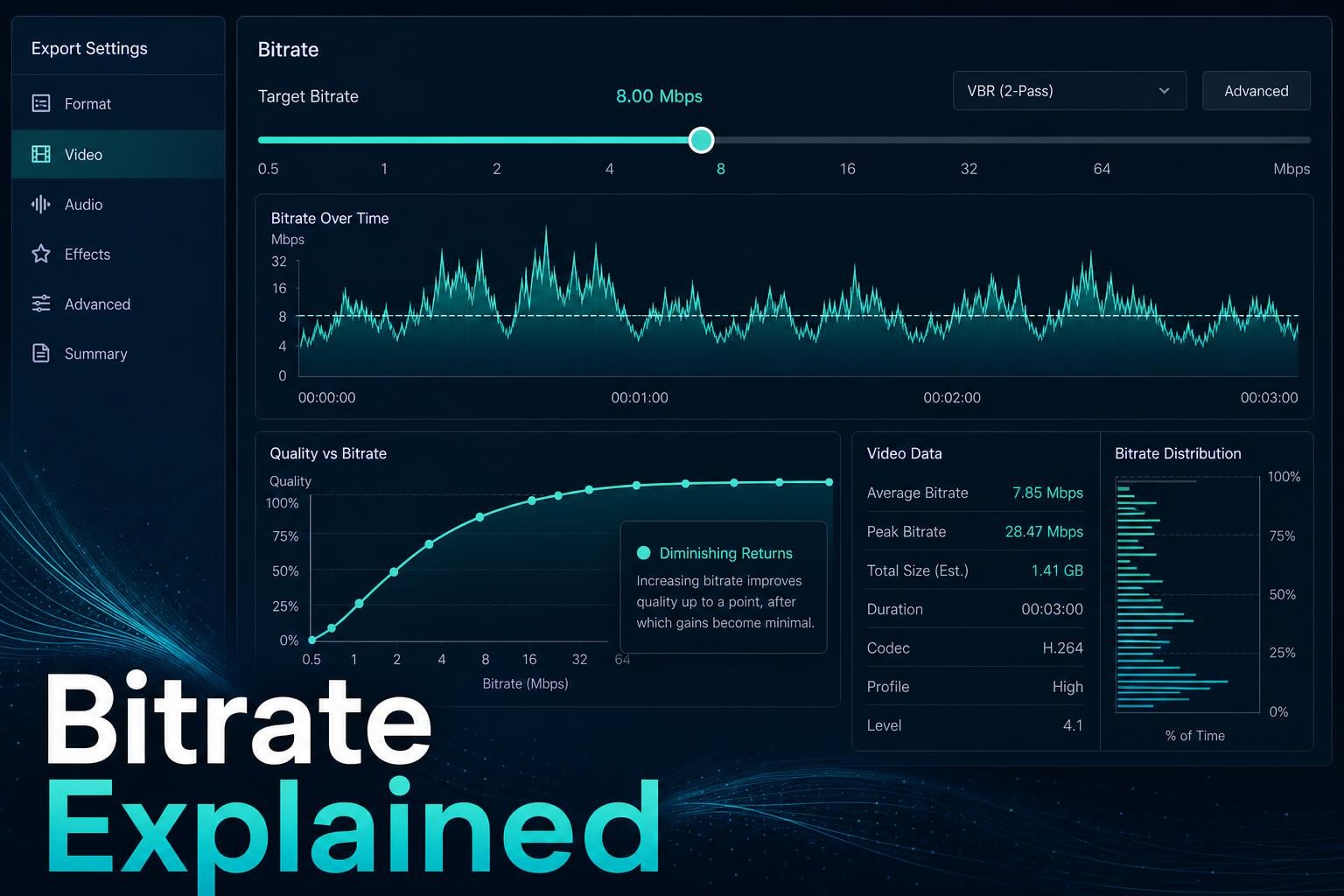
As you increase the bitrate, quality keeps improving but at a slower rate. The jump from 2 Mbps to 4 Mbps is noticeable. The jump from 8 Mbps to 10 Mbps is far less obvious. This is the core of the diminishing returns principle, which we will cover in detail shortly.
The reason for this is compression. Modern codecs like H.264 and H.265 are incredibly good at discarding data that the human eye cannot perceive. Once the encoder has enough bits to faithfully reproduce the important visual information, adding more bits just means storing data that does not visibly change the picture.
Which means the relationship between bitrate and quality is not a straight line. It is a curve that rises steeply at first and then flattens out. Understanding where that curve flattens is the key to choosing the right bitrate for your content.
Why a Higher Bitrate Isn’t Always Better
Pushing bitrate higher than necessary causes real problems that many creators overlook. Here is what happens when you overestimate how much bitrate you actually need.
The Diminishing Returns Problem
Diminishing returns means that beyond a certain point, each additional megabit of data produces a smaller and smaller improvement in visible quality. For a 1080p stream at 30fps using H.264, the quality curve starts to flatten somewhere around 6 to 8 Mbps. Doubling to 16 Mbps might make the file twice as large, but the visual difference is nearly invisible to most viewers.
I have tested this side by side many times. A 1080p gaming stream at 6 Mbps and the same stream at 12 Mbps look virtually identical on most displays. The extra 6 Mbps of data is doing almost nothing for perceived quality, but it is doubling the bandwidth requirements and file size.
Bandwidth Waste and Real Costs
Every megabit of unnecessary bitrate costs money. For live streamers, it means higher upload requirements and more stress on your internet connection. For platforms, it means more server bandwidth and storage costs that get passed down to users in some form.
If you are streaming to 100 viewers at 12 Mbps instead of 6 Mbps, you are serving twice the data with zero quality benefit. For video on demand, excessive bitrate means larger files that take longer to upload, cost more to store, and load more slowly for viewers on slower connections.
Compression Artifacts From Overkill Settings
Here is something that surprises many people. In some cases, extremely high bitrates can actually introduce compression artifacts. This happens because certain encoders, especially hardware encoders under heavy load, can struggle to process massive data rates efficiently. The result is micro-stuttering, frame drops, or inconsistent quality that looks worse than a properly tuned lower bitrate.
This is why many professional streamers and video editors recommend finding the bitrate sweet spot rather than maxing out the slider. A clean, consistent 6 Mbps stream looks better than an unstable 15 Mbps stream that drops frames every few seconds.
Buffering and Playback Issues
High bitrate requires high bandwidth on both ends. If your viewer has a 10 Mbps internet connection and you serve a 12 Mbps stream, they will experience constant buffering. The video simply cannot download fast enough to play smoothly.
This is why platforms like YouTube and Netflix use adaptive bitrate streaming. They serve multiple versions of the same video at different bitrates and automatically switch based on each viewer’s connection speed. Starting at a reasonable bitrate ensures your content reaches the widest possible audience without playback problems.
Bitrate vs Resolution: Which Matters More?
Resolution determines how many pixels your video contains, while bitrate determines how much data describes each of those pixels. A 4K frame has four times as many pixels as a 1080p frame, which means the same bitrate has to spread across four times the pixel count.
This is why a 720p video with a high bitrate can look better than a 1080p video with a low bitrate. At 1080p with only 2 Mbps, each pixel gets very little data, which leads to visible pixelation, blurring, and compression artifacts. At 720p with the same 2 Mbps, each pixel gets more than twice as much data, producing a sharper, cleaner image.
The relationship is quantified using a metric called Bits Per Pixel (BPP). You calculate it by dividing the bitrate by the product of width, height, and frame rate. A BPP of 0.1 or higher generally produces good quality with H.264. Anything below 0.05 starts to look noticeably degraded.
Which means if you cannot push a high enough bitrate for 4K, you are better off streaming at 1080p with a healthy bitrate than 4K with a starved one. Resolution is meaningless if there is not enough data to fill those pixels with accurate information.
Bitrate vs Bandwidth: Understanding the Difference
People often confuse bitrate and bandwidth, but they measure different things. Bitrate describes the amount of data in your video or audio file per second. Bandwidth describes the maximum data capacity of your network connection per second.
If your video bitrate is 8 Mbps but your upload bandwidth is only 6 Mbps, your stream will buffer and drop frames. The pipe is not wide enough to carry the water. This is a common problem for streamers who set their bitrate too high for their connection.
A good rule of thumb is to keep your streaming bitrate at no more than 70 percent of your available upload bandwidth. This leaves headroom for fluctuations in connection speed, audio data, and other network activity. If you have 10 Mbps upload, target a video bitrate around 6,500 to 7,000 kbps maximum.
Bitrate vs Frame Rate: The fps Factor
Frame rate, measured in frames per second (fps), determines how many individual images are shown each second. Higher frame rates produce smoother motion, especially for fast-paced content like gaming and sports. But higher frame rates also require more bitrate to maintain the same quality per frame.
At 60fps, you are sending twice as many frames as at 30fps. To maintain the same quality level, you need roughly 1.5 times the bitrate, not double, because there is less change between consecutive frames at higher frame rates. This is why most platforms recommend higher bitrates for 60fps content.
For example, YouTube recommends 4,500 kbps for 720p at 30fps but 6,750 to 9,000 kbps for 720p at 60fps. The same resolution needs significantly more data to handle the additional frames without introducing motion blur or artifacts.
Codec Impact: Why H.265 and AV1 Need Less Bitrate
The codec you choose has a massive impact on how efficiently your bitrate is used. A codec is the software that compresses and decompresses video data. Newer codecs can achieve the same visual quality at roughly half the bitrate of older ones.
H.264, also known as AVC, is the most widely supported codec as of 2026. It works everywhere but is not the most efficient. H.265, also called HEVC, delivers roughly the same quality as H.264 at about 50 percent of the bitrate. VP9, developed by Google, offers similar efficiency to H.265 and is widely used on YouTube.
AV1 is the newest codec gaining traction in 2026. It offers another 20 to 30 percent efficiency improvement over H.265 and VP9, which means even lower bitrates for the same quality. The trade-off is that AV1 requires more processing power to encode and decode.
This is why two videos with identical bitrates can look completely different if they use different codecs. A 4 Mbps H.265 stream can look as good as an 8 Mbps H.264 stream. When someone asks what bitrate they should use, the codec is part of the answer.
CBR vs VBR: Constant vs Variable Bitrate Explained
Constant Bitrate (CBR) maintains the same data rate throughout the entire video. Every second gets the same number of bits regardless of what is happening on screen. This is ideal for live streaming because it produces a predictable, steady data flow that network connections handle reliably.
Variable Bitrate (VBR) adjusts the data rate based on scene complexity. A static talking head scene gets fewer bits, while an action sequence with lots of motion gets more. VBR is more efficient for recorded video because it allocates data where it is needed most, producing better overall quality at a lower average bitrate.
For live streaming on platforms like Twitch or YouTube Live, CBR is almost always recommended. The consistent data flow prevents buffering and ensures the platform receives a stable signal. For pre-recorded videos uploaded to YouTube or Vimeo, VBR (specifically two-pass VBR) produces the best results because the encoder can analyze the entire video before deciding how to allocate bits.
Recommended Bitrates by Resolution and Platform
Choosing the right bitrate depends on your resolution, frame rate, codec, and platform. Here are the recommended settings based on current platform guidelines for 2026.
Video Bitrate Recommendations by Resolution (H.264)
For 720p at 30fps, 2,500 to 4,000 kbps is the sweet spot. At 60fps, target 3,500 to 5,000 kbps. Going above 5,000 kbps for 720p produces minimal visible improvement.
For 1080p at 30fps, 4,500 to 6,000 kbps works well for most content. At 60fps, aim for 6,000 to 9,000 kbps. High-motion content like fast-paced gaming may benefit from the upper end of these ranges.
For 1440p (2560×1440) at 30fps, 9,000 to 12,000 kbps delivers good quality. At 60fps, target 12,000 to 18,000 kbps. This resolution needs substantially more data than 1080p because it has nearly twice the pixel count.
For 4K (3840×2160) at 30fps, 15,000 to 25,000 kbps is recommended. At 60fps, you may need 25,000 to 40,000 kbps. If you cannot reach these numbers, you are better off streaming or encoding at 1440p instead.
Platform-Specific Guidance
YouTube recommends 3,500 to 5,000 kbps for 720p at 30fps and 5,500 to 9,000 kbps for 1080p at 60fps. YouTube re-encodes everything you upload, so exceeding their recommendations significantly does not help because they will compress it down anyway.
Twitch has a hard cap of 6,000 kbps for standard streamers, though affiliates and partners can go higher. Most Twitch streamers use 4,500 to 6,000 kbps at 1080p or 720p. Going above 6,000 without partnership status can cause buffering for viewers and potential throttling from the platform.
Facebook Live recommends 4,000 kbps maximum for 1080p at 30fps. The platform re-encodes aggressively, so higher bitrates waste bandwidth without improving viewer quality.
For audio bitrate, 128 kbps is the standard for stereo AAC audio in most streams. For music-focused content or podcasts, 256 kbps or 320 kbps provides noticeably better fidelity. Below 96 kbps, audio quality degrades noticeably with audible artifacts.
When Higher Bitrate Actually Does Help
Despite everything we have covered, there are situations where pushing bitrate higher genuinely improves quality. Understanding these scenarios helps you know when to invest the extra bandwidth.
High-motion content benefits the most from higher bitrates. Fast-paced games, sports broadcasts, and action sequences contain rapid changes between frames that require more data to encode accurately. A racing game stream at 60fps needs significantly more bitrate than a static board game stream at 30fps.
Complex scenes with fine detail also reward higher bitrates. Footage with lots of texture, like grass, water, or confetti, is notoriously difficult to compress. These scenes show compression artifacts at lower bitrates that disappear when you push the data rate higher.
Professional archival and master files for video editing warrant the highest possible bitrate, or even lossless encoding. When you are storing original footage for later editing and re-encoding, preserving maximum quality matters more than file size or bandwidth efficiency.
For the vast majority of streamers and content creators, though, these scenarios are the exception rather than the rule. Most content looks great at moderate bitrates, and the extra data from going higher goes unnoticed by viewers.
How to Choose the Right Bitrate in 2026?
Finding the optimal bitrate for your content does not have to be complicated. Follow these steps to land on settings that balance quality, file size, and viewer experience.
Step 1: Identify your resolution and frame rate. These two factors form the foundation of your bitrate calculation. Know whether you are streaming at 720p, 1080p, 1440p, or 4K, and at 30fps or 60fps.
Step 2: Consider your content type. High-motion content like gaming and sports needs more bitrate than talking head videos, presentations, or static content. Adjust your target upward for complex scenes and downward for simpler ones.
Step 3: Check your platform recommendations. Each platform has published guidelines for optimal bitrates. Start with their recommendations and adjust based on your specific situation.
Step 4: Factor in your available bandwidth. For live streaming, keep your video bitrate at no more than 70 percent of your upload speed. Test your connection using a speed test at different times of day to account for fluctuations.
Step 5: Test and compare. Record short clips at different bitrates and compare them side by side. Most viewers cannot tell the difference between 6 Mbps and 10 Mbps at 1080p. If you cannot see a difference, choose the lower setting and save the bandwidth.
Step 6: Choose your codec wisely. If your platform and audience support H.265 or AV1, use them. You will get the same quality at a lower bitrate, which means smaller files and less bandwidth consumption.
FAQs
Does a higher bitrate always mean better quality?
No, a higher bitrate does not always mean better quality. Beyond a certain threshold, additional bitrate produces diminishing returns where the visual improvement is invisible to most viewers. Excessive bitrate can also cause buffering, waste bandwidth, and in some cases introduce encoding artifacts from overloaded hardware.
Is 20,000 bitrate too high?
A bitrate of 20,000 kbps (20 Mbps) is too high for most streaming scenarios. It may be appropriate for 4K recording or high-motion 1440p content, but for 1080p streaming it is overkill. Most platforms like Twitch cap at 6,000 kbps for standard streamers, and YouTube recommends well below 20,000 kbps for 1080p.
Is 6000 bitrate too high for 720p?
Yes, 6,000 kbps is generally too high for 720p streaming. The recommended range for 720p at 30fps is 2,500 to 4,000 kbps, and 3,500 to 5,000 kbps for 60fps. At 6,000 kbps for 720p, you are well into diminishing returns territory where extra data provides no visible quality improvement.
What bitrate for 2560×1440?
For 2560×1440 (1440p) streaming, the recommended bitrate range is 9,000 to 12,000 kbps at 30fps and 12,000 to 18,000 kbps at 60fps using H.264. With H.265 or AV1 encoding, you can achieve similar quality at roughly half those data rates.
What is the difference between bitrate and bandwidth?
Bitrate is the amount of data in your video or audio stream per second. Bandwidth is the maximum data capacity of your network connection per second. Your bitrate must be lower than your available bandwidth for smooth playback, which is why streamers should keep video bitrate at no more than 70 percent of their upload speed.
Why does my high bitrate video look pixelated?
High bitrate video can look pixelated when the encoder is overwhelmed, the resolution is too high for the bitrate (low bits per pixel), or there is network instability causing dropped frames. Sometimes a lower resolution with a higher relative bitrate per pixel produces a cleaner image than pushing resolution too high.
Conclusion
Bitrate explained properly comes down to one core principle: the right number is always the one that delivers good quality without wasting bandwidth or causing playback issues. More data does not automatically equal better video, and understanding the interplay between bitrate, resolution, frame rate, codec, and bandwidth is what separates professional-quality content from bloated, buffering messes.
Start with the recommended ranges for your resolution and platform, test different settings with your own content, and trust your eyes. If you cannot see a difference between two bitrates, choose the lower one. Your viewers, your bandwidth bill, and your storage will all thank you.
Take time to experiment with your specific setup and content type. The sweet spot for a talking head podcast is very different from a fast-paced gaming stream, and finding yours is the best way to deliver quality content consistently.