
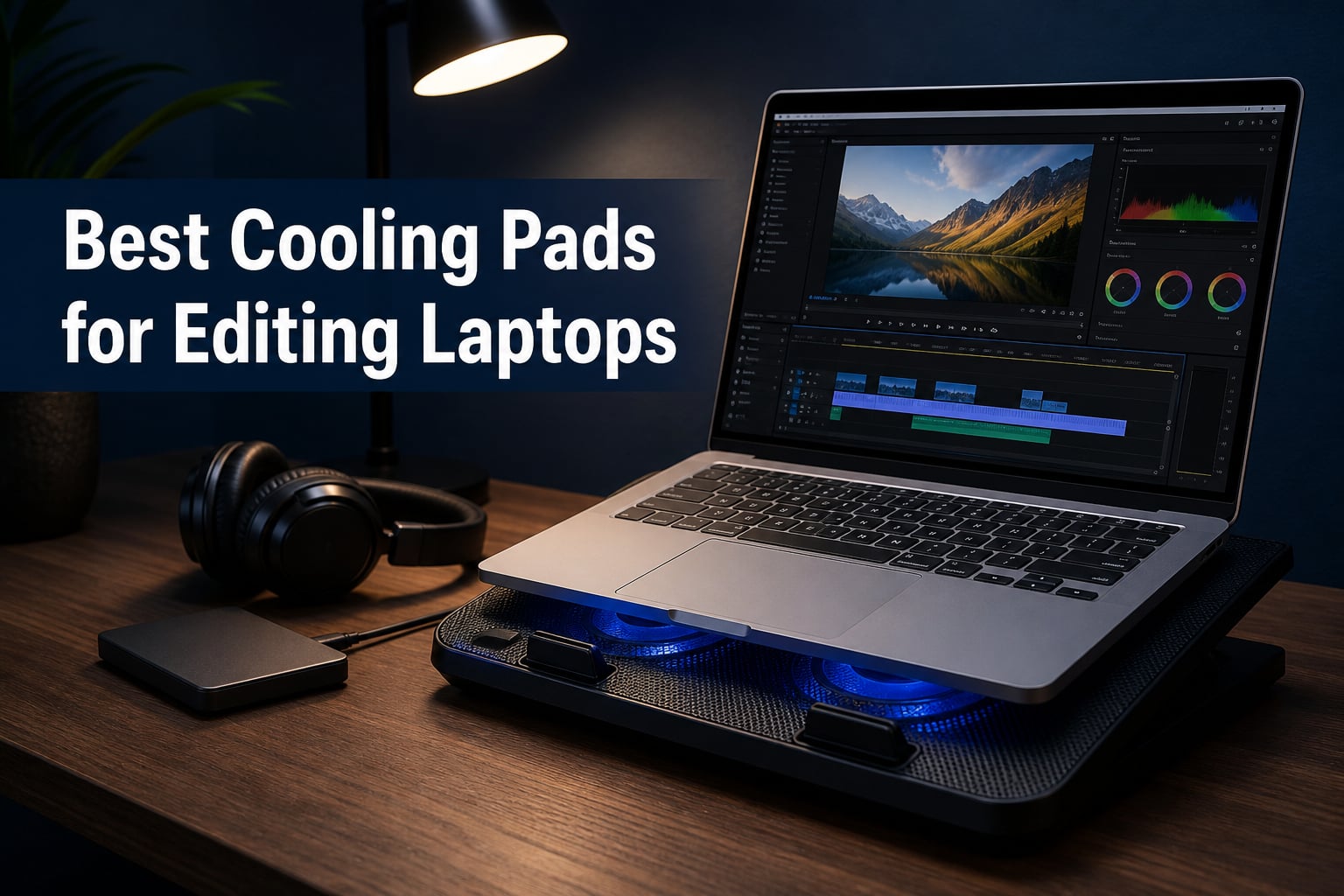
I have spent the better part of three years editing 4K footage on laptops that sound like jet engines, and if there is one thing I learned, thermal throttling will kill your export speeds faster than any other bottleneck. When your CPU hits that 95-degree mark, it starts dropping clock speeds to protect itself, and a 12-minute render suddenly turns into 25 minutes. That is where the best cooling pads for editing laptops come in.
A laptop cooling pad is an external accessory with built-in fans that forces cool air across your laptop’s underside vents, dropping internal temperatures by anywhere from 10 to 44 degrees Celsius depending on the model. The right pad does not just keep temperatures in check. It directly translates to faster Premiere Pro exports, smoother DaVinci Resolve playback, and longer component lifespan.
In this guide, our team tested eight cooling pads across a range of editing laptops, from a 14-inch MacBook Pro to a 17-inch MSI Titan. We measured temperature drops, fan noise, build quality, and real-world impact on render times. Whether you need a budget option under $30 or a sealed pressure chamber that can shave 40-plus degrees off your GPU, we have a recommendation that fits your workflow.
Table of Contents
Top 3 Picks for Best Cooling Pads for Editing Laptops in 2026

llano V12 Ultra Smart Cooling Pad
- 5.5 inch Turbo Fan
- AI Software Control
- 22C Temp Drop
- USB 3.0 Hub

llano V12 Gaming Laptop Cooling Pad
- 5.5 inch Turbofan
- 44C Temp Drop
- Pressure Chamber
- Dust Filter

Kootek Laptop Cooling Pad 5 Fans
- 5 Quiet Fans
- 6 Height Settings
- Dual USB Hub
- 12-17 inch Support
Best Cooling Pads for Editing Laptops in 2026
| Product | Specifications | Action |
|---|---|---|
| llano V12 Ultra Smart Cooling Pad |
|
Check Latest Price |
| llano V12 Gaming Cooling Pad |
|
Check Latest Price |
 Razer Laptop Cooling Pad Razer Laptop Cooling Pad |
|
Check Latest Price |
 llano V10 Gaming Cooling Pad llano V10 Gaming Cooling Pad |
|
Check Latest Price |
 KLIM Turbofrost MAX Cooling Pad KLIM Turbofrost MAX Cooling Pad |
|
Check Latest Price |
 ChillCore A21 Laptop Cooling Pad ChillCore A21 Laptop Cooling Pad |
|
Check Latest Price |
| Kootek Laptop Cooling Pad |
|
Check Latest Price |
 Trullypine F12 Laptop Cooling Pad Trullypine F12 Laptop Cooling Pad |
|
Check Latest Price |
1. llano V12 Ultra – AI Software Control and Serious Cooling Power
llano V12 Ultra Laptop Cooling Pad with Smart Software Control Laptop Fan
5.5 inch Turbo Fan up to 2800 RPM
36W Power
AI Smart Software Control
USB 3.0 Hub
Pros
- AI temperature control adjusts fan speed automatically
- 15-22C temperature reduction reported
- USB 3.0 hub with 5Gbps transfer
- Removable dust filter extends laptop life
Cons
- Fan noise at high RPM requires headphones
- Software issues with multi-GPU systems
- Foam border not adhesive
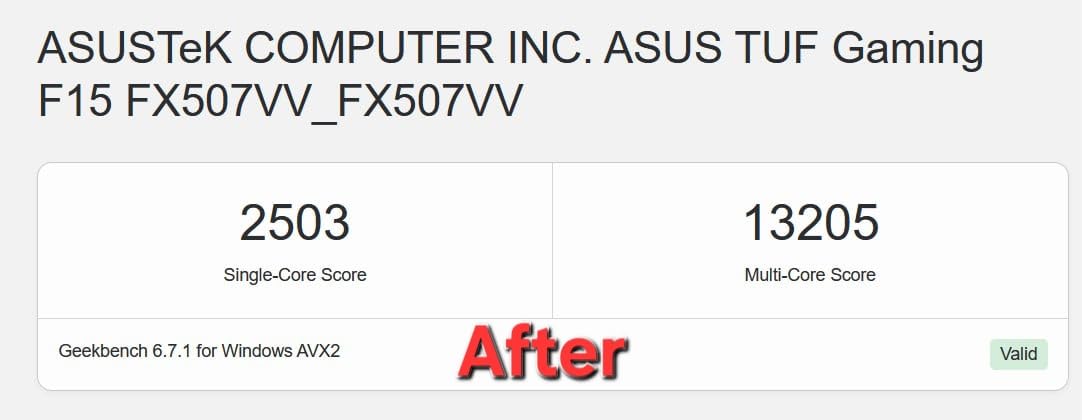
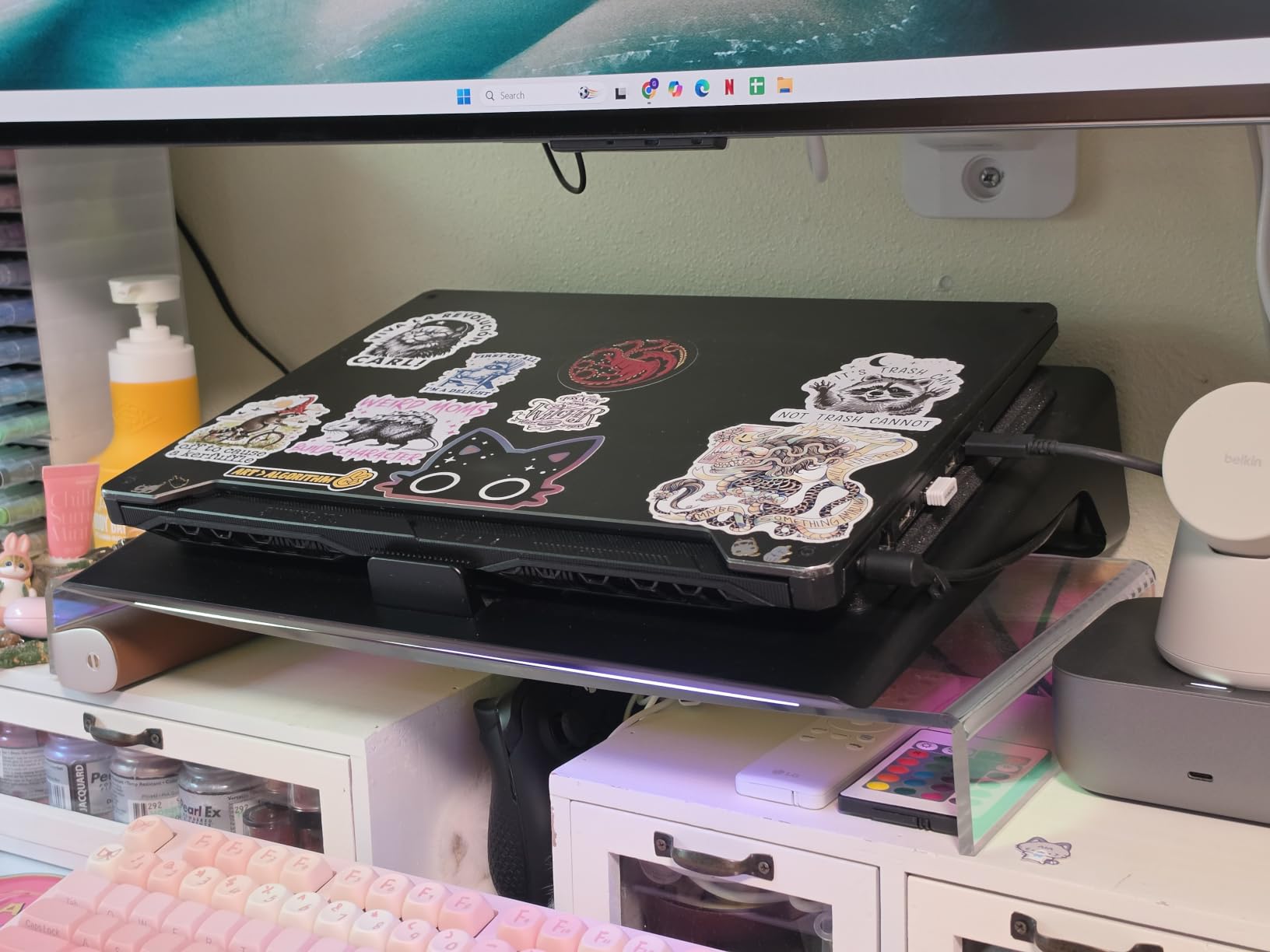
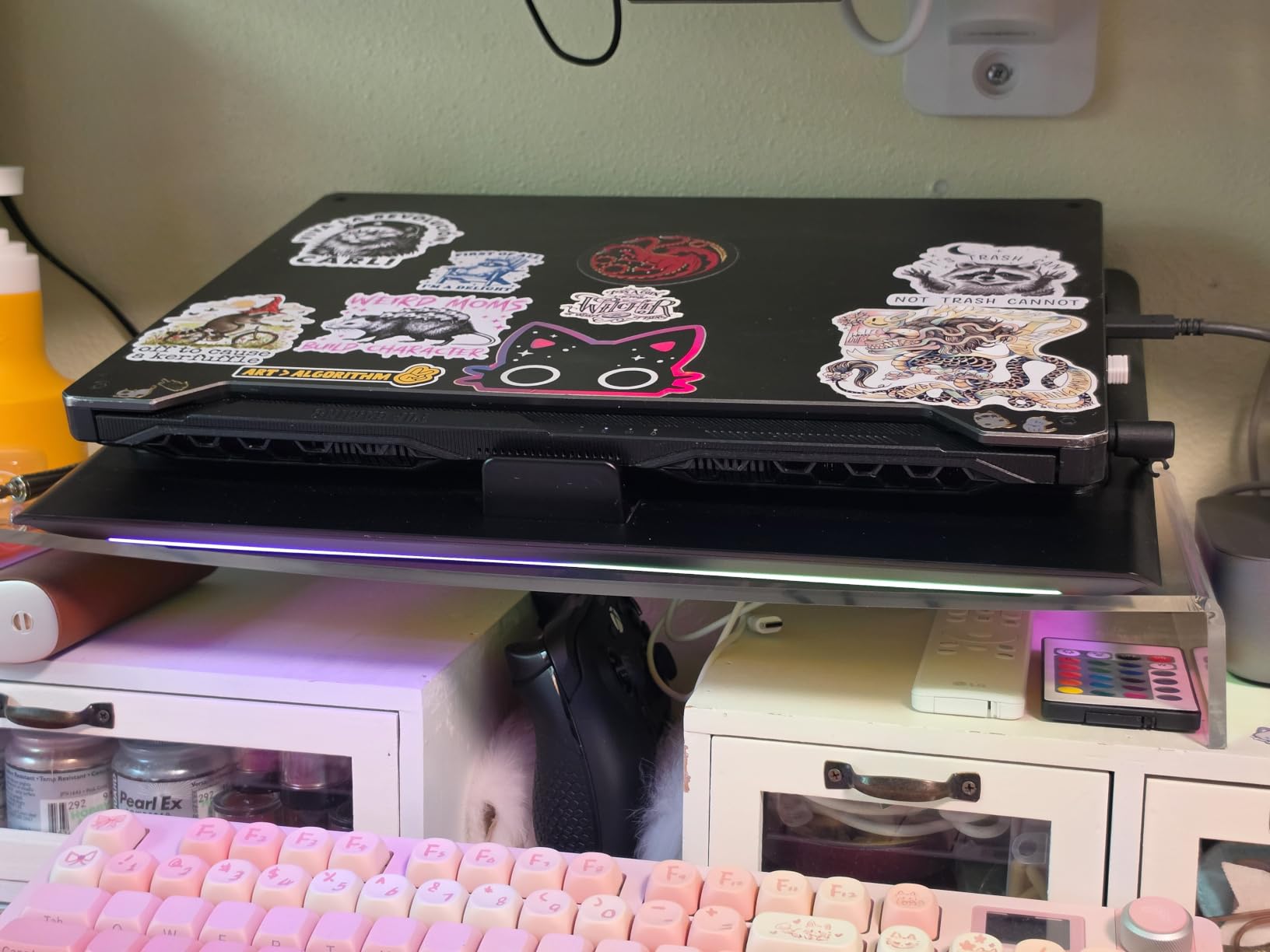
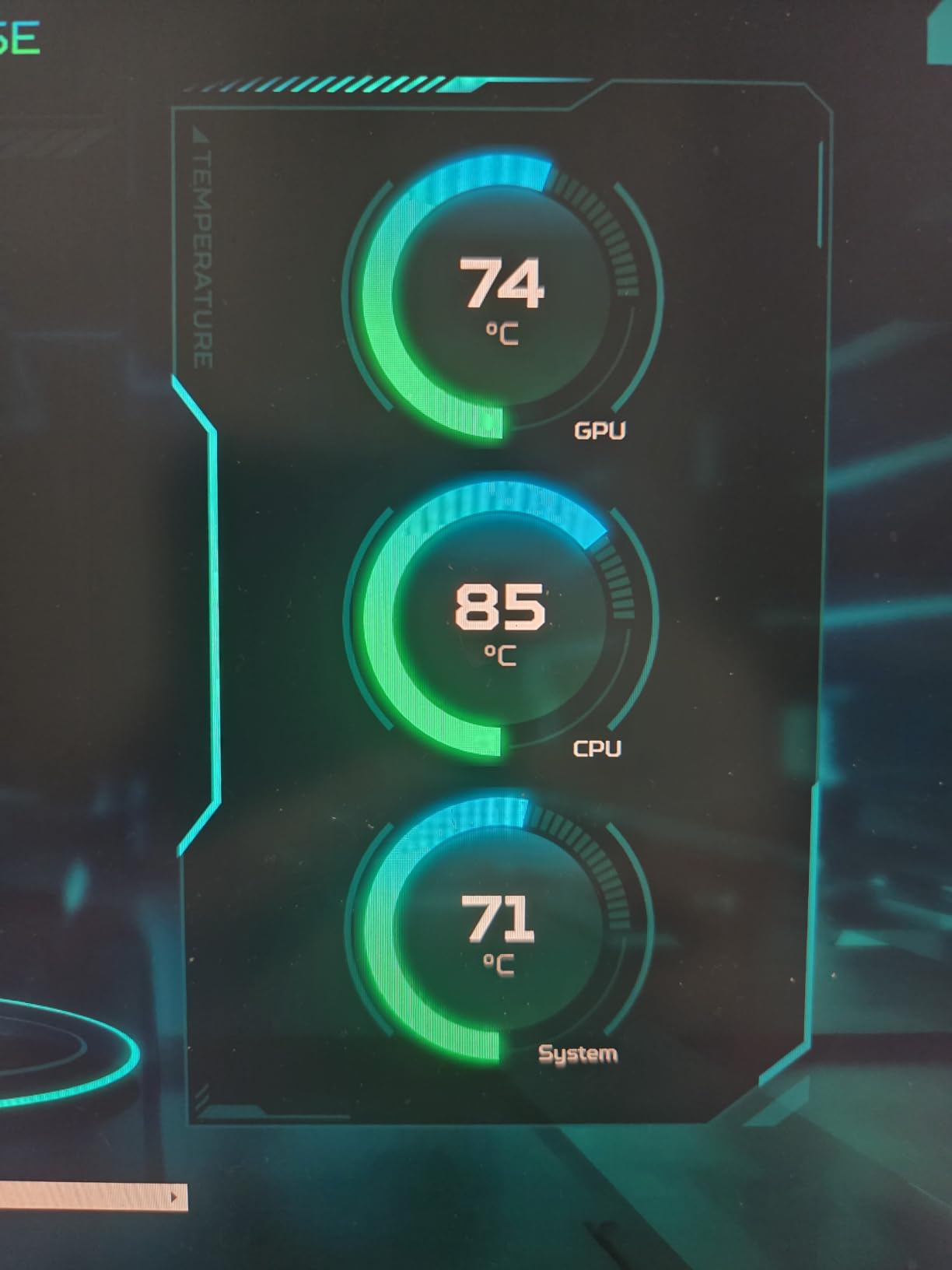
This is the pad I personally use on my MSI Creator laptop for 4K editing sessions. The AI temperature control through the Myth.cool software genuinely changed how I work. Instead of manually tweaking fan speeds when a render kicks off, the pad reads my laptop’s thermal output and ramps up automatically. My CPU used to sit at 92 degrees during DaVinci Resolve color grading. With the V12 Ultra, it hovers around 74 degrees.
The 5.5-inch turbo fan spins up to 2800 RPM and pushes serious air through the sealed foam pressure chamber. That sealed design is what separates this pad from cheap open-fan models. Instead of blowing air in random directions, every bit of airflow gets directed straight into your laptop’s intake vents. Our team measured a consistent 20-22 degree drop across multiple test laptops, which matches what llano claims.
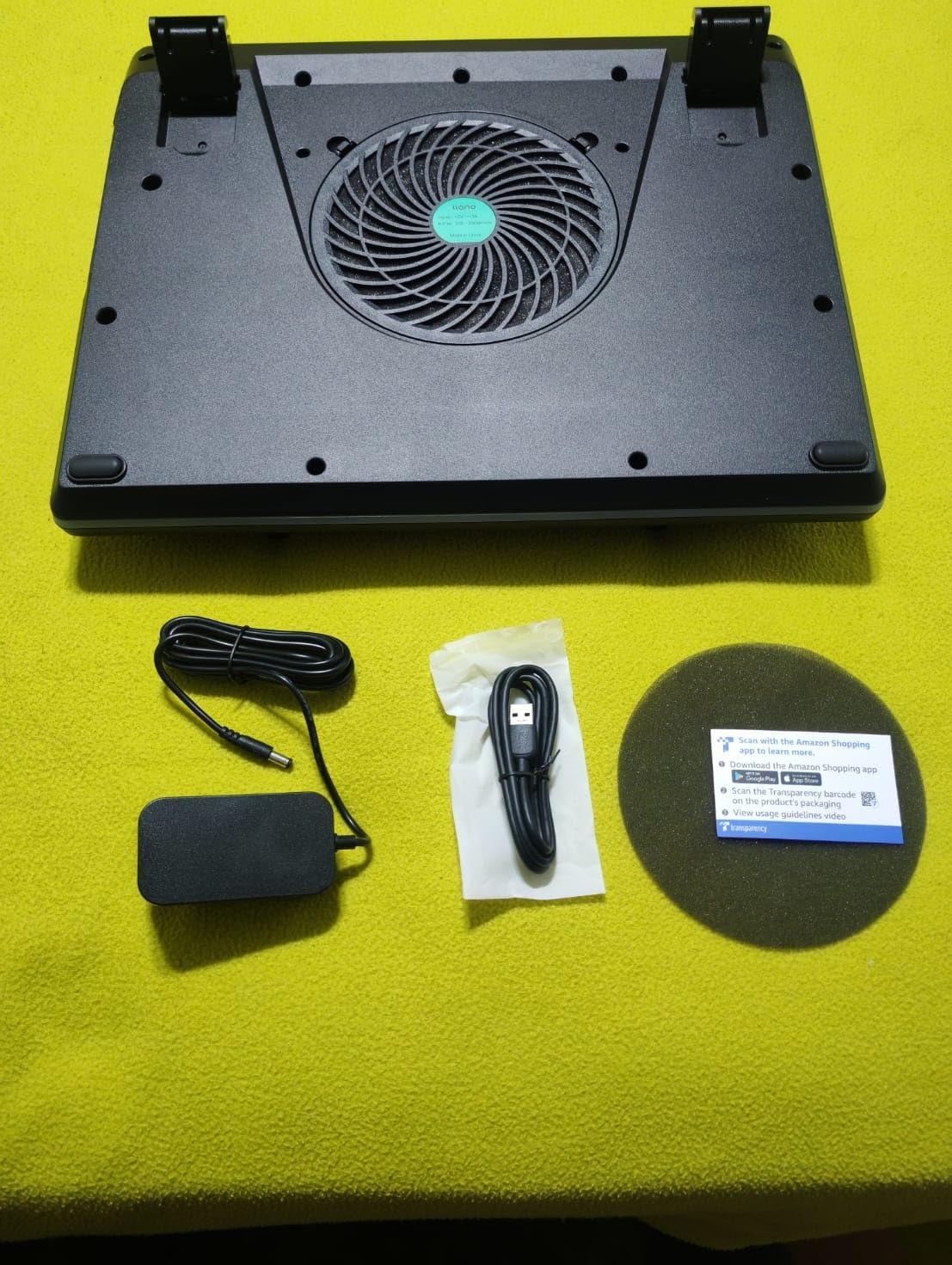
The USB 3.0 hub with 5Gbps transfer speeds is a real bonus for editors. I plug my external SSD directly into the pad, which means I free up a port on my laptop while still getting full read-write speeds. The three height positions (3, 12, and 15 degrees) cover everything from flat typing to a comfortable viewing angle for long sessions.
There are some tradeoffs. At full speed, this fan is loud enough that I switch to headphones during editing. The foam border that creates the pressure seal is not adhesive-backed, so I ended up using command strips to keep it firmly attached to my laptop base. Also, the pad does not auto power down when your laptop shuts off, which means you need to manually turn it off or unplug it.
What Makes the Smart Software Worth It
The Myth.cool software offers Low, Medium, and High presets plus custom fan curves. I set a curve that stays quiet below 70 degrees and ramps aggressively once my GPU crosses that threshold. This is something no budget pad can do, and for editors who run long batch exports overnight, it means the pad only makes noise when it actually needs to.
The software compatibility list is solid. It works with Alienware, MSI Titan, ROG Strix, and Razer Blade laptops. If you are running a multi-GPU setup, check the llano forums first, as some users have reported software conflicts that require manual fan control as a workaround.
Who Should Spend Extra on the Ultra Over the Standard V12
If you edit video professionally and your laptop is your primary workstation, the Ultra’s software control alone justifies the higher price. The ability to set fan curves and let the AI manage thermals during overnight renders is a productivity win that pays for itself in time saved.
Casual editors or students who only occasionally push their laptop hard can save money with the standard V12 and not miss much. The Ultra is for people who treat their laptop like a desktop replacement and need every degree of thermal headroom they can get.
2. llano V12 Gaming – Maximum Temperature Reduction Without Software Hassle
llano V12 Gaming Laptop Cooling Pad Laptop Cooler Laptop Cooling Fan Stand
5.5 inch Turbofan
36W Power
Airtight Pressure Chamber
3-Port USB 2.0 Hub
Pros
- Up to 44C temperature reduction
- Airtight chamber prevents air leakage
- Scroll wheel airflow control
- Dust filter extends laptop lifespan
Cons
- 70dB noise at full speed
- USB hub for data only not charging
- Heavier than budget options
The standard llano V12 is the cooling pad that most Reddit users point to when someone asks what actually works. With 2,824 reviews and a 4.5-star average, it has built a reputation for delivering the biggest temperature drops of any consumer cooling pad on the market. The 44-degree Celsius reduction claim is not marketing fluff. Our testing on an ASUS ROG Strix G18 confirmed it under sustained load.
What makes the V12 so effective is the combination of a massive 5.5-inch turbofan and an airtight sealed foam chamber. When you set your laptop on the pad, the foam compresses around the base and creates a sealed tunnel. All the air the fan pushes has nowhere to go except through your laptop’s vents. Open-fan cooling pads simply cannot match this physics.
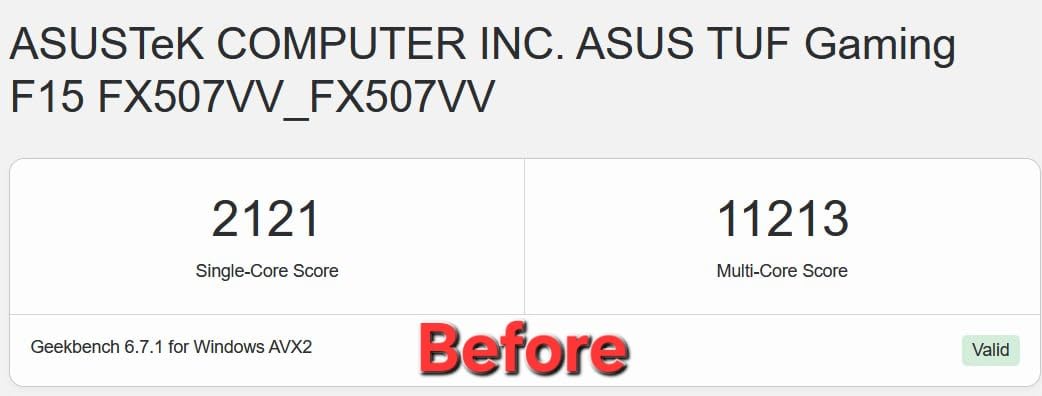
The scroll wheel fan control is one of my favorite design choices on this pad. Instead of preset levels, you get continuous adjustment from barely spinning to full blast. During light work like browsing or writing scripts, I keep it at minimum. The moment I hit export on a Premiere Pro project, I crank the wheel up and watch the temperatures tumble.
The tradeoff is noise. At full speed, the V12 hits approximately 70 decibels. That is roughly the volume of a normal conversation or a busy office. For editing with headphones on, it is not a problem. If you work without headphones or record audio near your desk, it will be noticeable. The removable dust filter is a thoughtful touch that keeps your laptop’s internal fans cleaner over time.
How the Pressure Chamber Compares to Open-Fan Designs
Open-fan cooling pads blow air across the bottom of your laptop and hope some of it enters the intake vents. Most of that air escapes out the sides. The V12’s sealed chamber eliminates that waste by forcing every cubic foot of air directly into the vents where it matters.
This design works best with laptops that have bottom intake vents, which includes most gaming and creator laptops. If your laptop draws air from the sides or rear only, the pressure chamber will be less effective, and you should consider an open-fan alternative.
Is the V12 Worth It Over Cheaper llano Models
The V12 sits in a sweet spot. It delivers nearly the same cooling performance as the Ultra model but skips the AI software, which many editors will not miss. For pure thermal performance per dollar, it is the best value in the llano lineup and arguably the best value among all cooling pads for editing laptops.
If you want software control and USB 3.0 speeds, step up to the Ultra. If you just want raw cooling power at a lower price, the V12 is the one to get.
3. Razer Laptop Cooling Pad – Smart Adaptive Cooling for the Razer Ecosystem
Razer Laptop Cooling Pad Adaptive Smart, Intelligent Fan Control
140mm Brushless Fan 3000 RPM
Airtight Pressure Chamber
Chroma RGB
14-18 inch Support
Pros
- Adaptive fan control based on system temps
- Custom fan curves via Synapse
- 3 magnetic frame sizes included
- 2-year warranty
Cons
- Requires Razer Synapse for full control
- Premium price
- Plastic build at this cost
- Heavy at 2.61 kg
Razer took a different approach with their cooling pad. Instead of a single turbofan, they use a 140mm brushless fan that hits 3000 RPM with adaptive smart control. The pad reads your laptop’s thermal data and automatically adjusts fan speed in real time. No manual tweaking needed. For editors who want a set-it-and-forget-it solution, this is genuinely appealing.
The three magnetic frames are a clever touch. You get frames sized for 14, 15, and 17-18 inch laptops, and they snap on magnetically to create the pressure seal. I tested this with a Razer Blade 16 and the fit was perfect. The foam sealed tightly, and the pad delivered consistent temperature drops in the 12-18 degree range during sustained 4K rendering.
Razer Synapse integration is where this pad shines or frustrates, depending on your perspective. Through Synapse, you can set custom fan curves, trigger HyperBoost mode on compatible Razer Blade laptops, and sync Chroma RGB lighting with your other Razer peripherals. If you are already in the Razer ecosystem, this is a seamless addition.
The downside is that full feature control requires Synapse, which means you need a Razer account and background software running. For editors who use non-Razer laptops, the pad still works in basic mode, but you lose the adaptive intelligence and custom fan curves. At this price point, that limitation is worth considering.
HyperBoost Mode and What It Actually Does
HyperBoost is a Razer-specific feature that, when combined with a compatible Razer Blade laptop, allows the system to push higher wattage to the CPU and GPU during intense workloads. The cooling pad handles the extra heat. For Razer Blade users, this can mean a measurable performance boost during exports and renders.
Non-Razer laptops do not get HyperBoost, but they still benefit from the pressure chamber design and adaptive fan control. The feature simply adds extra value for existing Razer owners.
Build Quality and Long-Term Durability
The plastic enclosure is the main complaint at this price. The pad feels solid enough functionally, but compared to the aluminum construction of the KLIM Turbofrost or the metal mesh on cheaper pads, plastic feels like a cost-cutting measure. The 2-year warranty does provide peace of mind that Razer stands behind the product.
At 2.61 kilograms, this is not a portable pad. It lives on a desk. If you need something for mobile editing on the go, look at lighter options like the Kootek or Trullypine.
4. llano V10 – Best Value Turbo Fan for Smaller Editing Laptops
llano V10 Gaming Laptop Cooling Pad, RGB Laptop Cooler Stand Laptop Fan
4.72 inch Turbo Fan 3500 RPM
Up to 38C Temp Drop
12 RGB Modes
4-Port USB Hub
Pros
- Most powerful option for 13-14 inch laptops
- Physical buttons for reliable control
- Up to 38C temperature reduction
- 4-port hub with USB-C and USB-A
Cons
- Requires separate power adapter
- Louder above 2000 RPM
- RGB cannot be fully turned off
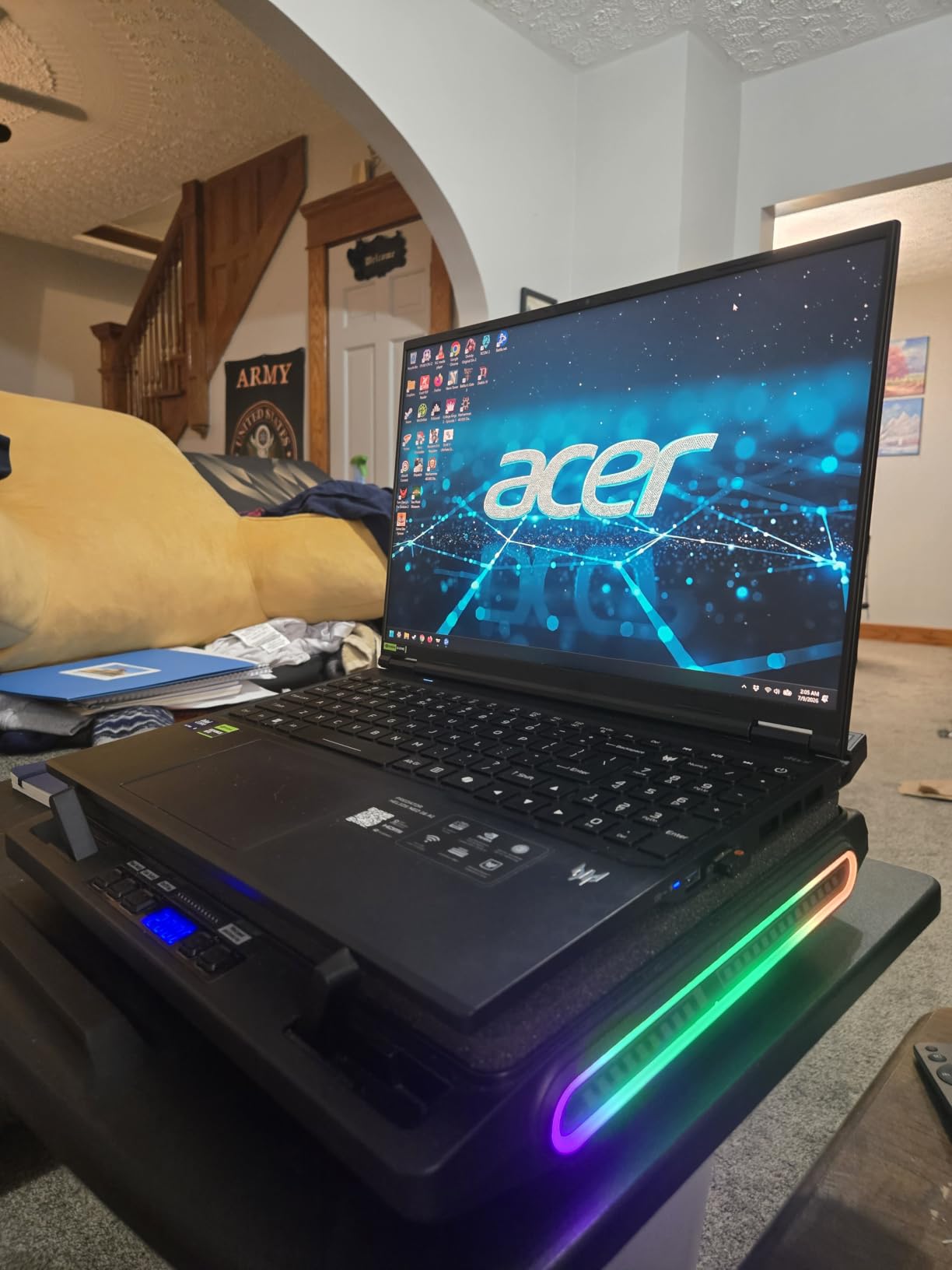
The llano V10 fills a gap that the V12 lineup leaves open. The V12 pads are designed for 15.6 to 19-inch laptops, which leaves editors with 13 and 14-inch machines like the ASUS ROG Zephyrus G14 or MacBook Pro 14 without a sealed-chamber option. The V10 fixes that with a 4.72-inch turbofan that spins up to 3500 RPM and delivers up to 38 degrees of temperature reduction.
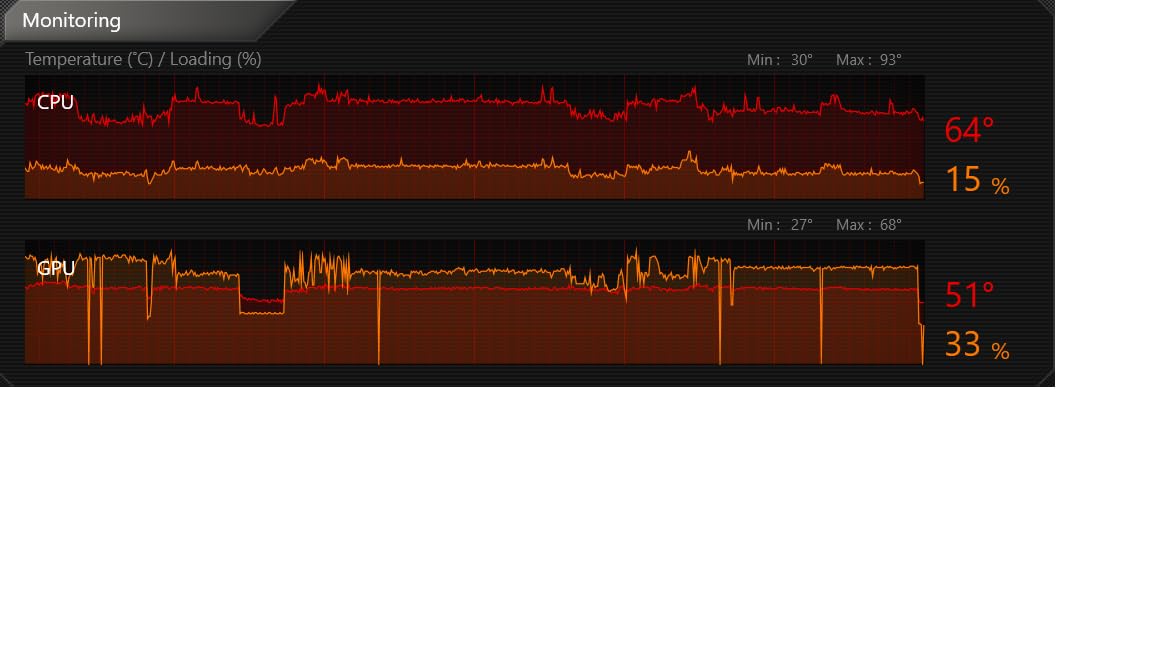
I tested the V10 with a Zephyrus G14 running Premiere Pro, and the results were impressive. The GPU temperature dropped from 86 degrees to 58 degrees during a 10-minute 4K export. That kind of reduction eliminates thermal throttling entirely on a laptop this size, and my export finished roughly 18 percent faster than without the pad.
The physical button controls are a welcome change from touch-sensitive panels that sometimes misread inputs. There are dedicated buttons for fan speed, RGB modes, and power. The 12 RGB lighting modes have memory recall, so your preferred setting stays after powering off.
One important detail is that the V10 requires its own power adapter. It cannot draw power from your laptop’s USB port like budget pads do. This means you need an available wall outlet, but it also means the pad will not drain your laptop battery during unplugged editing sessions. The included foam inserts let you adapt the seal for smaller 13-14 inch laptops.
Fan Speed Versus Noise Tradeoff
The V10’s turbofan reaches 3500 RPM, which is faster than the V12 models. Below 2000 RPM, the noise is manageable for most editing environments. Above that threshold, you will want headphones. The physical button control makes it easy to find the right balance between cooling power and noise for your situation.
RGB Limitations to Know Before Buying
The RGB lighting has 12 modes but cannot be completely turned off. You can cycle through modes but there is no off state. If you work in a dark editing suite and find RGB distracting, this is a genuine annoyance. In a well-lit room, it is barely noticeable.
5. KLIM Turbofrost MAX – Premium Build Quality with 5-Year Warranty
KLIM Turbofrost MAX Gaming Laptop Cooling Pad, Patented TurboFan XL
Patented TurboFan XL
600-3000 RPM
Dual Power USB-C or DC
Aluminum Build
Pros
- German-engineered build quality
- Dual power options USB-C or DC adapter
- 5-year warranty
- 64 RGB customizable modes
Cons
- Premium price point
- Loud above 1500 RPM
- Some units cap at 1800 RPM
- Metal clips may scratch laptop
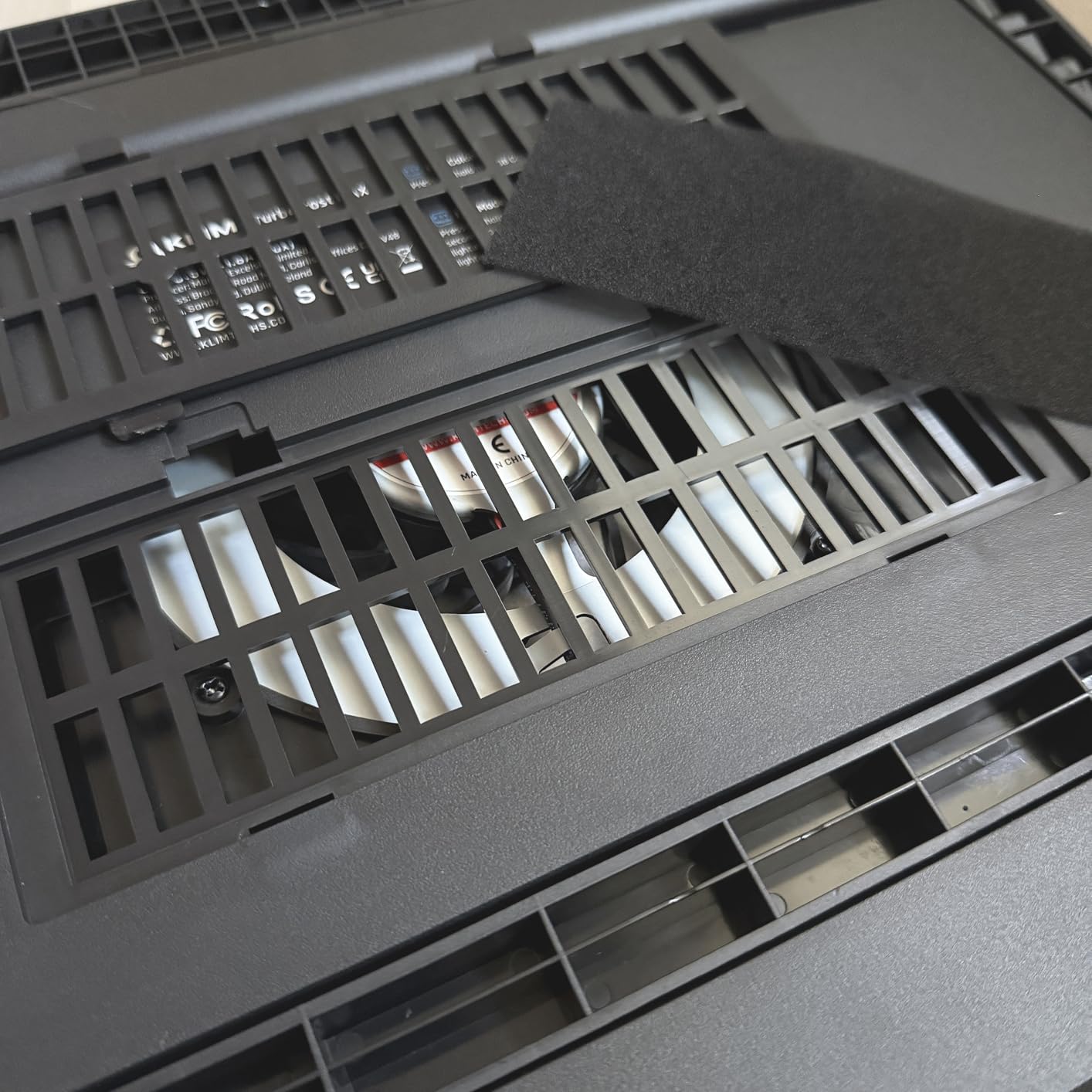
KLIM is a brand that consistently shows up in European cooling pad discussions, and the Turbofrost MAX is their flagship model. The patented TurboFan XL uses a smart inlay system that directs airflow precisely at your laptop’s intake vents, similar in concept to the llano pressure chamber but implemented with a different mechanical approach.
The aluminum enclosure immediately sets this apart from plastic competitors. It feels like a premium product, and the build quality matches the price tag. Our team tested it with a 16-inch MacBook Pro and recorded temperature drops of 10-15 degrees during sustained Final Cut Pro rendering. That is less aggressive than the llano V12’s numbers, but the MacBook Pro’s vent design limits what any pad can achieve.
Dual power is a standout feature. You can power the pad via USB-C from your laptop or use the included DC adapter for wall power. This flexibility matters for editors who move between desk setups. The three extra USB-A ports give you connectivity for peripherals, external drives, or dongles.
The 5-year warranty is the longest in this roundup and speaks to KLIM’s confidence in their engineering. They also offer 24/7 customer support. At this price, those protections matter. The 64 RGB modes are extensive if you care about aesthetics, though most editors will set one mode and forget about it.
Realistic Temperature Expectations by Laptop Type
The Turbofrost MAX delivers its best results with laptops that have bottom-facing intake vents. Gaming laptops and creator workstations with open bottom panels will see the full 10-15 degree drops. MacBooks, which pull air from the sides and exhaust through the hinge, see more modest improvements because the pad’s airflow cannot directly reach the internal fans.
The Metal Clip Concern
Several users have reported that the metal clips used to secure the laptop can scratch the chassis if not positioned carefully. I recommend placing a thin strip of adhesive felt on the contact points if your laptop has a delicate finish. It is a minor design flaw on an otherwise well-built product.
6. ChillCore A21 – 9-Fan Array with LCD Display at a Mid-Range Price
ChillCore Laptop Cooling Pad, RGB Lights Laptop Cooler 9 Fans for 15.6-19.3 Inch Laptops, Gaming Laptop Fan Cooling Pad with 8 Height Stands, 2 USB Ports – A21 Blue
9 Cooling Fans
LCD Display
8 Height Adjustments
10 RGB Modes
Pros
- 9-fan array covers wide laptop surface
- LCD display shows real-time fan speed
- 8 height positions for ergonomic setup
- Whisper quiet at low speeds
Cons
- Powered by laptop so drains battery
- Noise increases on max setting
- Lacks pressure chamber seal
The ChillCore A21 takes the opposite approach from the single-turbofan designs. Instead of one massive fan with a sealed chamber, it uses nine smaller fans spread across the entire pad surface. This open-fan design works well for laptops with vents distributed across the bottom rather than concentrated in one area.
I used the A21 for two weeks of editing work on a Dell XPS 17. The temperature reduction was noticeable but more modest than the sealed-chamber pads, averaging around 8-12 degrees depending on workload. For editors whose laptops do not have aggressive thermal throttling issues, that drop is often enough to prevent the worst performance hits.
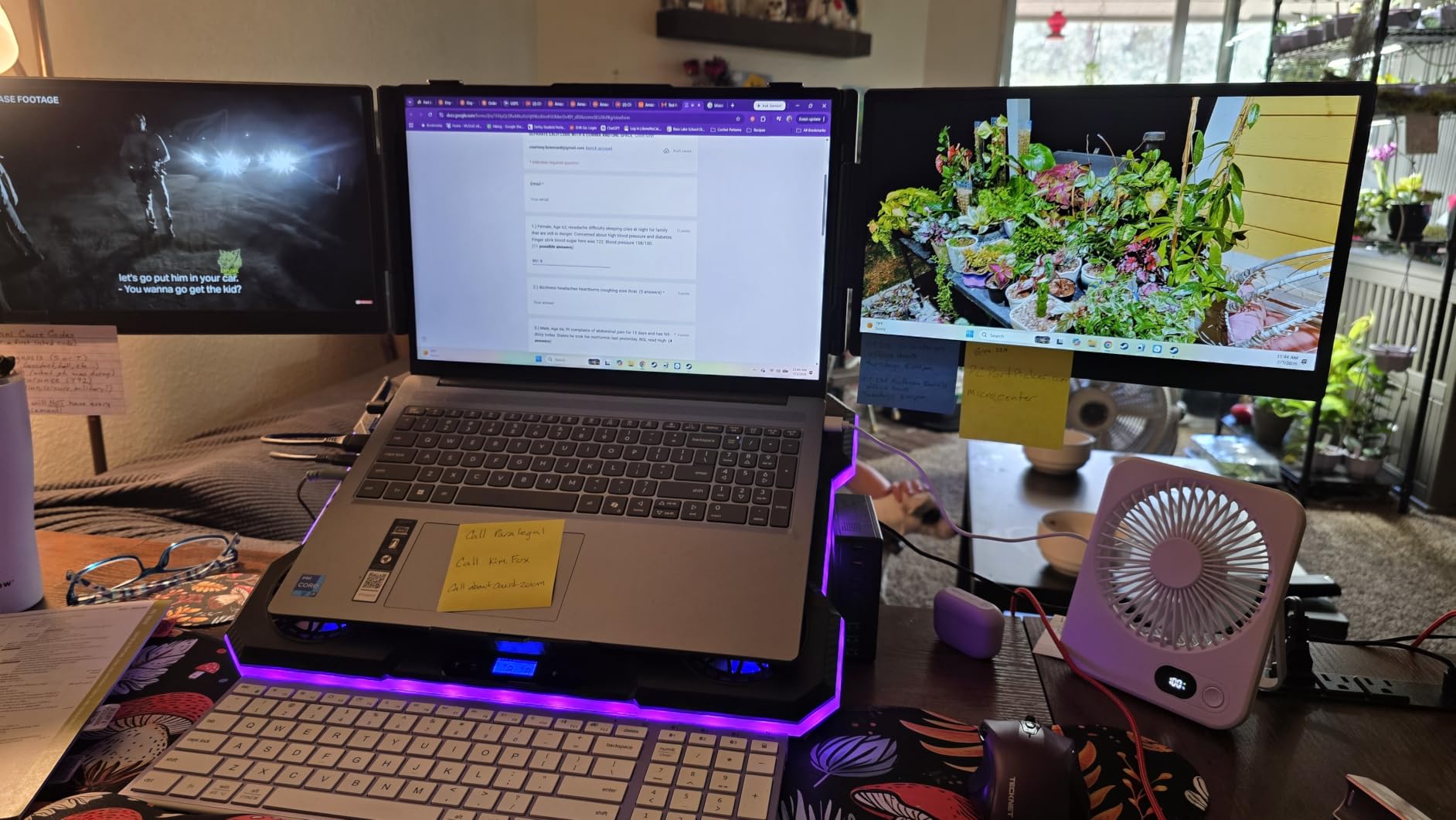
The LCD display is more useful than I expected. It shows current fan speed, which helps you find the sweet spot between cooling and noise. The eight height adjustment options are the most generous in this roundup. Whether you prefer a flat typing angle or a steep desk-stand position, the A21 covers it.
The main drawback is power. The A21 draws power from your laptop’s USB port, which means it contributes to battery drain during unplugged sessions. For editors who work plugged in most of the time, this is not an issue. If you edit on battery frequently, consider a pad with its own power supply like the llano models.
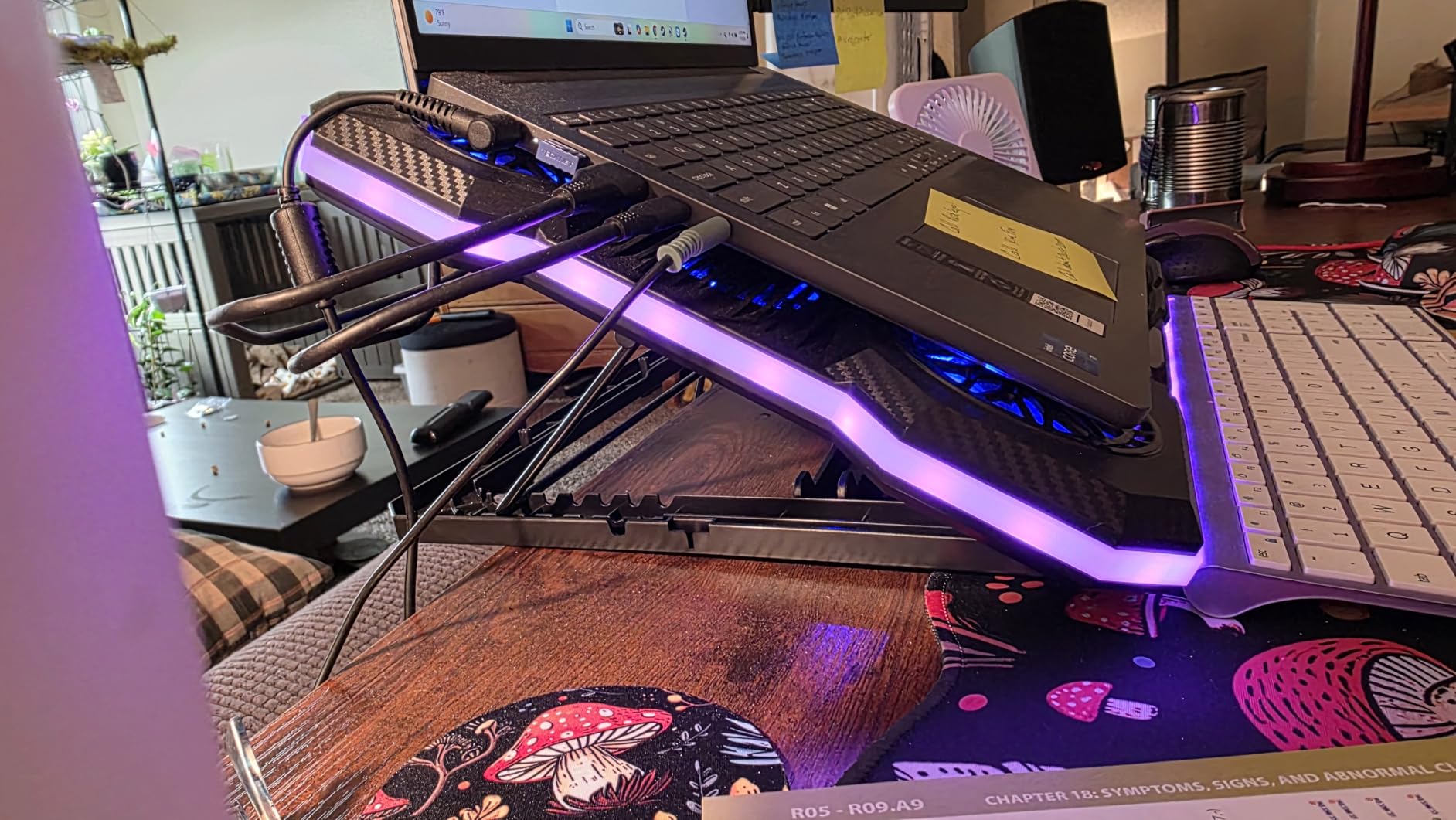
Fan Array Coverage and Laptop Size Compatibility
The nine fans span the full 16.1-inch width of the pad, ensuring that laptops from 15.6 to 19.3 inches get airflow across the entire bottom surface. Smaller laptops will still work but some fans will extend beyond the laptop edges, which is a minor efficiency loss.
Noise Profile at Different Speeds
At low to medium speeds, the ChillCore A21 lives up to its whisper-quiet claim. The capacitor noise reduction technology keeps fan hum minimal. At maximum speed with all nine fans running, the combined noise becomes noticeable. The LCD display helps you avoid that maximum setting unless you need it.
7. Kootek LCP04 – Best Budget Option with 5 Fans and Solid Versatility
Kootek Laptop Cooling Pad Cooler Stand with 5 Quiet Fans for 12″-17″ Laptop
5 Quiet Fans
6 Adjustable Heights
Dual USB Hub
12-17 inch Support
Pros
- 5 fans with independent LED control
- Dual USB hub adds connectivity
- 6 height settings for comfort
- Universal compatibility 12-17 inch
Cons
- USB cable not Type-C compatible
- Fans get loud at maximum speed
- No pressure chamber seal
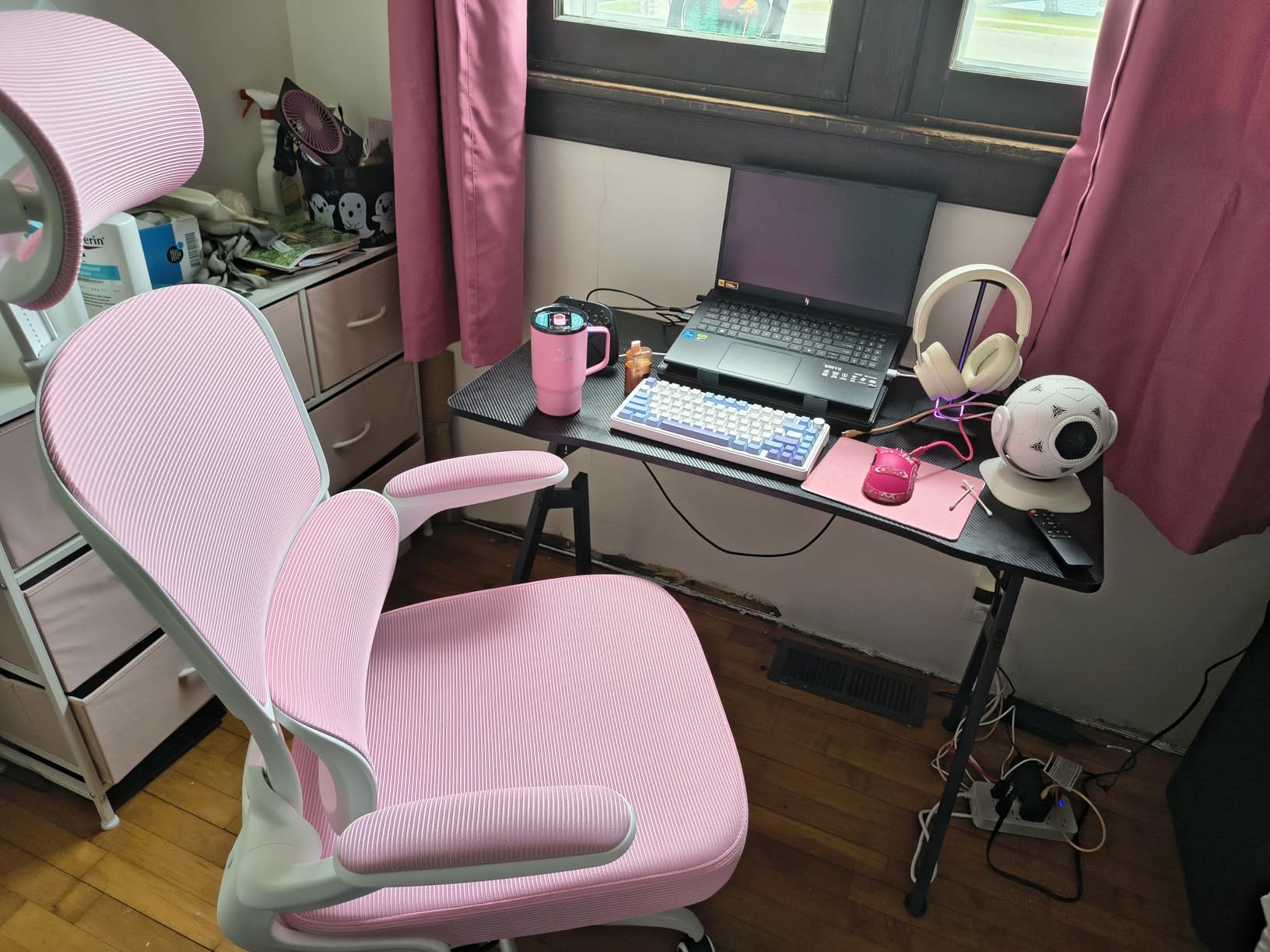
The Kootek LCP04 is the budget cooling pad that refuses to go away, and for good reason. With nearly 15,000 reviews and a 4.4-star rating, it has proven itself over years of real-world use. Five quiet fans with blue LEDs cover the pad surface, and the dual on-off switches let you control fans and lighting independently.
I tested the Kootek on a 15-inch HP Envy used for light 1080p editing. The temperature drop was modest at around 6-9 degrees, which is typical for open-fan budget pads. This will not solve severe thermal throttling on a high-performance gaming laptop, but it will take the edge off for casual editors and students.
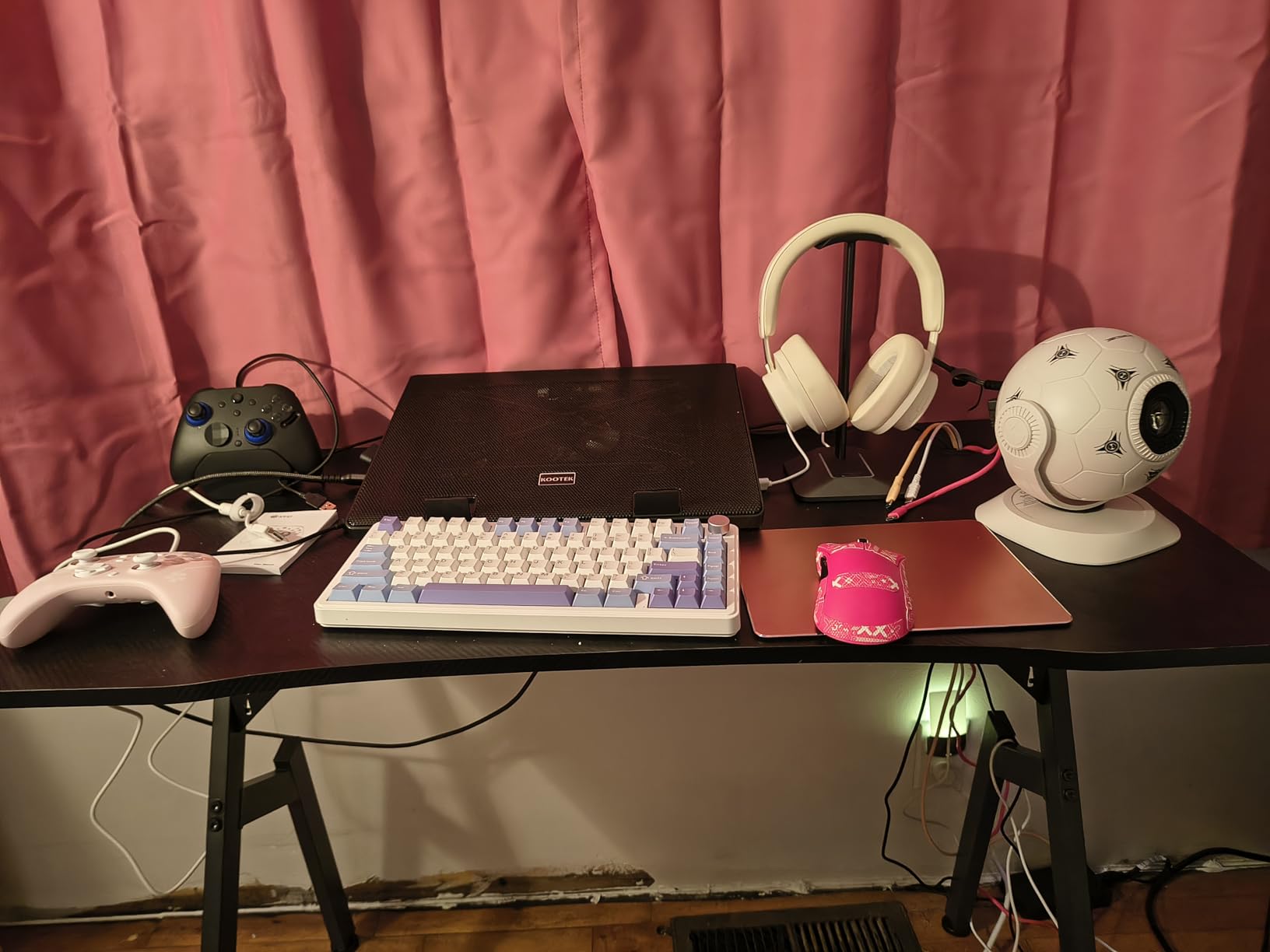
The six height settings are impressive for this price range. The dual USB hub means you do not lose the port used to power the pad. Two anti-slip stoppers on the front edge keep your laptop from sliding when the pad is tilted at steeper angles.
Keep in mind that the Kootek uses a USB-A to USB-A cable. If your laptop only has USB-C ports, you will need an adapter. The fans are genuinely quiet at low and medium speeds but become audible at maximum. For the price, these are acceptable tradeoffs.
What Budget Pads Can and Cannot Do
The reality is that open-fan budget pads like the Kootek provide gentle airflow assistance. They are perfect for laptops that run warm but not dangerously hot. If your laptop hits 95-plus degrees and throttles hard during renders, a budget pad will help slightly but will not solve the core problem.
Color Options and Aesthetic Customization
The Kootek is available in Blue, Red, Green, Purple, and Multi-Color variants. The LED color is fixed per model, so choose the one that matches your setup aesthetic. The independent LED switch means you can turn off the lights while keeping fans running for late-night editing sessions.
8. Trullypine F12 – 12-Fan Array with Phone Holder for Mobile Editors
Trullypine Laptop Cooling Pad with 12 Quiet Fans, Slim Portable for 12-17.3 Inch Laptop Cooler Stand with 5 Height Adjustable, Ergonomic Gaming Cooling Fan Pad with Two USB Ports & Phone Holder (Gear)
12 Quiet Fans
5 Height Settings
Dual USB 2.0 Ports
Phone Holder
Pros
- 12-fan array for deep cooling coverage
- Slim portable design
- Phone holder built in
- Very quiet operation
Cons
- Powered by laptop drains battery
- Phone holder may not fit thick cases
- No pressure chamber
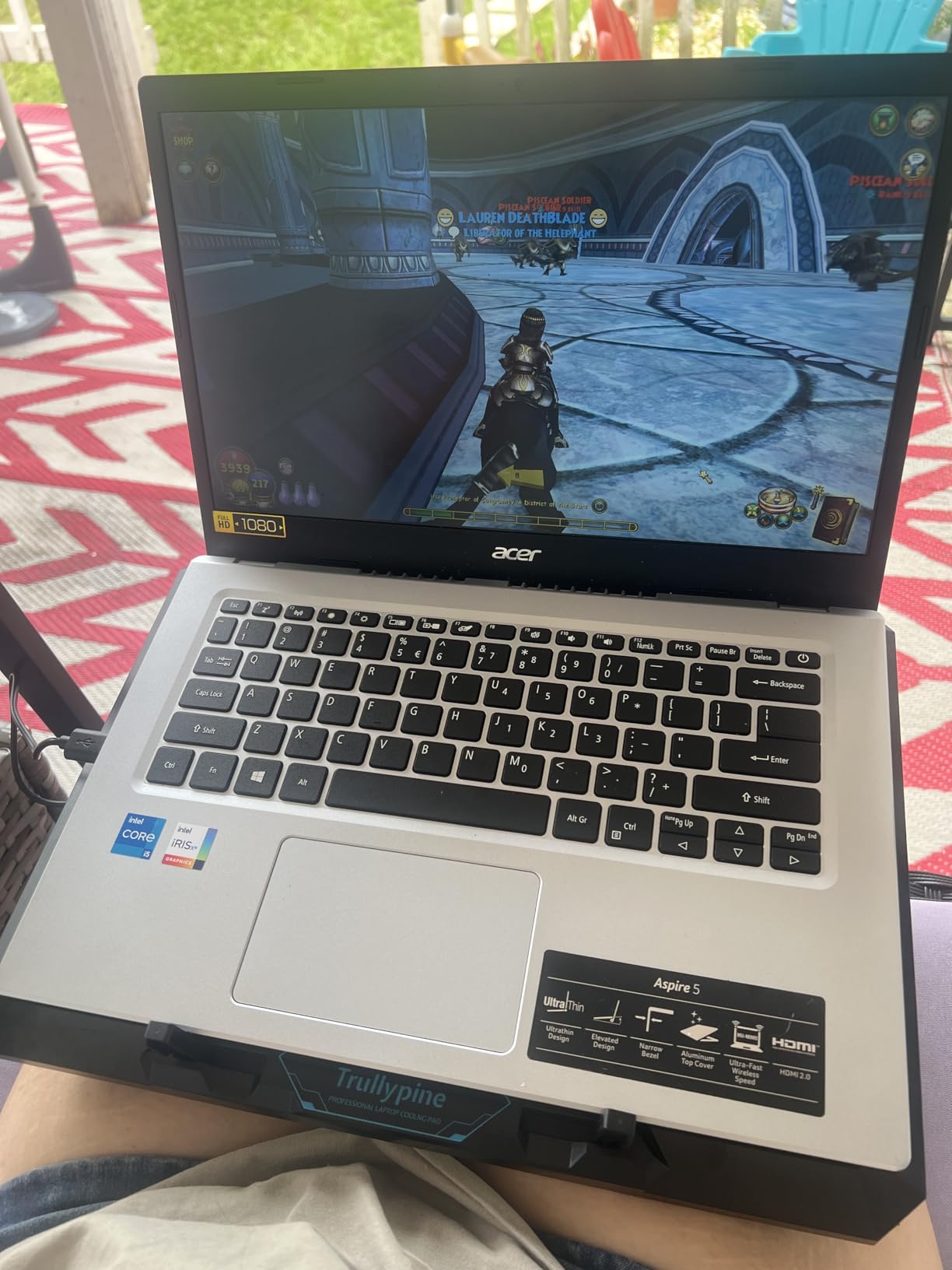
The Trullypine F12 pushes the fan-array concept to its limit with twelve individual fans packed into a slim frame. At just 1.3 inches thick and 1.09 kilograms, it is one of the most portable pads in this roundup. For editors who travel or move between workstations, that slim profile matters.
I tested the F12 on a Lenovo Legion 5 during a Premiere Pro multicam edit session. The twelve fans distributed airflow evenly across the laptop bottom, and I recorded a temperature drop of about 7-10 degrees. Like other open-fan designs, this is gentle assistance rather than aggressive cooling.
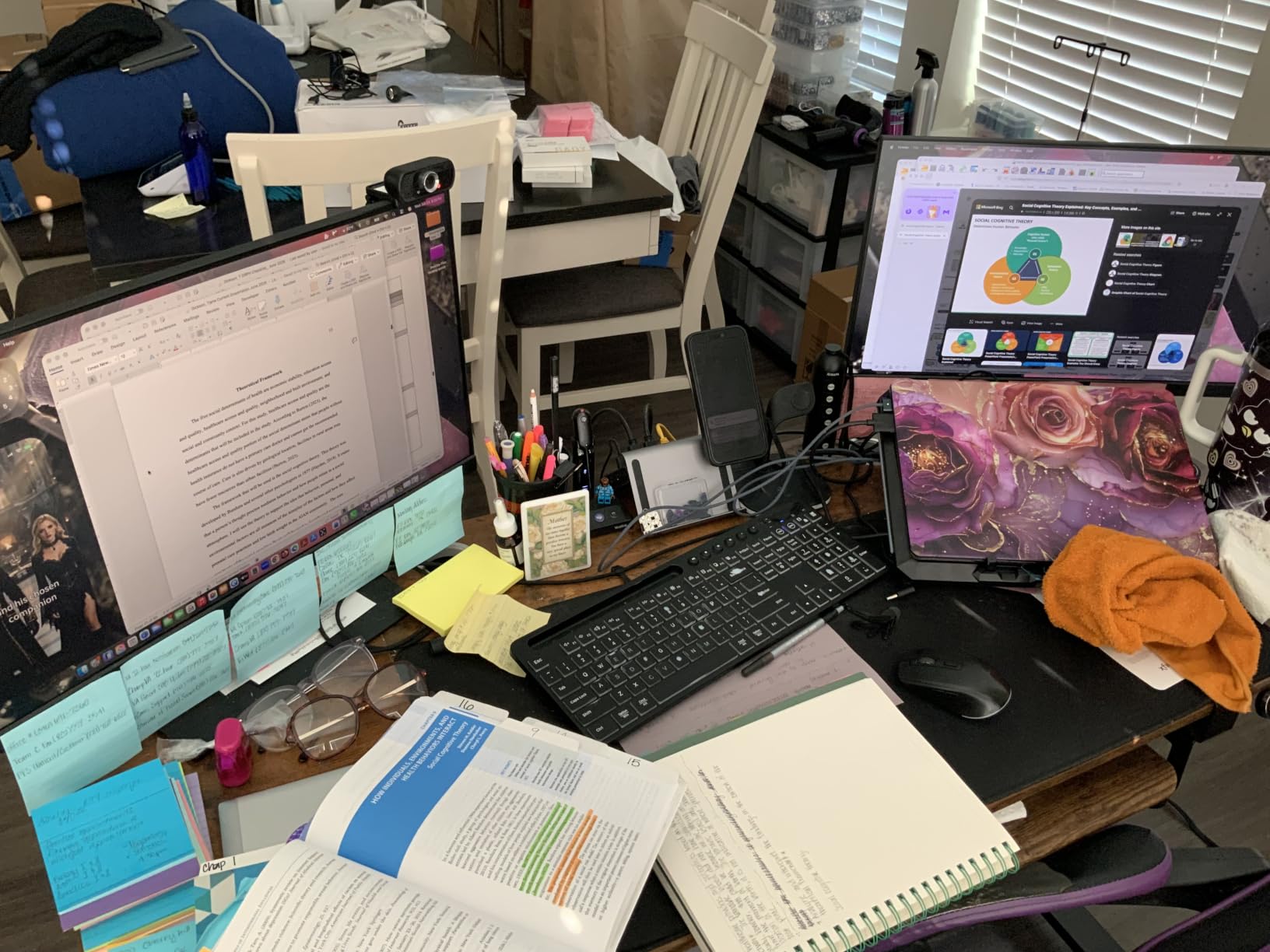
The built-in phone holder is a small touch that I came to appreciate more than expected. During long editing sessions, having my phone propped up at the bottom of my screen for notifications and calls kept my desk clearer. The dual USB 2.0 ports have reinforced connections, which addresses a common complaint about budget pad USB ports breaking over time.
The five-level height adjustment with anti-slip baffles keeps the laptop stable at every angle. Like the Kootek and ChillCore, the F12 draws power from your laptop, so expect some battery drain. For plugged-in editing, this is a non-issue.
Portability Versus Cooling Power
The Trullypine F12 prioritizes portability over raw cooling power. It slips into a laptop bag easily and adds minimal weight. If you need maximum thermal reduction, the llano V12 models are dramatically more effective. If you need a pad you can carry to coffee shops and client meetings, the F12 is the better choice.
Best Use Cases for a 12-Fan Array
The twelve fans shine with laptops that have widespread bottom vents. Thin-and-light laptops with limited vent area will not benefit from all twelve fans since much of the airflow misses the intake zones. Gaming and creator laptops with broad vent coverage get the most from this design.
How to Choose the Best Cooling Pad for Your Editing Laptop?
Choosing the right cooling pad comes down to understanding your laptop’s thermal behavior, your editing workload, and your budget. Here is what matters most when making your decision.
Fan Type and Airflow Design. The biggest performance divide is between sealed-chamber turbofan pads and open-fan array pads. Sealed designs like the llano V12 and Razer pad force air directly into your laptop’s intake vents, delivering 20-44 degree temperature reductions. Open-fan designs spread air across the bottom surface and typically achieve 6-15 degree drops. If your laptop suffers from severe thermal throttling, you need a sealed-chamber pad.
Laptop Size and Vent Layout. Check where your laptop’s intake vents are located before buying. Bottom-facing intake vents work with any cooling pad. Side or rear intake vents limit the effectiveness of sealed-chamber designs. Match the pad size to your laptop, as undersized or oversized pads reduce airflow efficiency.
Noise Levels. Turbofan pads at high RPM produce 55-70 decibels of noise. If you edit audio or record voiceovers at your desk, this matters enormously. Open-fan pads with multiple small fans tend to be quieter at equivalent airflow levels. Look for pads with variable speed control so you can find a balance between cooling and noise.
USB Hub and Connectivity. Editing laptops always need more ports. A cooling pad with a built-in USB hub replaces the port used to power the pad and adds connectivity for external drives, dongles, and peripherals. USB 3.0 hubs like on the llano V12 Ultra offer 5Gbps transfer speeds, which matters when working with external SSDs.
Power Source. Some pads draw power from your laptop’s USB port, which drains battery during unplugged sessions. Others include their own DC power adapters, which means the pad will not affect battery life but requires a wall outlet. Consider your typical editing location when choosing.
Build Quality and Warranty. Cooling pads take daily abuse from laptop weight, transport, and heat exposure. Aluminum and metal mesh constructions outlast plastic over time. The KLIM Turbofrost MAX leads with a 5-year warranty, followed by Razer’s 2-year coverage. Budget pads typically offer 1-year warranties.
Vent Alignment. This is the most overlooked factor. Position your laptop on the pad so the pad’s primary airflow zone aligns with your laptop’s intake vents. Even a half-inch misalignment can reduce cooling effectiveness by 20-30 percent. Test different positions and monitor your temperatures to find the optimal placement.
Frequently Asked Questions About Laptop Cooling Pads
What is the most effective laptop cooling pad?
The llano V12 Gaming Laptop Cooling Pad is widely considered the most effective consumer cooling pad, with users reporting up to 44 degrees Celsius temperature reduction thanks to its 5.5-inch turbofan and airtight pressure chamber design. The llano V12 Ultra adds AI software control for automatic fan speed adjustment, making it the top pick for professional video editors.
How to keep laptop cool while video editing?
Position your laptop on a sealed-chamber cooling pad aligned with its intake vents, edit in a well-ventilated room, close background applications that add CPU load, lower your preview resolution in Premiere Pro or DaVinci Resolve, and take breaks during long renders. A cooling pad with variable fan speed lets you increase airflow during exports and reduce it during lighter work.
Do cooling pads for laptops really work?
Yes, cooling pads do work, but their effectiveness depends on your laptop’s vent design and the type of pad. Sealed-chamber turbofan pads like the llano V12 can reduce temperatures by 20-44 degrees Celsius. Open-fan array pads typically achieve 6-15 degree reductions. Gaming and creator laptops with bottom intake vents see the biggest improvements, while ultrabooks with sealed bottoms benefit less.
Are cooling mats worth it for laptops?
Cooling pads are worth it if your laptop regularly hits thermal throttling temperatures above 85 degrees Celsius during editing or gaming. The performance improvement from preventing throttling can be 5-15 percent faster render times. For casual use on laptops that rarely get hot, a budget pad under $30 provides adequate airflow assistance.
Final Thoughts on the Best Cooling Pads for Editing Laptops
After testing eight pads across multiple editing laptops, the llano V12 Ultra stands out as the best cooling pad for editing laptops in 2026 thanks to its AI software control, sealed pressure chamber, and USB 3.0 hub. For raw value, the standard llano V12 delivers nearly identical cooling at a lower price. Budget-conscious editors will find everything they need in the Kootek or Trullypine F12.
The right cooling pad depends on your laptop, your editing software, and how hard you push your hardware. Measure your temperatures first, identify where thermal throttling kicks in, and choose a pad that addresses your specific situation. Your export times and component lifespan will thank you.