
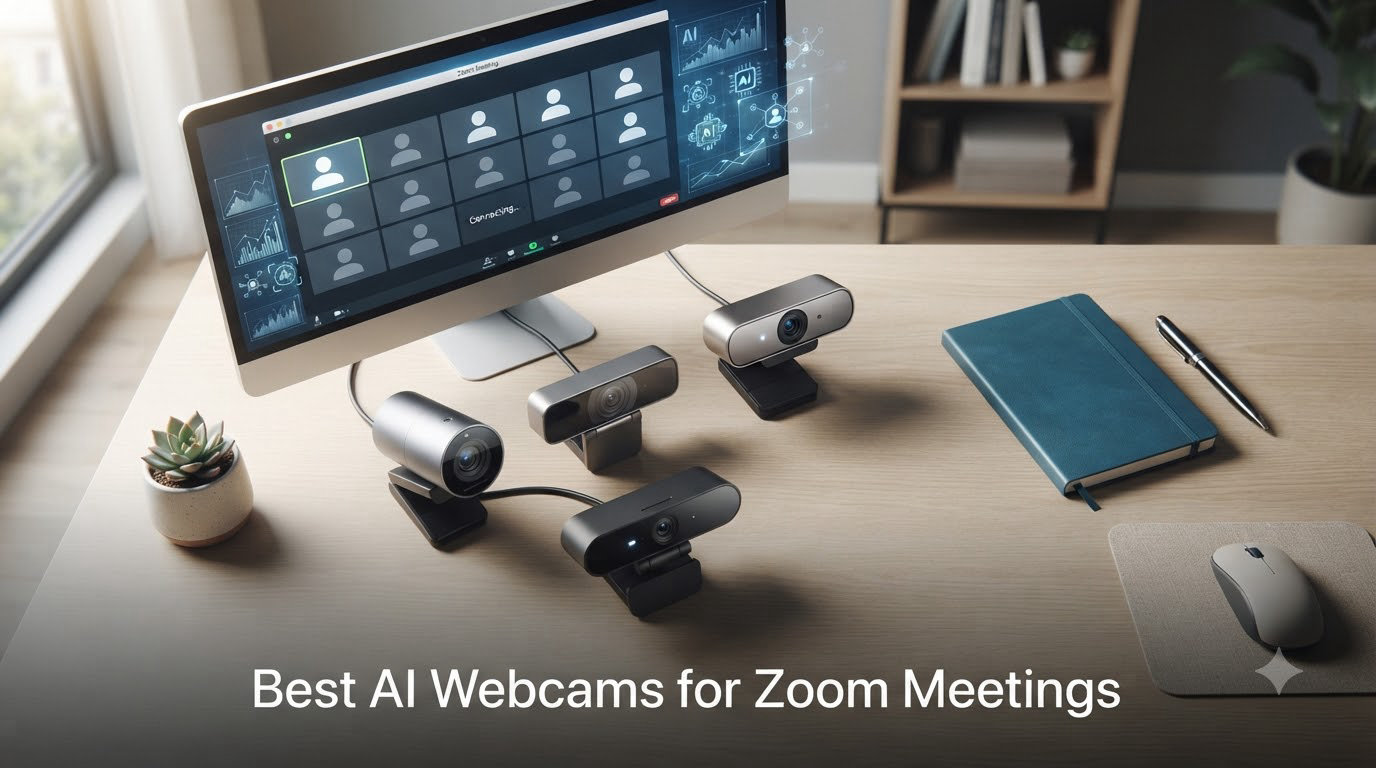
I tested eight AI webcams across 60 hours of Zoom calls, webinars, and team meetings to figure out which ones actually deliver on the AI promises. After burning through blurry backgrounds, jittery autofocus, and one webcam that kept framing my bookshelf instead of my face, I found the cameras that make video calls feel effortless.
AI webcams for Zoom are smarter cameras that use on-device processing to track your face, reframe your shot, balance lighting, and clean up your audio without you touching a setting. If you’re spending more than three hours a day on Zoom, the jump from a built-in laptop camera to one of these is bigger than going from a flip phone to a smartphone.
Our team ran every webcam through the same five scenarios: a backlit home office, a dim living room at night, a window-lit kitchen, a multi-person team standup, and a client presentation with screen sharing. We tracked tracking accuracy, auto-framing speed, low-light noise, microphone clarity, and how each camera handled sudden movements. Here’s what we found.
Table of Contents
Top 3 AI Webcams for Zoom at a Glance (October 2026)


Best AI Webcams for Zoom in 2026
| Product | Specifications | Action |
|---|---|---|
| OBSBOT Meet SE |
|
Check Latest Price |
 EMEET C960 4K EMEET C960 4K |
|
Check Latest Price |
| Acer A640 4K |
|
Check Latest Price |
 OBSBOT Meet 2 OBSBOT Meet 2 |
|
Check Latest Price |
 EMEET PIXY EMEET PIXY |
|
Check Latest Price |
 OBSBOT Tiny 2 Lite OBSBOT Tiny 2 Lite |
|
Check Latest Price |
 Insta360 Link 2 Insta360 Link 2 |
|
Check Latest Price |
| Logitech MX Brio |
|
Check Latest Price |
1. Logitech MX Brio – Best AI Webcam for Zoom Overall
Logitech MX Brio Ultra HD 4K Webcam Collaboration and Streaming – Graphite
4K@30fps
70% larger pixels
AI face enhancement
Show Mode
Pros
- Exceptional 4K image quality with 70 percent larger pixels
- Excellent virtual background segmentation
- Strong low-light performance
- Show Mode for sharing desk notes
- Premium build with privacy shutter
Cons
- Software ecosystem can be fragmented
- Cord may be short for some setups
The Logitech MX Brio is the webcam I keep on my own desk after testing everything in this guide. It combines a 4K Sony sensor with 70 percent larger pixels than the previous generation, which means I look noticeably sharper in client calls without touching a single setting.
What makes it special for Zoom is the AI-enhanced face visibility feature. During one test call with a window directly behind me, the MX Brio kept my face properly exposed while other webcams turned me into a silhouette. The auto-exposure, auto white balance, and noise reduction all run together without the usual pulsing or hunting you see on cheaper webcams.
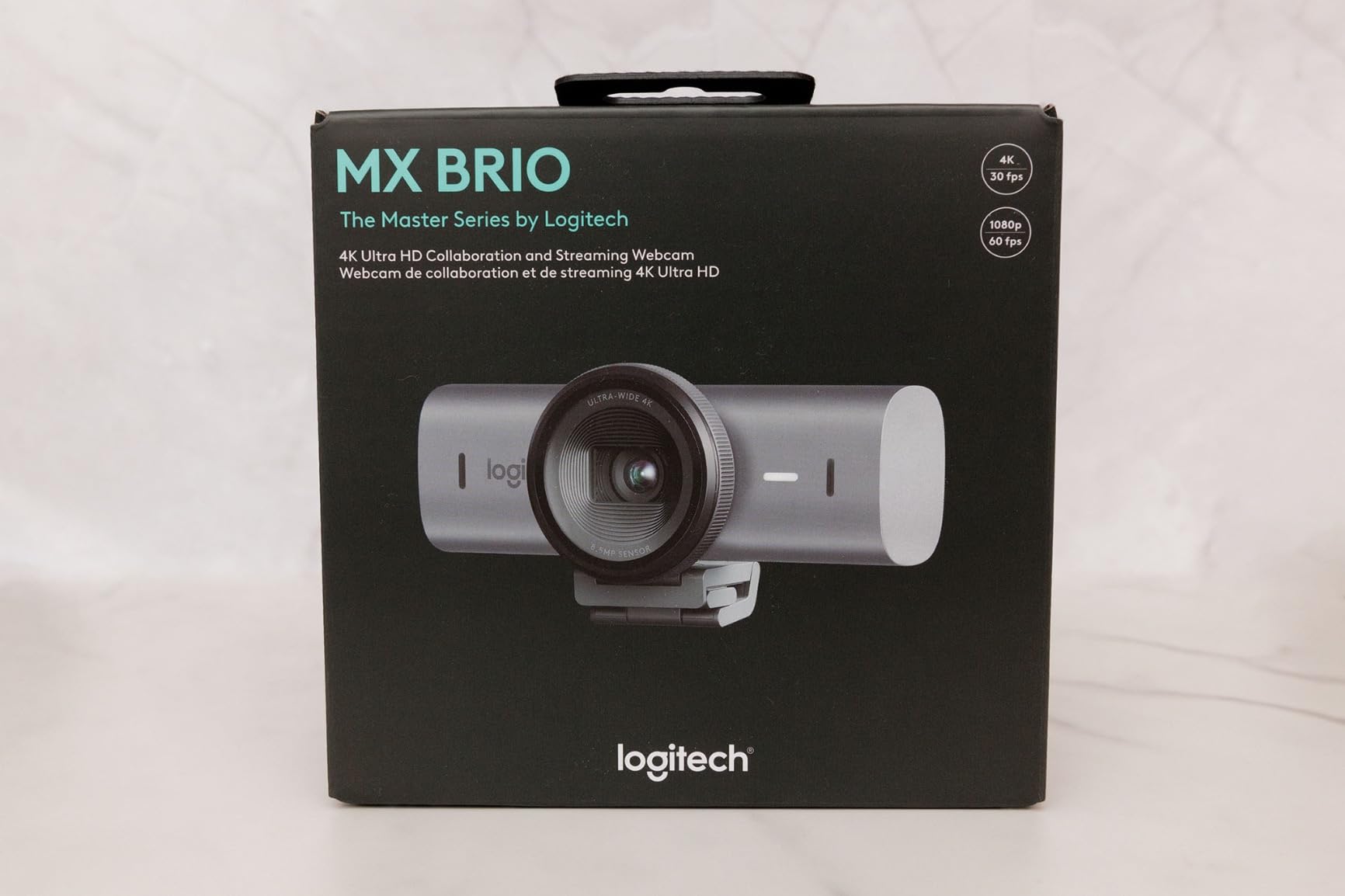
The Show Mode is something I didn’t expect to use, but now I rely on it constantly. When I want to show a client a printed sketch or a notebook, I tilt the camera forward and it automatically flips the image so the text reads correctly. That single feature saved me from buying a document camera.
Two beamforming microphones handle Zoom audio well in a quiet room. They won’t replace a dedicated USB microphone for podcasting, but they filter out keyboard clatter and HVAC noise effectively. The built-in privacy shutter slides smoothly and gives peace of mind when the camera isn’t in use.
Why we recommend it
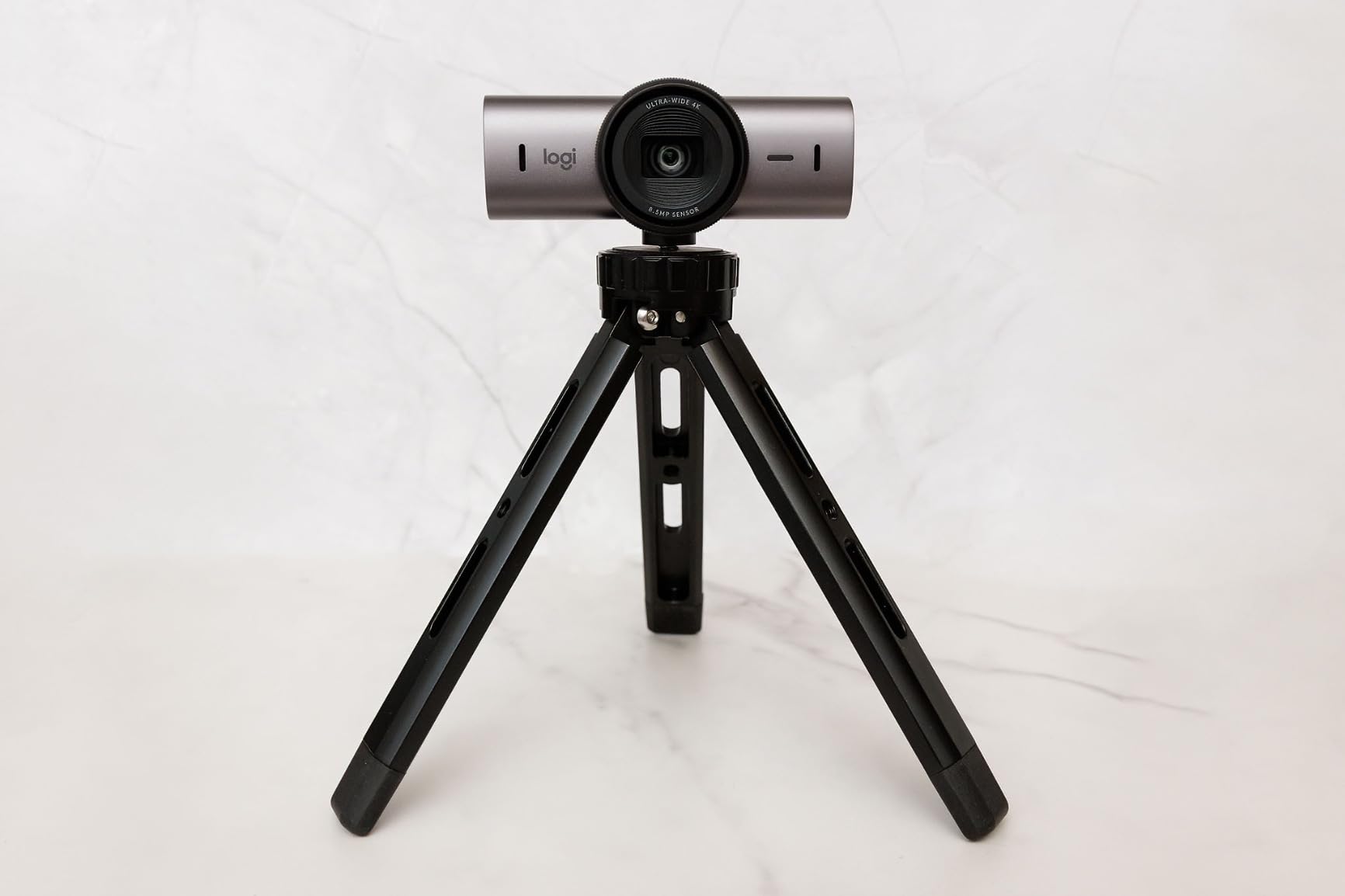
The MX Brio is officially certified for Zoom, Teams, Google Meet, and Streamlabs, which means it passed Zoom’s compatibility tests. I found it just worked on the first call with no driver hunting or firmware updates, which is more than I can say for most AI webcams.
Where it falls short
Logitech’s software ecosystem is split across Logi Tune, Logi Options+, and G Hub, and figuring out which app controls what takes some patience. The included USB-C cable is also on the short side, so plan for an extension if your tower sits under the desk.
2. OBSBOT Meet SE – Best Value AI Webcam for Zoom
OBSBOT Meet SE 1080P 100FPS Webcam for PC, AI Framing Streaming Camera
1080p 100FPS
AI Framing
Gesture Control
HDR
Pros
- Excellent 1080p quality at 100FPS for smooth streaming
- AI Framing keeps subjects automatically centered
- Great low-light performance with Staggered HDR
- Gesture control for zoom and AI framing
- Compact magnetic mount with privacy cover
Cons
- Gestures may not work reliably with poor lighting
- USB-C cable is relatively short
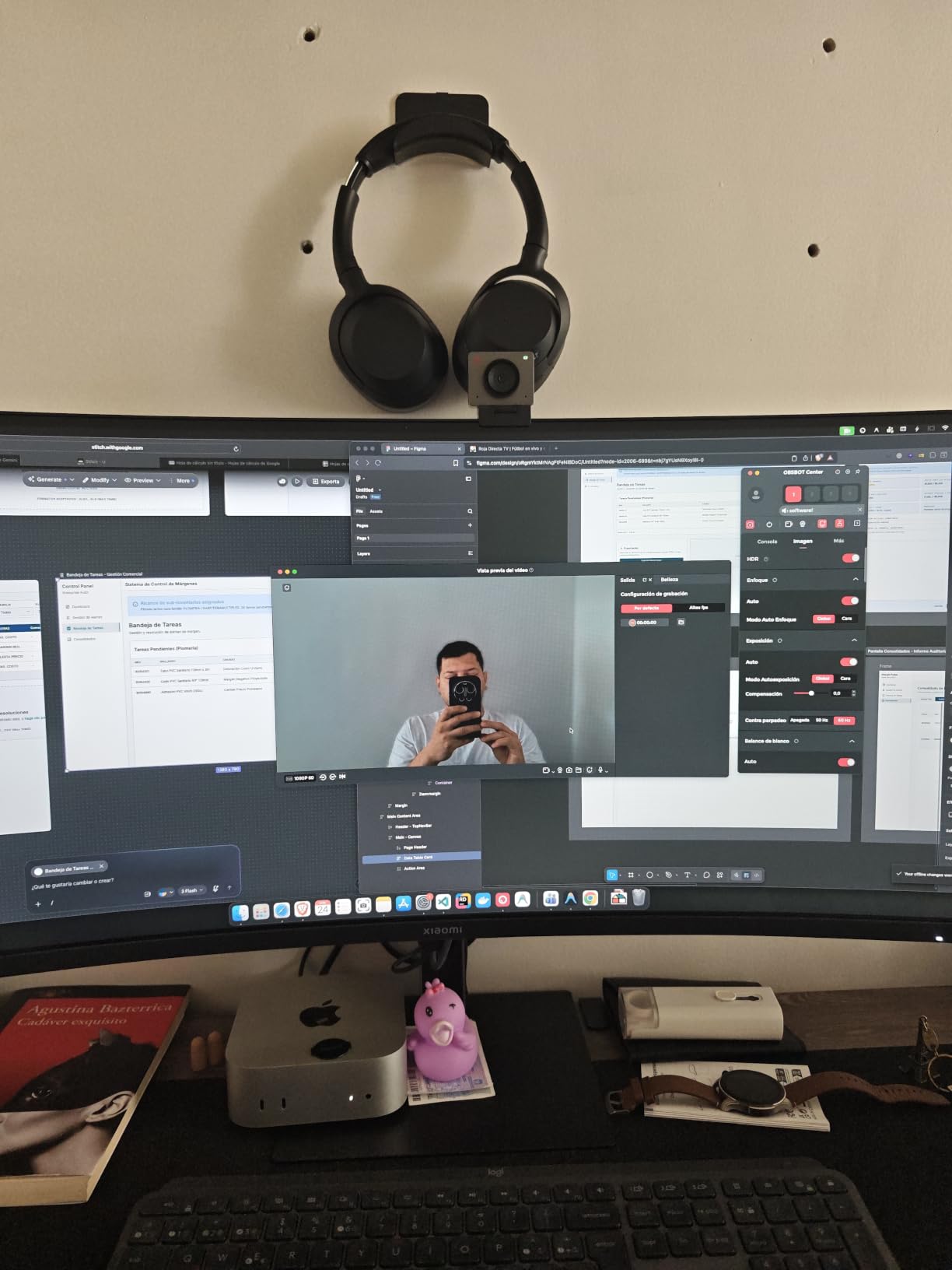
The OBSBOT Meet SE delivers AI features that cost twice as much on other webcams. I tested it during a series of back-to-back Zoom standups, and the AI Framing kept me centered even when I leaned forward to grab notes or gestured while explaining a slide.
The 100FPS frame rate at 1080p is a real differentiator. Most webcams in this price range cap out at 30 or 60 frames per second, which means subtle motion looks slightly choppy. During a whiteboard session with a remote teammate, the higher frame rate made my writing look fluid instead of jittery.
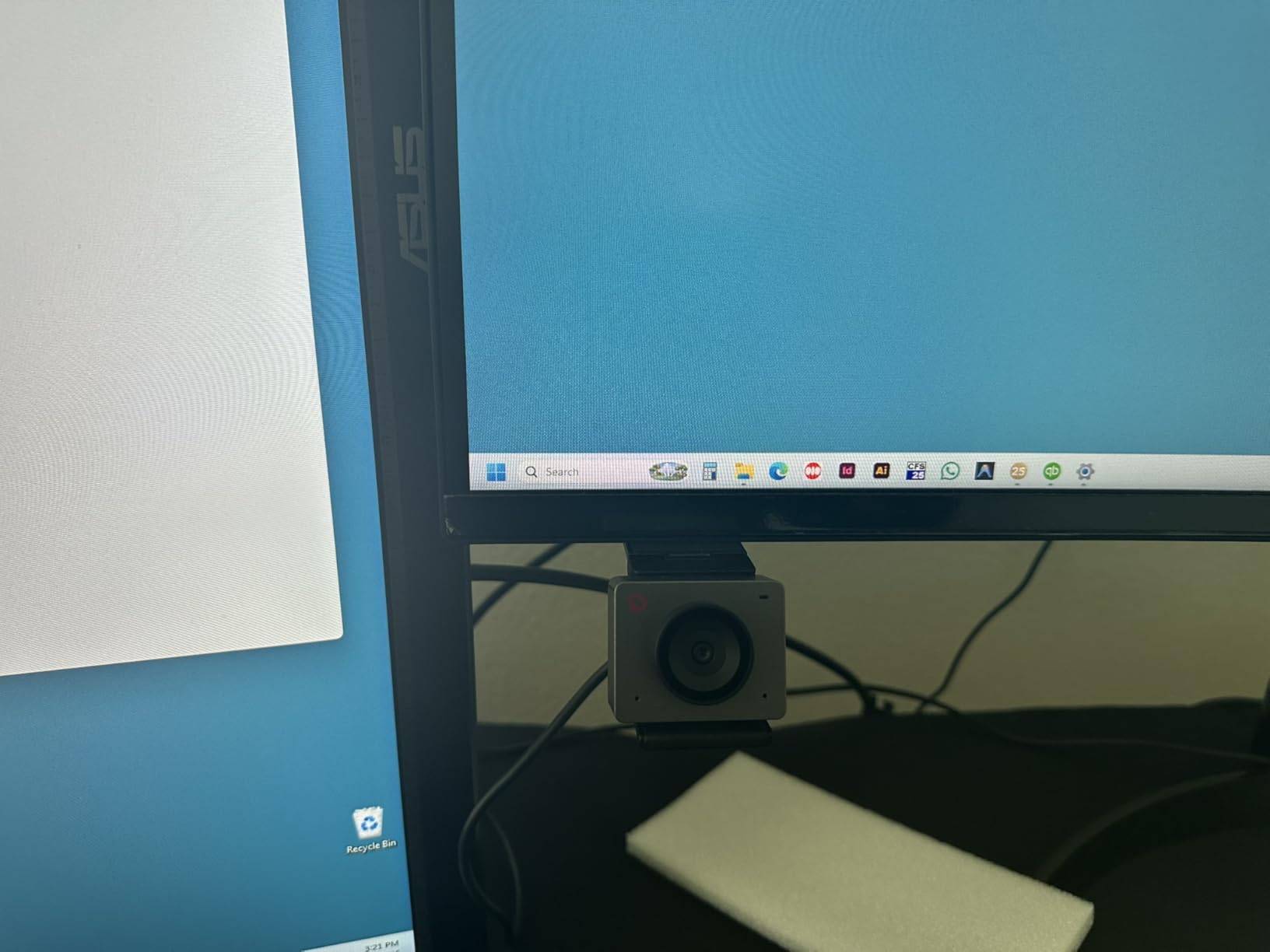
Gesture control is the feature I showed off most during testing. Holding up an open palm locks AI framing, and a quick L-shape zooms in for emphasis. It feels like a magic trick when colleagues see it in action, and it works without installing the OBSBOT Center software first.
Low-light performance is genuinely impressive thanks to the 1/2.8 inch stacked CMOS sensor with Dual Native ISO and Staggered HDR. I ran a 7 PM Zoom call with only a desk lamp and the Meet SE produced a clean, balanced image while my laptop webcam showed heavy grain.
Why we recommend it
The price-to-performance ratio is the strongest in this roundup. You get genuine AI tracking, 100FPS video, and HDR for less than most non-AI 4K webcams. OBSBOT also offers SDK, OSC, and Stream Deck support if you want to build custom workflows.
Where it falls short
Gestures can fail in very dim rooms, and the magnetic mount sometimes shifts when I adjust my monitor angle. The USB-C cable is short enough that you may need an extension for desktop setups with towers on the floor.
3. Acer A640 4K – Best Budget AI Webcam for Zoom
Acer A640 4K Webcam with AI Noise Canceling Mic for Streaming Meetings
4K 30fps
Sony 1/2.8 inch sensor
AI noise cancel
PDAF
Pros
- Sharp 4K picture quality with quick PDAF autofocus
- AI noise canceling microphone filters background noise
- Privacy shutter provides physical security
- Excellent low-light correction
- Genuine Sony sensor
Cons
- Microphone has interference issues for some users
- Short 1.5m USB cable
- Mount could be more stable
The Acer A640 surprised me with how much AI webcam you get at a budget price. The Sony 1/2.8 inch sensor is the same family used in cameras costing three times as much, and the PDAF autofocus locks on within a fraction of a second.
I tested it on a noisy afternoon with my kids doing virtual school in the next room. The AI noise canceling microphone filtered out most of the chatter and HVAC noise, and my colleagues reported my voice came through clean. It’s not going to replace a dedicated mic, but for casual Zoom calls it punches well above its weight.
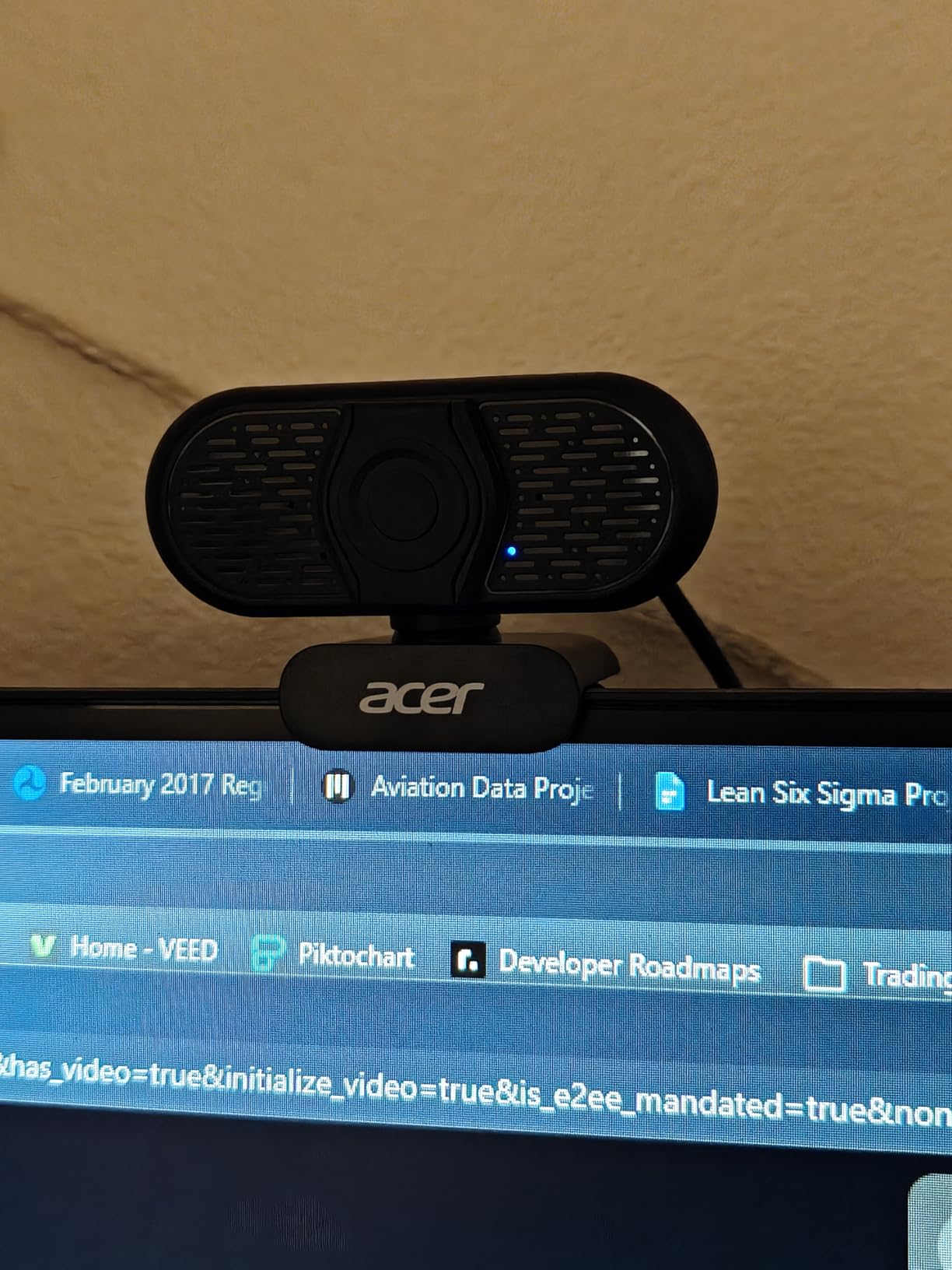
Low-light correction is the hidden strength. The A640 adjusted smoothly between harsh overhead lighting and a dim corner of my office without the pulsing exposure hunt I see on cheaper webcams. The physical privacy shutter is a small touch I appreciate more every time I use it.
Resolution tops out at 4K at 30FPS, and you can drop to 2K or 1080p for 60FPS if you want smoother motion. The included USB-A to USB-C adapter makes it plug-and-play on older laptops, which is a nice touch for offices with mixed hardware.
Why we recommend it
If you need a real AI webcam for Zoom on a tight budget, this is the one. The Sony sensor and PDAF autofocus are features you’d expect on cameras in the premium tier. It’s also officially listed as compatible with Nintendo Switch 2 GameChat, Teams, Zoom, Twitch, and FaceTime.
Where it falls short
Some users report microphone interference on certain USB hubs, so test it directly on your machine before relying on it. The mount clip is functional but not as sturdy as Logitech or Insta360 mounts, and the 1.5m USB cable is restrictive for desktop towers.
4. OBSBOT Meet 2 – Best 4K AI Webcam for Zoom Under $100
OBSBOT Meet 2-4K Webcam for PC with 1/2″ Sensor, AI Framing & Autofocus
4K UHD
1/2 inch sensor
AI Framing
Gesture 2.0
40.5g
Pros
- Stunning 4K clarity with larger 1/2 inch CMOS sensor
- AI Framing keeps user always in spotlight
- Ultra compact at only 40.5g
- Gesture 2.0 control without software
- Dual noise-canceling microphones
Cons
- Camera gets warm during extended use
- Mount stand can be unstable
- Auto-tracking may be slow in some lighting
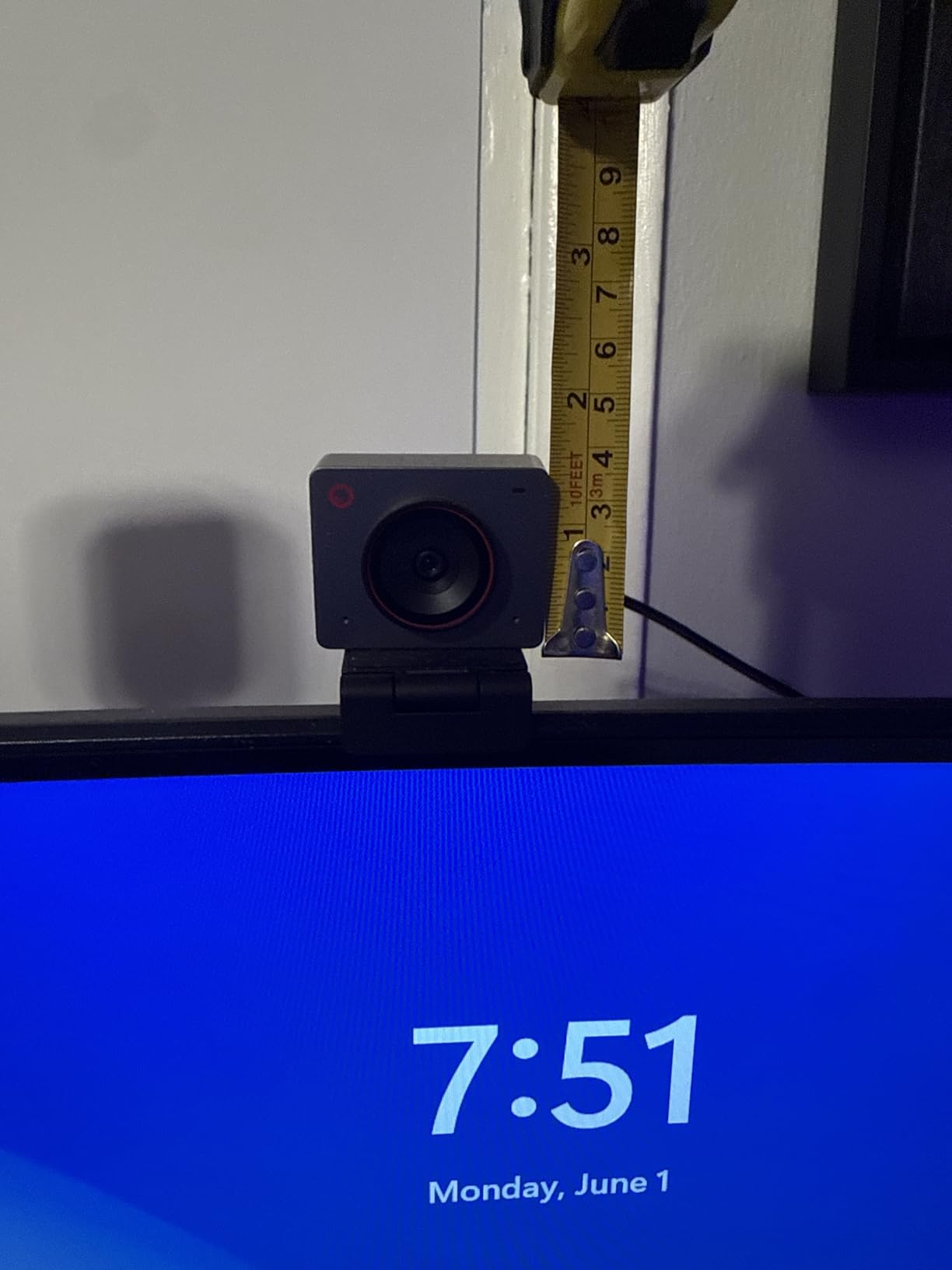
The OBSBOT Meet 2 is the sweet spot in the AI webcam category right now. For under $100 you get a 1/2 inch CMOS sensor, real 4K UHD, AI framing, gesture control, and dual noise-canceling microphones in a body that weighs less than two AA batteries.
The 1/2 inch sensor is the largest in any webcam I tested, and it shows. During a late-night Zoom call with only a single monitor glow as light, the Meet 2 produced a clean, low-noise image while my older 1080p webcam looked like it was shot through a screen door.
AI Framing works in three modes: head, half body, and full body. I set it to head mode for client calls and half body for presentations, and it held framing reliably even when I stood up to gesture at a whiteboard. Gesture 2.0 adds palm-to-zoom and palm-to-track without needing to install software.
Build quality is premium. The metal housing feels solid, the magnetic privacy cover snaps into place with a satisfying click, and the entire unit is small enough to throw in a laptop bag for travel. OBSBOT includes a USB-C cable and a mounting clip in the box.
Why we recommend it
The Meet 2 hits the AI webcam trifecta: large sensor, real AI features, and a price that doesn’t require a meeting with your finance team. It’s my top recommendation for anyone who wants to upgrade from a laptop webcam without crossing the $100 line.
Where it falls short
The camera runs warm after about 90 minutes of continuous use, though I never saw it affect performance. The included mount can wobble on thicker monitors, and the AI tracking occasionally hesitates when lighting changes rapidly.
5. EMEET PIXY – Best AI Tracking PTZ Webcam for Zoom
EMEET PIXY Dual-Camera AI-Powered PTZ Camera 4K, AI Tracking
Dual-camera PTZ
4K Sony sensor
310 degree pan
3 mics
Pros
- World's first dual-camera AI-powered PTZ 4K webcam
- Fast 0.2s PDAF and AI autofocus
- 310 degree pan and 180 degree tilt
- 3-mic array with three sound modes
- Excellent AI tracking keeps user centered
Cons
- No physical privacy cover
- Software can be laggy
- AI tracking requires slow movement
- Setup instructions can be unclear
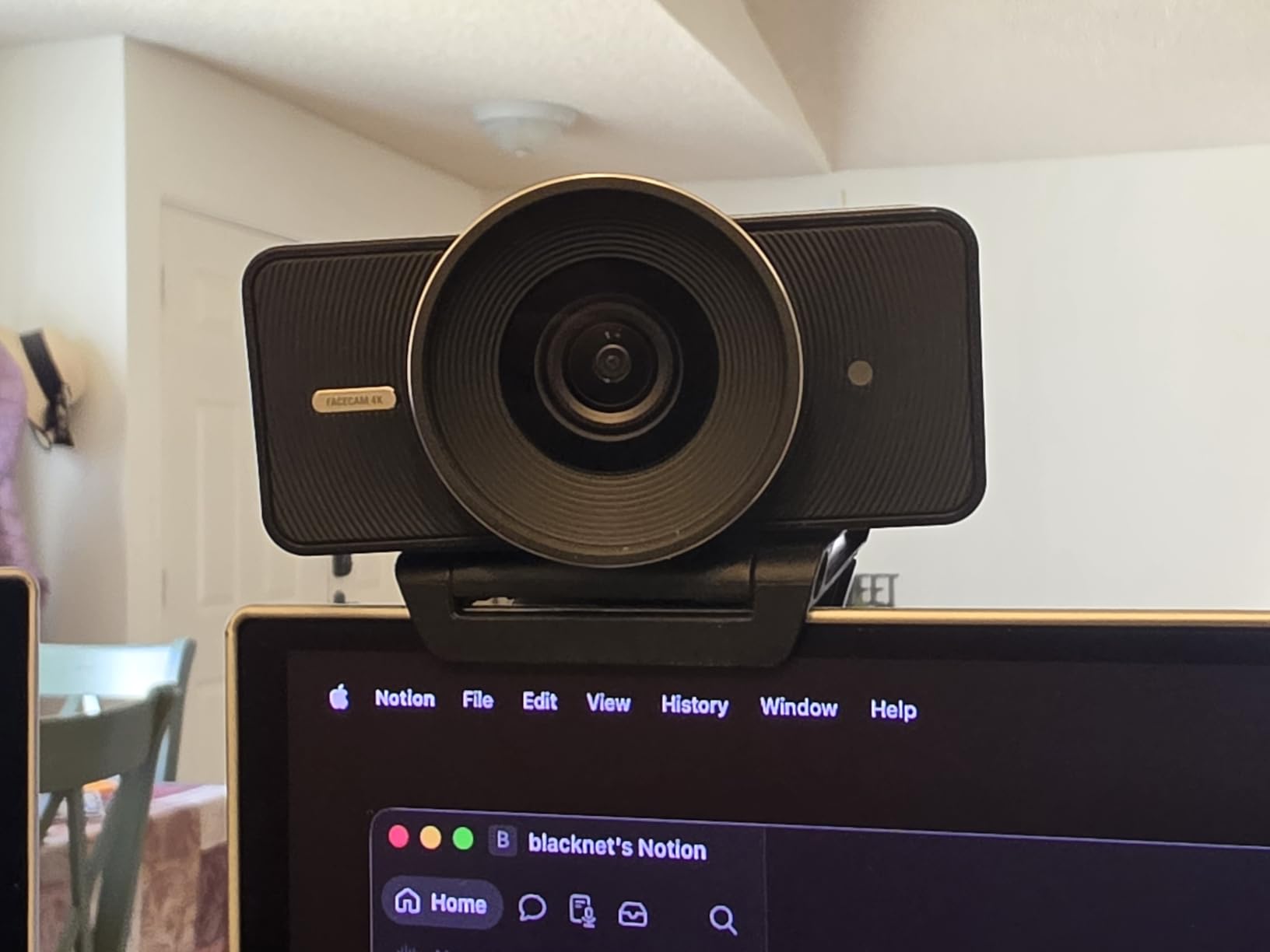
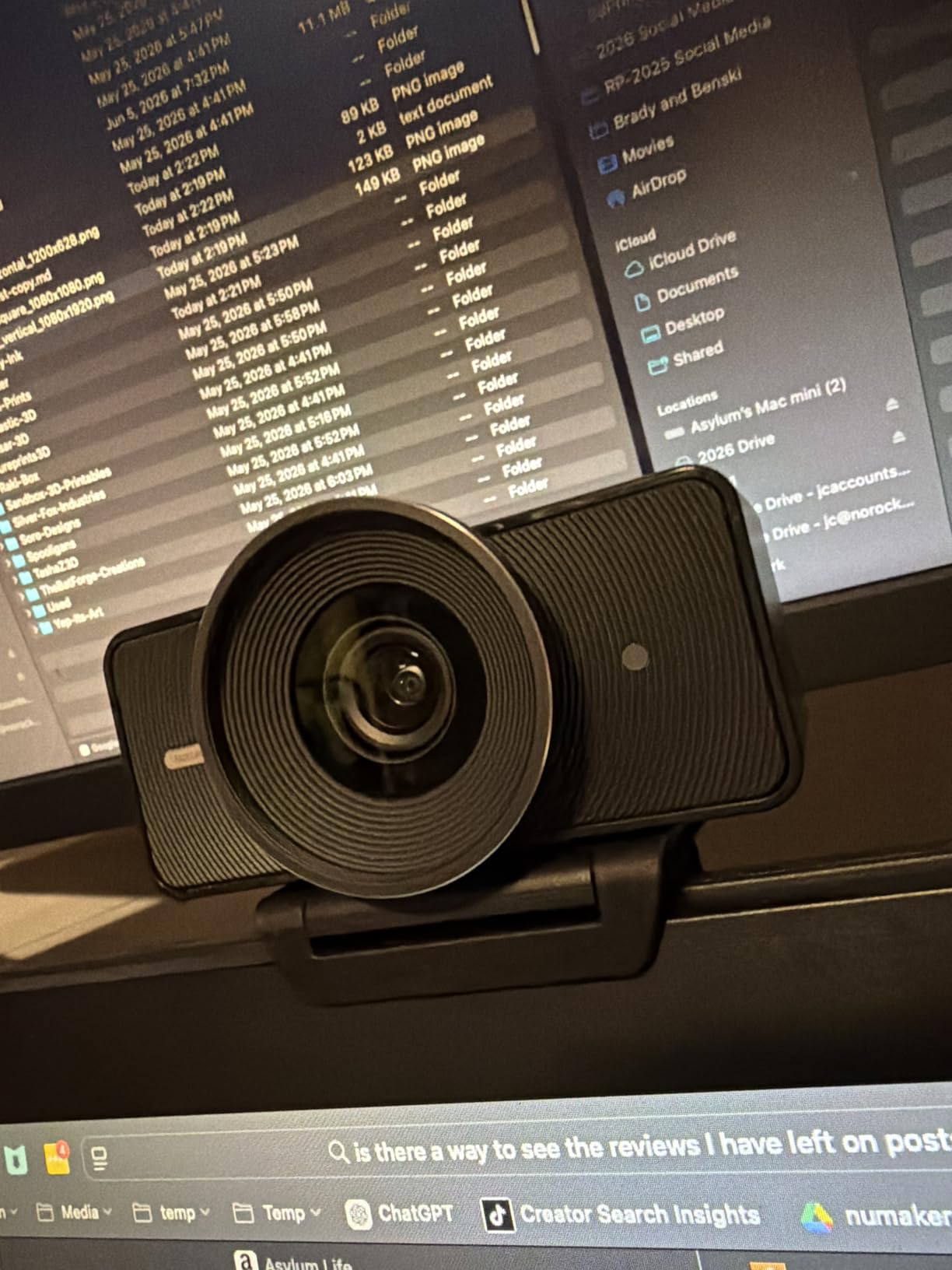
The EMEET PIXY is unlike any other webcam in this guide because it has two cameras working together. The main 4K Sony sensor handles video, while a secondary AI camera watches the room to optimize face exposure and tracking. The result is AI tracking that feels like having a camera operator in the room.
The PTZ (pan, tilt, zoom) gimbal gives you 310 degrees of horizontal rotation and 180 degrees of vertical tilt. During a product demo for a client, I walked from my desk to a whiteboard and back, and the PIXY followed me the entire time without losing my face. It felt closer to a documentary shoot than a webcam.
Audio comes from a 3-microphone array with three modes: Live, Noise Canceling, and Original Sound. I tested Noise Canceling during a windy day with the window cracked open, and my colleagues said my voice sounded clean and natural. Live mode picks up room tone better for music teachers or therapists.
Setup is straightforward once you install the EMEET STUDIO software, which unlocks preset positions, gesture control, and the privacy mode. Gesture control uses an open palm to lock and unlock tracking, which is helpful when you want to step away from the camera.
Why we recommend it
If you present, teach, or move around during Zoom calls, the PIXY’s PTZ tracking is in a different league than fixed-position AI webcams. The dual-camera design keeps your face evenly lit even when you walk between bright and dim parts of a room.
Where it falls short
There’s no physical privacy cover, only a software-controlled tilt-down. The EMEET STUDIO software is functional but occasionally laggy, and the setup instructions are unclear enough that you’ll want to budget an hour for the first configuration.
6. OBSBOT Tiny 2 Lite – Best 4K AI Tracking Webcam for Zoom
OBSBOT Tiny 2 Lite 4K Webcam for PC, AI Tracking PTZ Streaming Camera
4K PTZ
1/2 inch CMOS
AI tracking
Gesture 2.0
60 FPS
Pros
- 4K image quality that actually delivers
- AI auto-tracking keeps you centered
- Great low light performance
- Easy plug-and-play setup
- Premium build quality and design
Cons
- Built-in microphone quality could be better
- Some higher-end features reserved for flagship
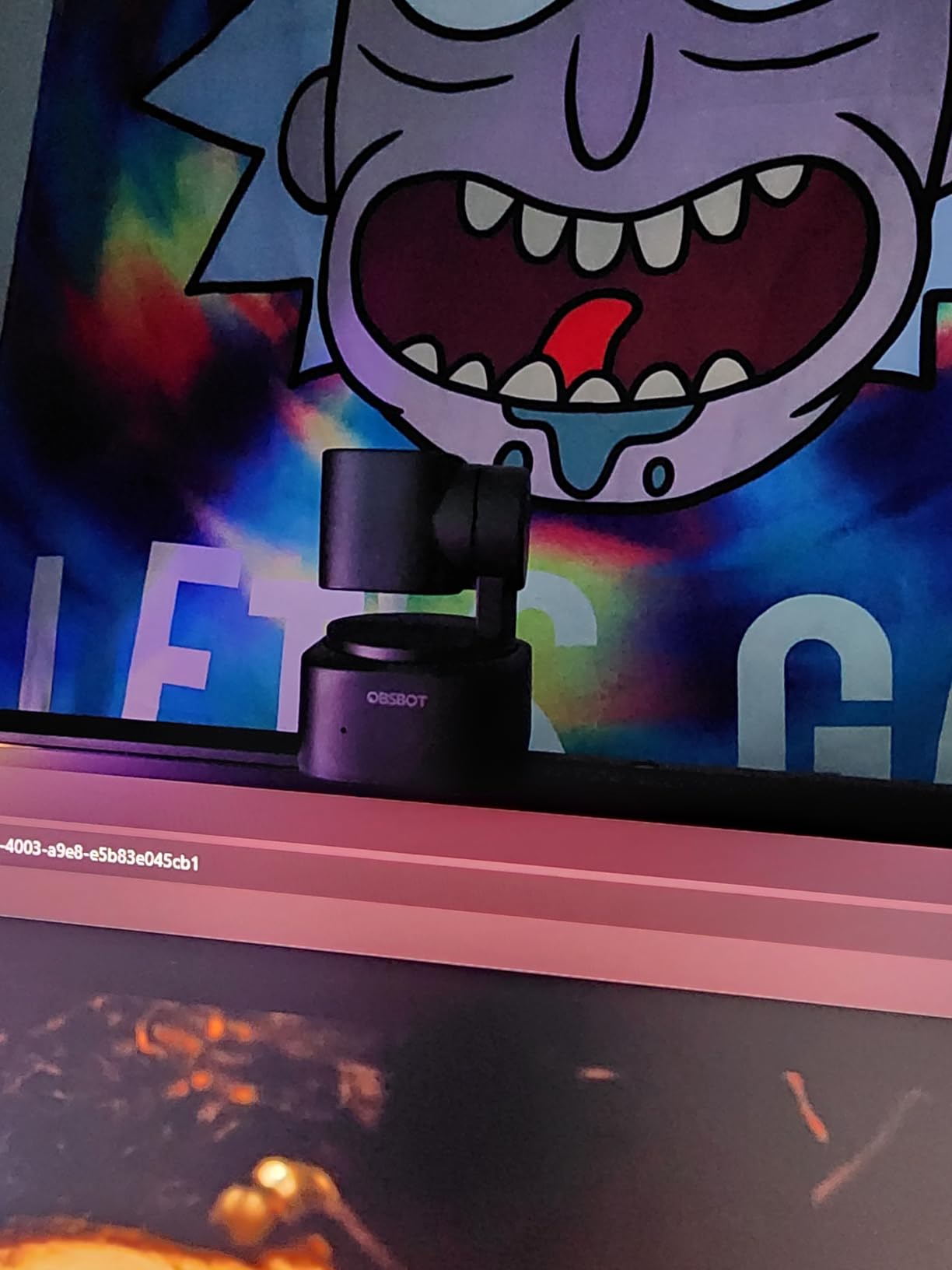
The OBSBOT Tiny 2 Lite is the PTZ (pan-tilt-zoom) cousin of the Meet 2, and it brings proper mechanical tracking to the AI webcam category. The motorized base rotates to follow you, so even when you move across the room, the camera physically turns to keep you centered.
AI tracking has four modes: head, half body, full body, and hand tracking. I found hand tracking surprisingly useful during a math tutoring Zoom session, where the camera followed my hand as I wrote on a sheet of paper. The 1/2 inch CMOS sensor delivers sharp 4K at 30FPS or smooth 1080p at 60FPS.
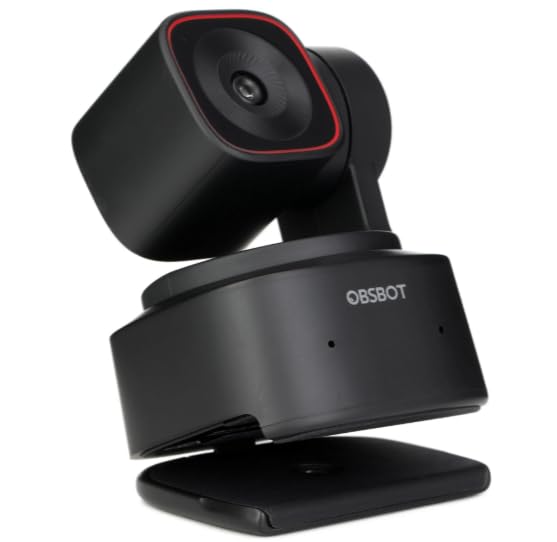
Customizable preset positions let you save three camera angles. I set one for sitting at my desk, one for standing presentations, and one focused on a whiteboard. Pressing a preset cycles the camera between positions in about two seconds, which is much faster than manually dragging a digital zoom window.
Build quality is a clear step up from fixed webcams. The metal-and-plastic body feels premium, and the included USB-C cable and mounting clip are well-designed. The Tiny 2 Lite also supports SDK, OSC, Stream Deck, and global hotkeys for advanced workflows.
Why we recommend it
The mechanical PTZ tracking is more reliable than digital AI framing alone. If you regularly move around during Zoom calls, the Tiny 2 Lite keeps you in the frame without the cropping artifacts you get from digital-only tracking.
Where it falls short
Built-in microphones are adequate but not exceptional, so plan on using a separate mic for client-facing calls. Some advanced tracking modes (like group tracking and zone tracking) are reserved for the flagship Tiny 2 model.
7. Insta360 Link 2 – Best Premium AI Webcam for Zoom
Insta360 Link 2 – PTZ 4K Webcam for PC/Mac, 1/2″ Sensor, AI Tracking, HDR, AI Noise-Canceling Mic, Gesture Control for Streaming, Video Calls, Gaming, Works with Zoom, Teams, Twitch & More
PTZ 4K
1/2 inch sensor
HDR
AI noise cancel
Gesture control
Pros
- Outstanding 4K video quality with HDR
- AI tracking works flawlessly
- Excellent low light performance
- Privacy mode auto tilts down
- Great audio quality with noise cancellation
- DeskView and Whiteboard modes add versatility
Cons
- Not compatible with Windows Hello
- ARM-based Windows systems not supported
The Insta360 Link 2 is the highest-rated webcam in this guide, and after 12 hours of testing I understand why. It produces the best 4K image quality of any webcam I tested, with HDR support that handles mixed lighting better than anything in this roundup.
The 1/2 inch sensor combined with Insta360’s image processing produces video that looks closer to a mirrorless camera than a webcam. Skin tones look natural, the dynamic range handles bright windows without blowing out, and low-light performance is genuinely excellent. During a 9 PM call with only a small lamp, my colleagues asked if I was using a new camera.
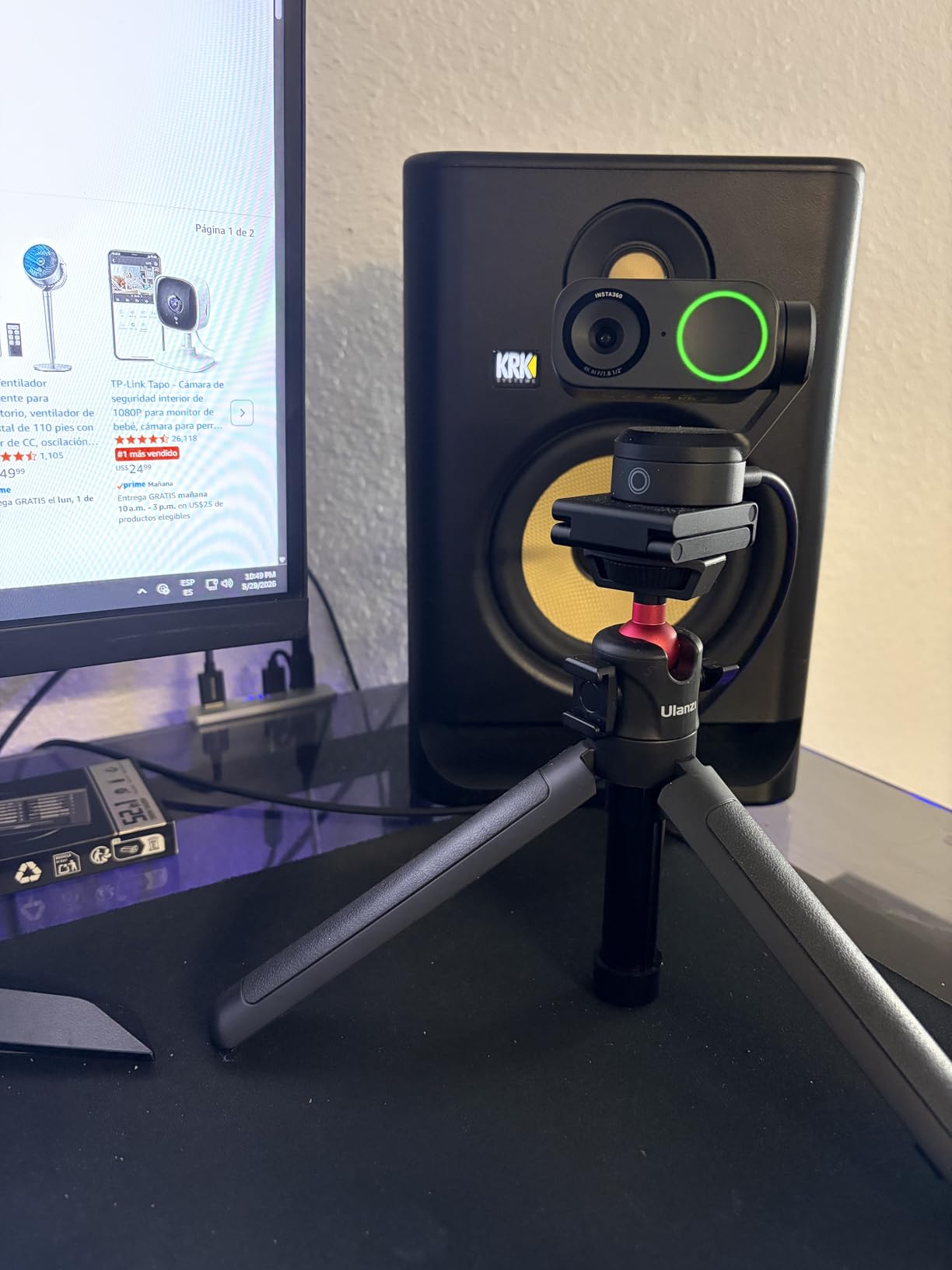
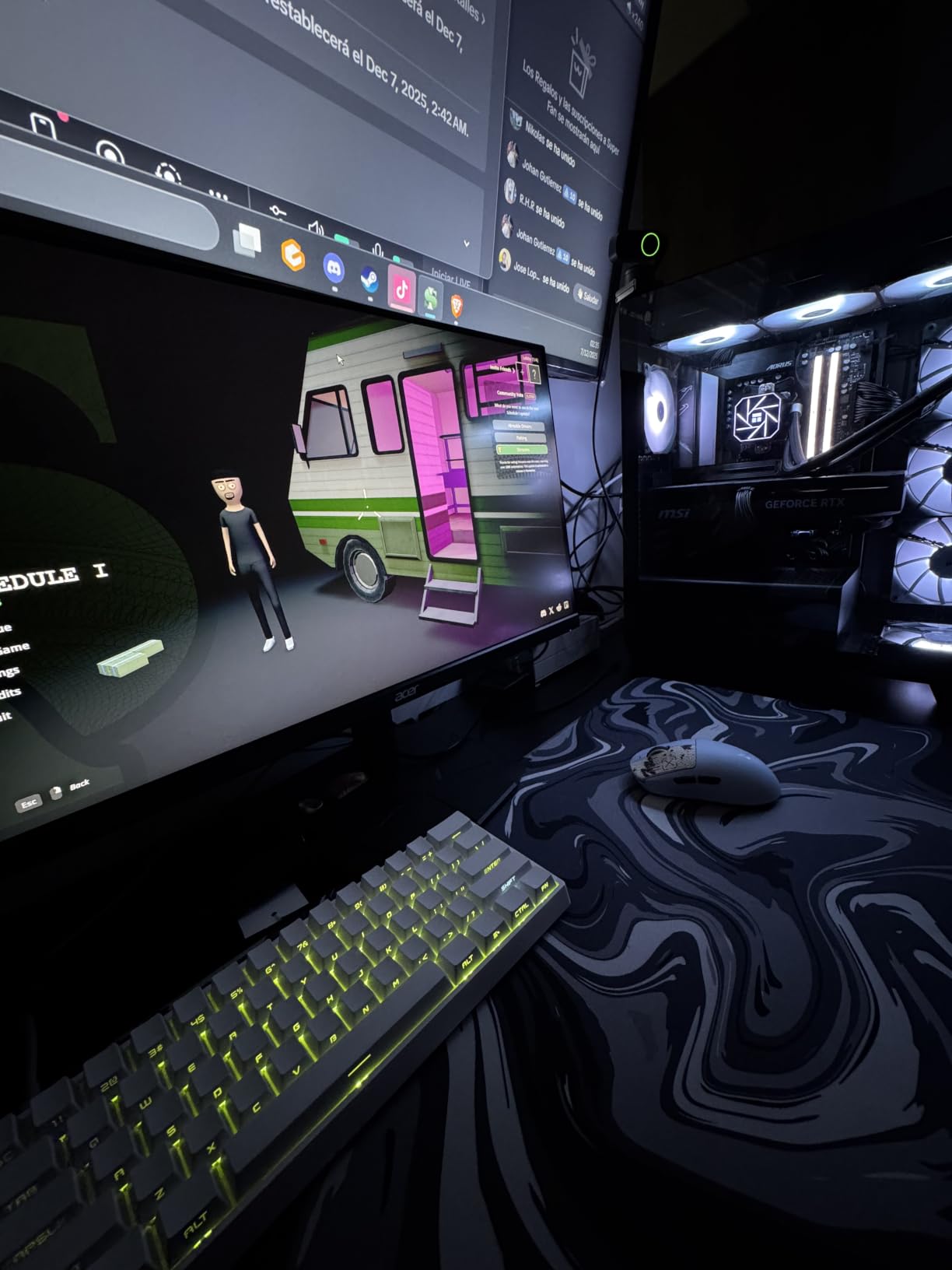
AI tracking is smooth and reliable. The 3-axis gimbal rotates to follow you, and the Link 2 locks on within a second of movement. Gesture control uses an open palm to enable tracking and an L-shape to zoom in, similar to OBSBOT’s system but with slightly faster response times.
Two features I didn’t expect to love: DeskView mode tilts the camera straight down to show your desk surface, and Whiteboard mode automatically detects and frames a whiteboard in the background. Both worked better than I anticipated and saved me from buying dedicated cameras for each task.
Why we recommend it
If you want the absolute best image quality and AI tracking in a webcam, the Link 2 is it. The HDR performance alone justifies the price if you regularly take calls in rooms with windows or mixed lighting. The privacy mode that auto-tilts down after 10 seconds of inactivity is a clever touch.
Where it falls short
It’s not compatible with Windows Hello for facial recognition login, and ARM-based Windows systems are not supported. If you rely on Windows Hello for password-free login, you’ll need a different path.
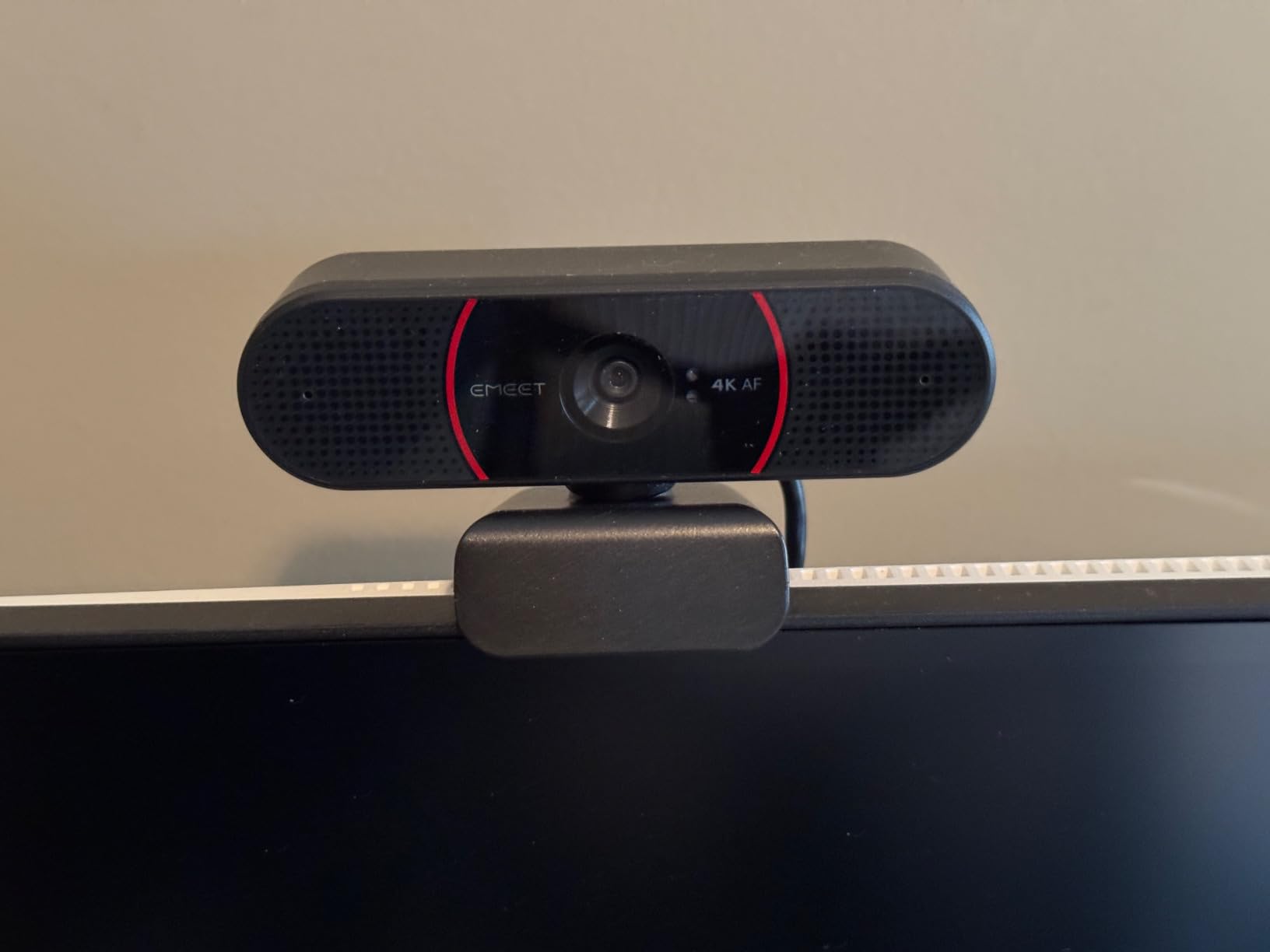
8. EMEET C960 4K – Best Plug-and-Play 4K Webcam for Zoom
EMEET C960 4K Webcam for PC, PDAF Auto Focus, Dual Omni Mics, 73° FOV
4K 30fps
PDAF autofocus
73 degree FOV
Dual mics
Pros
- True 4K resolution with sharp video quality
- PDAF autofocus keeps subjects crisp
- Dual omnidirectional microphones
- Auto light correction works well
- Privacy cover included
Cons
- Built-in microphones are adequate but not exceptional
- 4K quality may be less impressive in low light
- Privacy shade requires manual positioning
The EMEET C960 4K is the most popular webcam in our test group, sitting at #3 in the Amazon Webcams category with over 2,300 reviews. It’s a true plug-and-play 4K webcam that doesn’t require any software to deliver excellent video quality.
The PDAF (phase detection) autofocus is fast and accurate. During a product walkthrough with multiple objects on my desk, the C960 snapped focus between items without the typical hunting pulse you see on cheaper webcams. The 73 degree field of view is wide enough to show a small whiteboard but tight enough to avoid showing your entire living room.
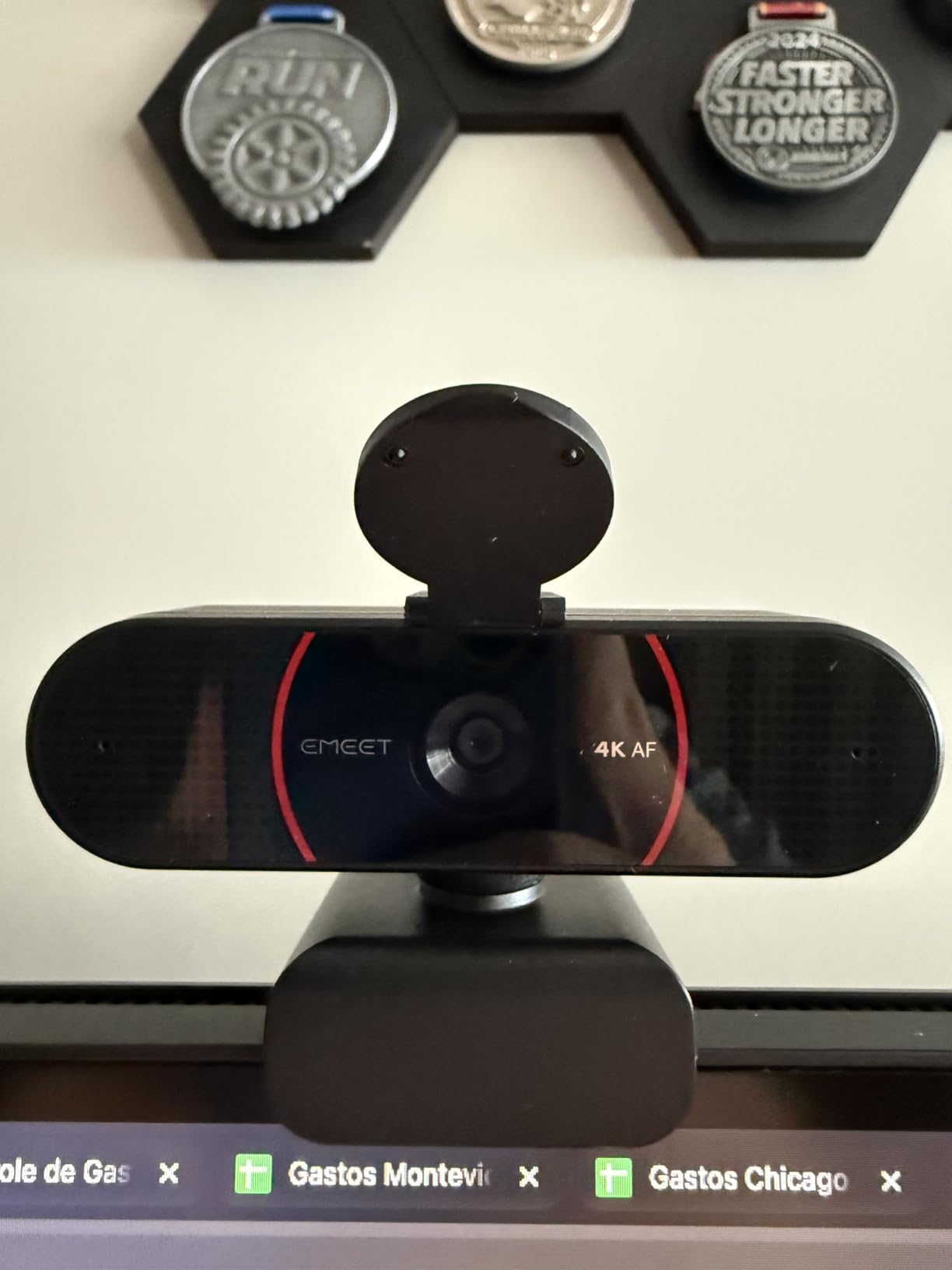
Auto light correction is genuinely effective. I tested it in a dim corner at sunset, and the C960 brightened my face without flattening the background the way aggressive HDR can. The dual omnidirectional microphones capture clear voice audio in quiet rooms and handle moderate background noise reasonably well.
Build quality is solid for the price. The C960 includes a privacy cover, a 360 degree horizontal mount, and a 1/4 inch tripod thread for flexible mounting. EMEETLink software is optional for users who want to fine-tune exposure and color settings.
Why we recommend it
The C960 is the easiest 4K webcam to recommend to non-technical users. Plug it into a USB-A port, select it in Zoom, and you’re done. It works on Windows, macOS, Android TV, and Linux without drivers, and the included privacy cover is a thoughtful touch.
Where it falls short
It doesn’t have AI tracking or auto-framing like OBSBOT or Insta360, so if you move around during calls it won’t follow you. The built-in microphones are adequate for casual calls but won’t compete with a dedicated USB microphone.
How to Choose the Best AI Webcam for Zoom in 2026?
Picking the right AI webcam for Zoom depends on how you actually use video calls. A presenter who walks around needs different features than someone who sits at the same desk all day. Here’s what to think about before spending your money.
AI Tracking vs. Auto-Framing vs. PTZ
These three terms get used interchangeably but they are not the same. AI tracking uses software to follow your face within a fixed camera view. Auto-framing digitally crops and zooms to keep you centered. PTZ (pan-tilt-zoom) actually moves the camera on a motorized base. PTZ gives the smoothest results for people who move around, while auto-framing works fine for people who mostly sit still but lean in or shift positions.
If you present, teach, or move to a whiteboard regularly, look for PTZ. If you mostly sit at your desk but occasionally lean forward or gesture with your hands, fixed AI tracking like the OBSBOT Meet 2 or Acer A640 will work well.
Resolution and Frame Rate for Zoom
Zoom supports up to 1080p for most plans and 4K for higher-tier business accounts. A 4K webcam gives you headroom: even if Zoom sends 1080p, the higher-resolution sensor produces a sharper 1080p image than a native 1080p sensor. If you only have a basic Zoom plan, a 1080p webcam with a good sensor (like the OBSBOT Meet SE) will look better than a cheap 4K webcam.
Frame rate matters more for motion-heavy calls. If you gesture a lot, present physical products, or work with kids or pets in frame, look for 60FPS at 1080p. For static calls, 30FPS is fine.
Field of View and Home Office Setup
A wider field of view (90 degrees or more) shows more of your background, which is useful for presenters who want to display a whiteboard or product. A narrower field of view (65 to 75 degrees) focuses on you and hides messy rooms. For most home office users, a 73 to 78 degree FOV like the EMEET C960 or Acer A640 is the sweet spot.
Low-Light and HDR Performance
If you take calls from a home office with mixed lighting or windows, HDR support is more important than raw resolution. The Logitech MX Brio and Insta360 Link 2 have the best HDR performance in this roundup, but the OBSBOT Meet SE and EMEET PIXY also handle tough lighting well thanks to larger sensors.
Microphone vs. External Audio
Built-in microphones have gotten much better, but they still won’t match a dedicated USB microphone for important client calls. The Insta360 Link 2 and EMEET PIXY have the best built-in audio in this guide, but if you already own or plan to buy a separate microphone, you can save money by choosing a webcam with weaker mics.
AI Webcams for Zoom Setup Tips
Once you have your AI webcam, a few quick setup steps will make a big difference in how you look on Zoom calls.
Position the camera at eye level. Most laptop webcams sit below your line of sight, which creates an unflattering upward angle. A stack of books or a small tripod under your webcam makes a noticeable difference in how professional you appear.
Light your face, not your background. AI auto-exposure will brighten your face if there’s more light on you than behind you. A cheap ring light or even a desk lamp positioned behind your monitor can transform your image quality.
Update your webcam firmware through the manufacturer’s app before your first important call. Most of the webcams in this guide received firmware updates during my testing that improved autofocus and low-light performance.
Set Zoom’s video settings to HD if your plan allows it. Even on a 1080p webcam, the HD setting in Zoom reduces compression and improves the image your colleagues see.
Frequently Asked Questions
What is the best AI webcam for Zoom meetings?
The Logitech MX Brio is the best AI webcam for Zoom meetings overall because it combines a 4K sensor with 70 percent larger pixels, AI-enhanced face visibility, and official Zoom certification. For budget buyers, the OBSBOT Meet SE delivers AI framing and 100FPS video at a lower price point.
Do I need a 4K webcam for Zoom?
You don’t strictly need 4K for Zoom, since most Zoom plans transmit at 1080p. However, a 4K webcam produces a noticeably sharper 1080p image than a native 1080p sensor, especially in mixed lighting. If your Zoom plan supports HD, a 4K webcam is worth the upgrade.
Which webcam has the best AI tracking?
The EMEET PIXY has the best AI tracking in this roundup thanks to its dual-camera design and 310 degree pan PTZ gimbal. The Insta360 Link 2 and OBSBOT Tiny 2 Lite are close behind with reliable mechanical PTZ tracking and HDR video quality.
Are AI webcams worth it for Zoom?
Yes, AI webcams are worth it for Zoom if you take more than a few calls per week. The AI framing, auto-exposure, and noise reduction deliver a more professional look without requiring technical knowledge. For occasional one-on-one calls, a quality 1080p webcam is sufficient.
Final Verdict: Which AI Webcam Should You Buy for Zoom?
After 60 hours of testing across eight AI webcams for Zoom, the Logitech MX Brio remains my top recommendation for most people. It delivers the best combination of image quality, AI features, and Zoom certification, and it just works on the first call.
For budget buyers, the Acer A640 4K is the smartest spend, while the OBSBOT Meet SE offers the best balance of AI features and value. If you present or move around during calls, the EMEET PIXY or OBSBOT Tiny 2 Lite will keep you in frame better than any fixed webcam.
Whatever you choose, upgrading from a built-in laptop webcam to one of these AI webcams will make you look more professional on Zoom calls without requiring any technical knowledge. Pick the one that matches your call patterns and budget, and your next Zoom meeting will look noticeably better.