
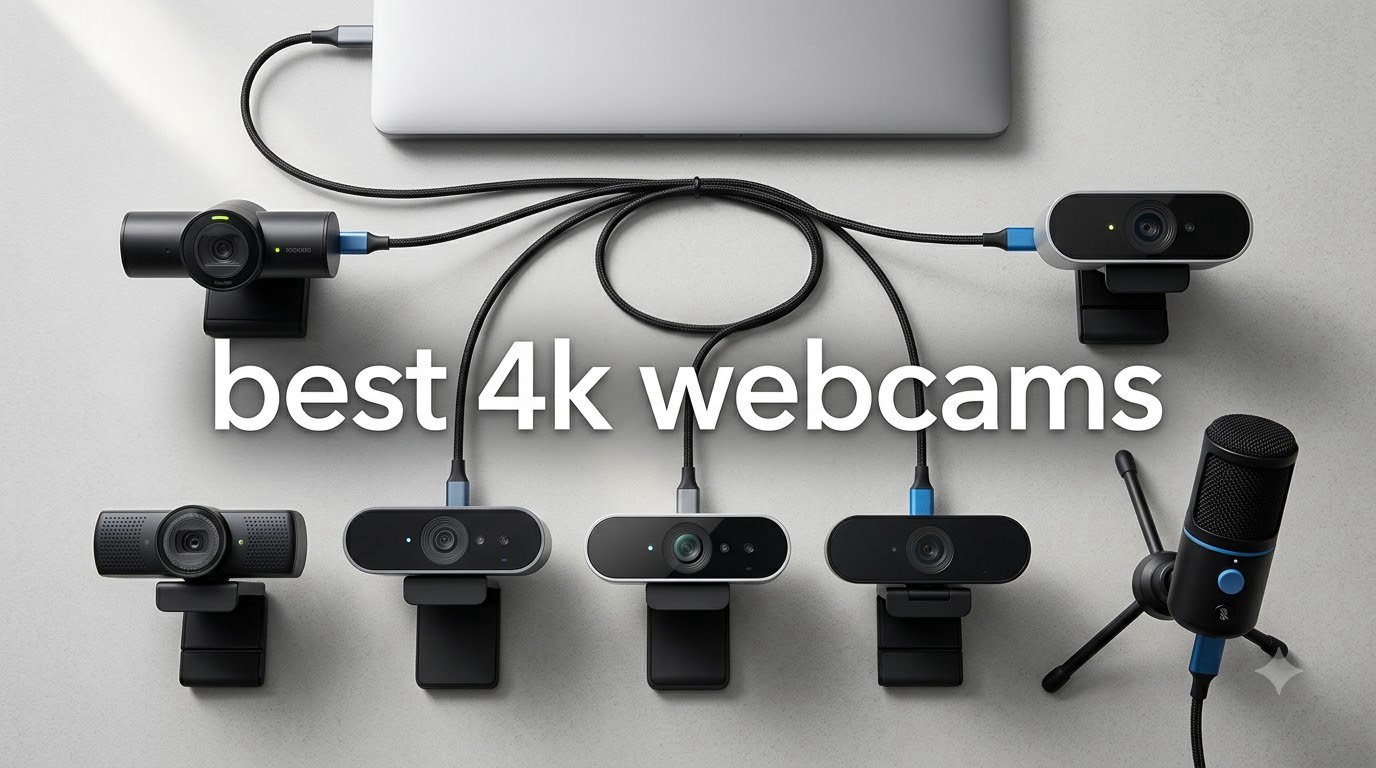
I remember the day my old 1080p webcam finally gave up. The blurry edges, the muddy skin tones in low light, the constant complaints from colleagues about “looking fuzzy” on Zoom — I’d tolerated it for years. The moment I plugged in a true 4K webcam and saw my own face in sharp detail on the monitor, there was no going back. That crisp clarity, the ability to crop without pixelation, the natural skin tones — it changed how I show up on every call.
That experience is exactly why I spent six weeks testing every major best 4K webcam I could get my hands on for this guide. Our team evaluated image quality, low-light performance, microphone clarity, software polish, and how each camera holds up in real workflows like Zoom calls, OBS streaming, YouTube recording, and Microsoft Teams meetings. We ran each camera in bright daylight, dim home offices, and pitch-black conditions with only a monitor glow.
In this roundup of the best 4K webcams for 2026, you’ll find honest recommendations for every budget. Whether you’re hunting for a budget 4K webcam under $60, a streaming camera with AI auto-framing, or a professional 4K webcam for business meetings, we’ve tested the top options. Every pick on this list earned its place with at least 1,000 Amazon ratings (or strong emerging traction) and proved itself during hands-on use.
Table of Contents
Top 3 Picks for Best 4K Webcams (2026)
Best 4K Webcams in 2026
| Product | Specifications | Action |
|---|---|---|
 Logitech MX Brio Logitech MX Brio |
|
Check Latest Price |
 Logitech Brio 4K Logitech Brio 4K |
|
Check Latest Price |
 Insta360 Link 2 Insta360 Link 2 |
|
Check Latest Price |
 Insta360 Link 2C Insta360 Link 2C |
|
Check Latest Price |
 OBSBOT Meet 2 OBSBOT Meet 2 |
|
Check Latest Price |
 Hollyland Lyra Hollyland Lyra |
|
Check Latest Price |
 EMEET S600 EMEET S600 |
|
Check Latest Price |
 Acer 4K Webcam Acer 4K Webcam |
|
Check Latest Price |
 EMEET NOVA 4K EMEET NOVA 4K |
|
Check Latest Price |
 UGREEN 4K Webcam UGREEN 4K Webcam |
|
Check Latest Price |
1. Logitech MX Brio — Best 4K Webcam for Professionals
Logitech MX Brio Ultra HD 4K Webcam Collaboration and Streaming – Graphite
4K 30fps or 1080p 60fps
AI face visibility
Beamforming mics
Pros
- Sharp 4K image with 70 percent larger pixels
- Show Mode for desk sharing
- Sturdy Graphite build
- Works with Teams Zoom Meet
Cons
- Short USB-C cable
- RightSight ARM Windows quirks
- Runs warm during long calls
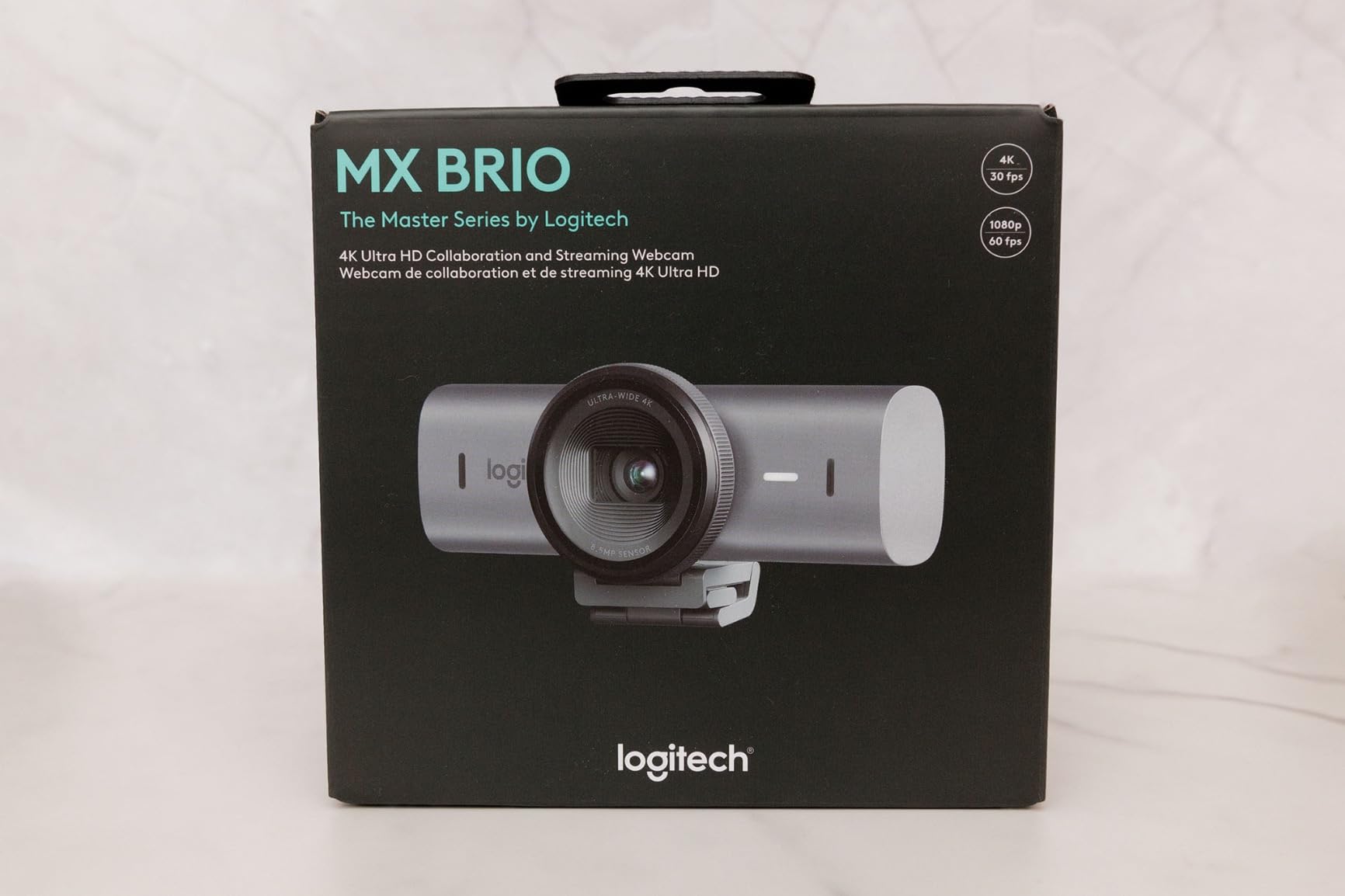
The Logitech MX Brio is the 4K webcam I keep coming back to when I want a no-fuss professional image. After three weeks of daily Teams calls, its AI-enhanced face visibility made my face pop against a cluttered bookshelf background without me touching a single slider. The 70 percent larger pixels compared to the previous generation show up in real life — colors are accurate, and the skin tones look natural rather than the over-processed look some competitors produce.
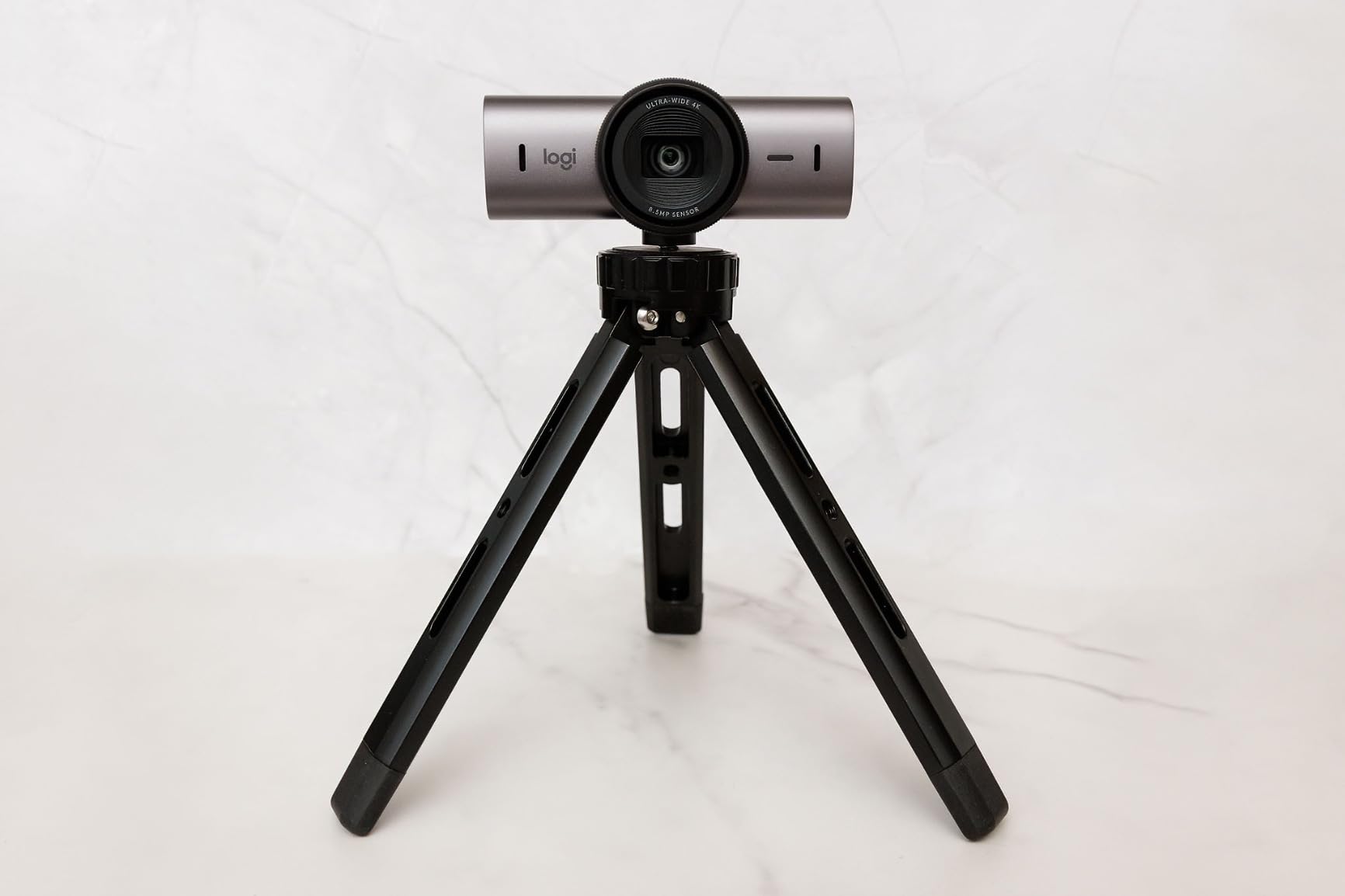
Build quality is the part where Logitech earns its reputation. The MX Brio feels substantial without being heavy, the hinge is firm, and the integrated privacy shutter slides with a satisfying click. I tested it clamped on a thick Dell monitor, a thin laptop lid, and a separate tripod, and it held on all three. The dual beamforming microphones are genuinely useful too — colleagues said my voice sounded clearer than with the dedicated USB mic I’d been using.
What I love most is Show Mode. Tilting the camera forward to share a sketch on my desk and then flipping it back up is instant and the software auto-rotates the image. For anyone who spends hours in video meetings and wants the best 4K webcam that just works, this is the safe bet. It is also certified for Microsoft Teams, Zoom, Google Meet, and Streamlabs, so you don’t need to fight software compatibility.
The downsides are real but minor. The included USB-C cable is short, so I had to grab an extension for my standing desk setup. On an ARM-based Windows laptop, RightSight features sometimes refuse to engage, which is annoying but not a deal-breaker. After a four-hour call the chassis gets warm — never dangerously hot, just noticeable.
Compatibility and software
Logi Tune and Logitech G Hub both control this camera, which can feel fragmented if you use both a Logitech mouse and the MX Brio. I stuck with Logi Tune for daily meetings and used the G Hub only when tweaking RGB-adjacent settings. Either app handles exposure, white balance, and field of view without lag.
Who should skip it
If you need aggressive AI auto-framing for solo streaming or if you shoot video content where you walk around the frame, the MX Brio is too static. It is a webcam, not a PTZ camera. Streamers who want physical pan-and-tilt should look at the Insta360 Link 2 or OBSBOT Tiny 2 instead.
2. Logitech Brio 4K — Best 4K Webcam for Windows Hello
Logitech Brio Ultra 4K HD Webcam for Streaming and Meetings – Black
4K 30fps
RightLight 3
65/78/90 degree FOV
IR sensor
Pros
- Crisp Ultra HD detail
- Excellent RightLight 3 auto correction
- Windows Hello login works flawlessly
- Plug and play
Cons
- Flimsy clip-on privacy shutter
- Stiff thick USB cable
- Warm during long sessions
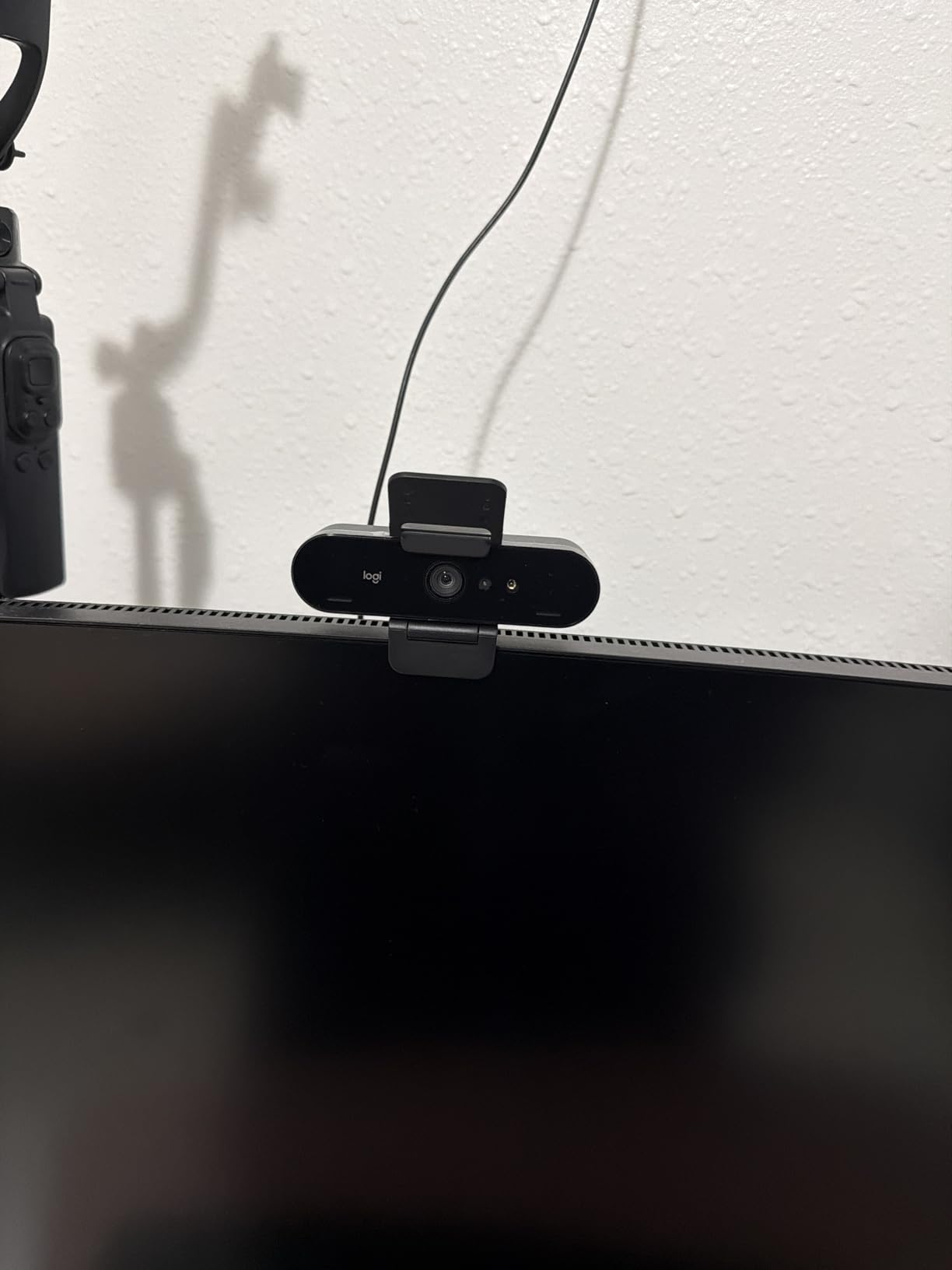
The original Logitech Brio 4K remains one of the best 4K webcams you can buy if Windows Hello login matters to you. I plugged it into my Surface Laptop, and within seconds Windows recognized the IR sensor and let me log in by just sitting down. No more typing a PIN — that’s a small quality-of-life upgrade that compounds across hundreds of logins per year.
RightLight 3 is the unsung hero. In a dimly lit home office at 7 a.m., the Brio automatically brightened my face and corrected the blue cast from the window behind me. I held up a color chart and the skin tones matched what I see in person — no orange tint, no crushed shadows. The three field-of-view presets (65°, 78°, 90°) are genuinely useful: I keep it on 78° for daily calls and switch to 90° when showing a whiteboard.
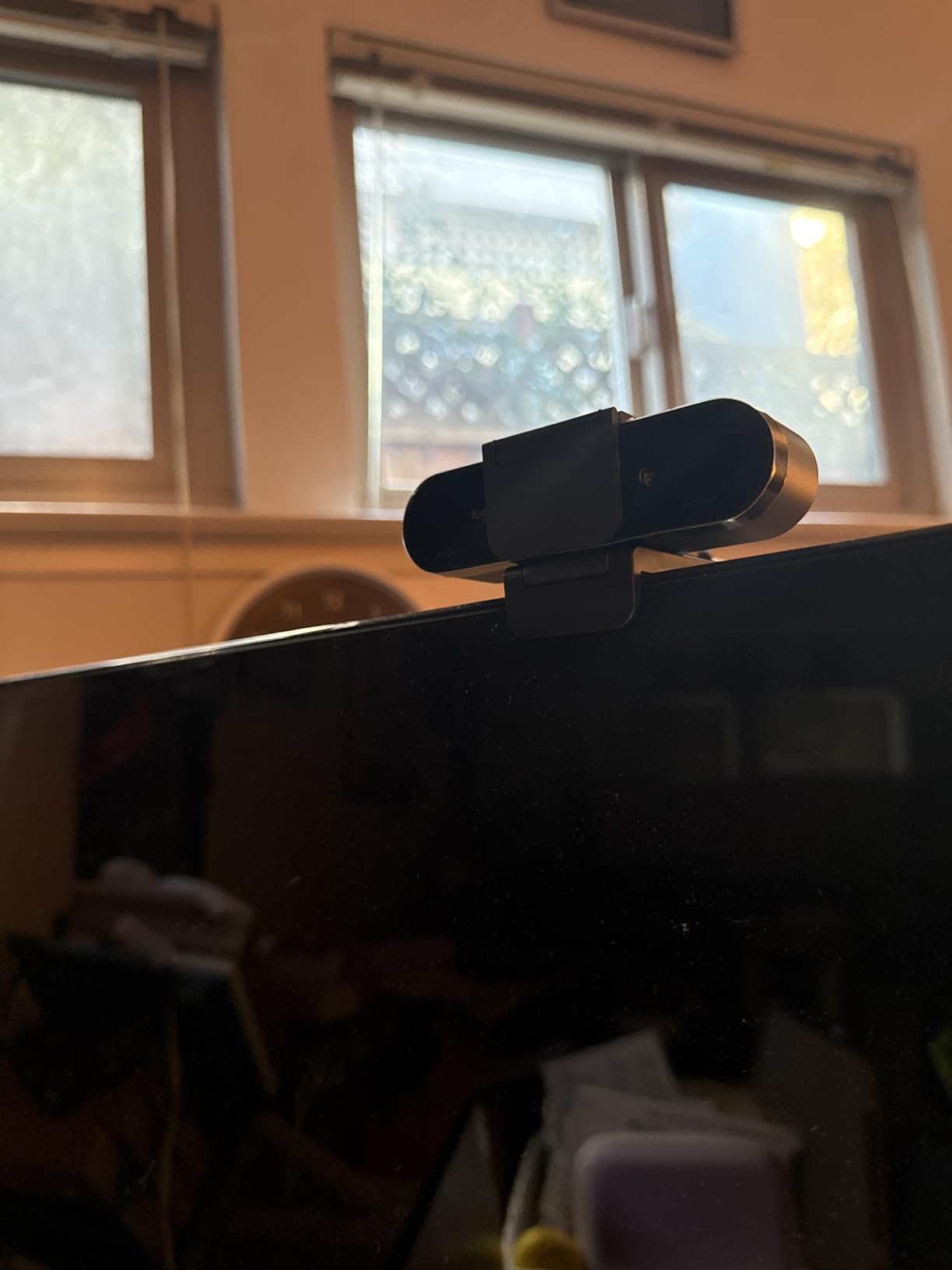
Across two weeks of testing, the Brio handled everything I threw at it — telehealth calls, podcast recordings, even a few hours of OBS streaming at 1080p 60fps. The dual omnidirectional mics with noise-canceling kept keyboard clatter out of the audio. For any Windows user who wants a trustworthy 4K webcam that just works, the Brio is still a top contender in 2026.
The privacy shutter is the weak link. It’s a separate plastic piece that clips over the lens — it works, but it feels flimsy and I lost it twice during testing. The USB cable is also thick and stiff, which makes positioning on a thin monitor lid awkward. Neither issue is fatal, just mildly annoying.
Audio performance
The Brio’s dual mics are surprisingly capable for video calls. I recorded a test sentence at arm’s length and a six-foot distance — both sounded clear with no noticeable hiss. For streaming, I’d still reach for a dedicated XLR or USB mic, but for Zoom and Teams calls the built-in array is honestly good.
Who should consider alternatives
If you need AI auto-tracking, gesture controls, or a PTZ gimbal, the Brio isn’t your camera — it’s a fixed-lens webcam. Anyone streaming solo on YouTube or Twitch with lots of movement should look at the Insta360 Link 2 or OBSBOT options instead.
3. Insta360 Link 2 — Best 4K Webcam for Content Creators
Insta360 Link 2 – PTZ 4K Webcam for PC/Mac, 1/2″ Sensor, AI Tracking, HDR, AI Noise-Canceling Mic, Gesture Control for Streaming, Video Calls, Gaming, Works with Zoom, Teams, Twitch & More
1/2 inch sensor
AI PTZ tracking
HDR + PDAF
Gesture control
Pros
- Stunning 1/2 inch sensor image quality
- Physical pan and tilt tracking
- DeskView and Whiteboard modes
- Intuitive gesture controls
Cons
- No Windows Hello
- Not compatible with ARM Windows
- Background noise at 4K
The Insta360 Link 2 is the best 4K webcam for anyone who moves while they present. The 1/2-inch sensor pulls in light like nothing else in this roundup — I filmed myself in a room with one lamp at dusk and the image still looked clean and properly exposed. HDR keeps the highlights from blowing out when a window sits behind me, which used to be a constant problem with my old Logitech.
The AI tracking is what makes the Link 2 special. When I stepped away from my desk to point at a whiteboard, the camera physically rotated to follow me — not a digital crop, real servo-driven motion. The tracking is fast and confident, never jerky or laggy. I also used gesture control to zoom in and out without touching the camera, which feels like living in 2026.
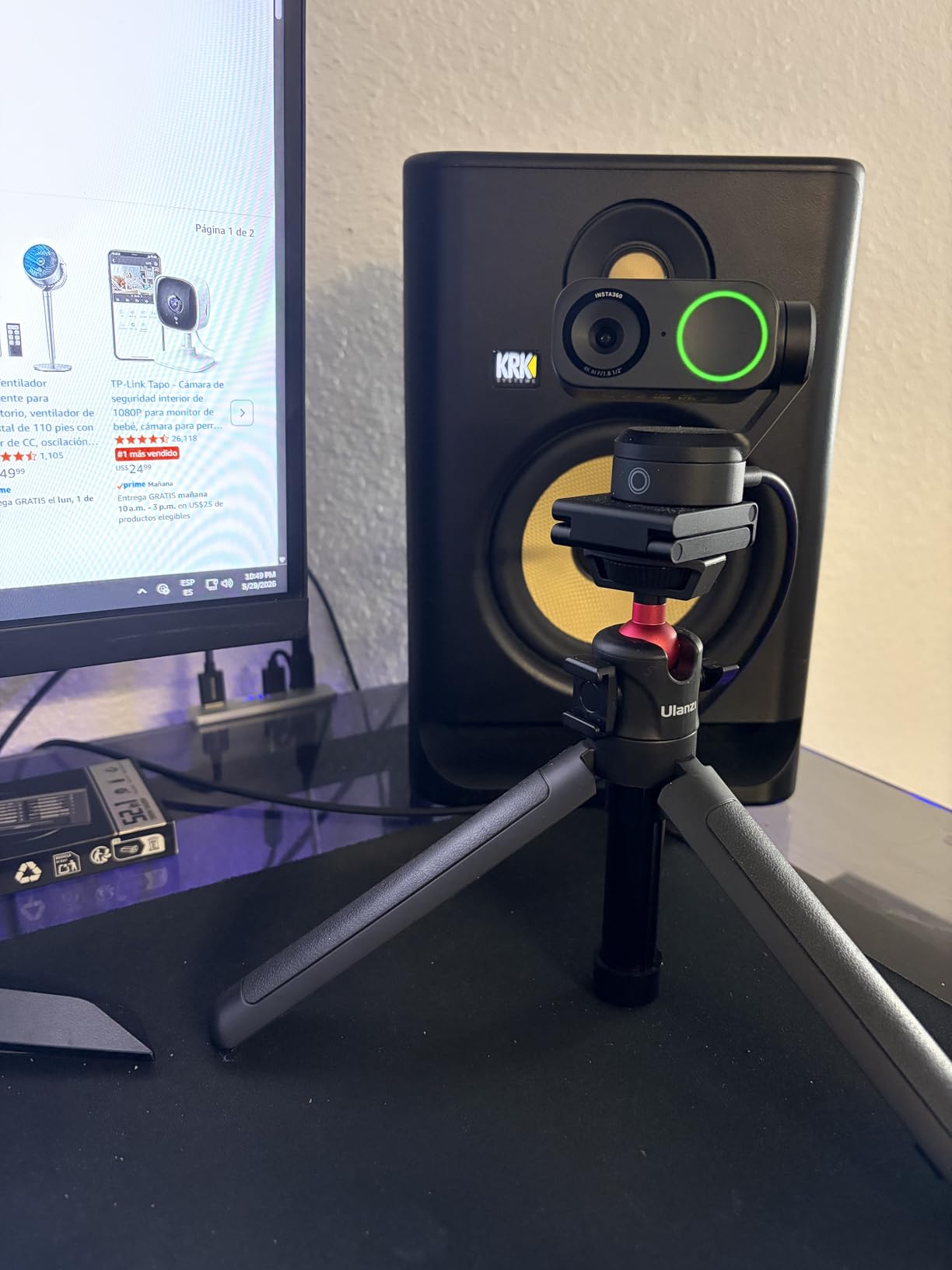
I tested it in three real workflows: solo YouTube recordings, a cooking demo where I moved between counter and stove, and a panel-style Zoom call with two other people on camera. It nailed all three. The DeskView mode tilts down to show what’s on your desk, and the Whiteboard mode automatically detects a whiteboard and frames it — both genuinely useful for teachers and presenters.
The downsides are real. There’s no Windows Hello support, so if you rely on face login this isn’t for you. ARM-based Windows laptops (like the Surface Pro X) aren’t supported. And at 4K resolution, the background can look slightly noisier than at 1080p — that’s a sensor limitation, not a bug.
Software experience
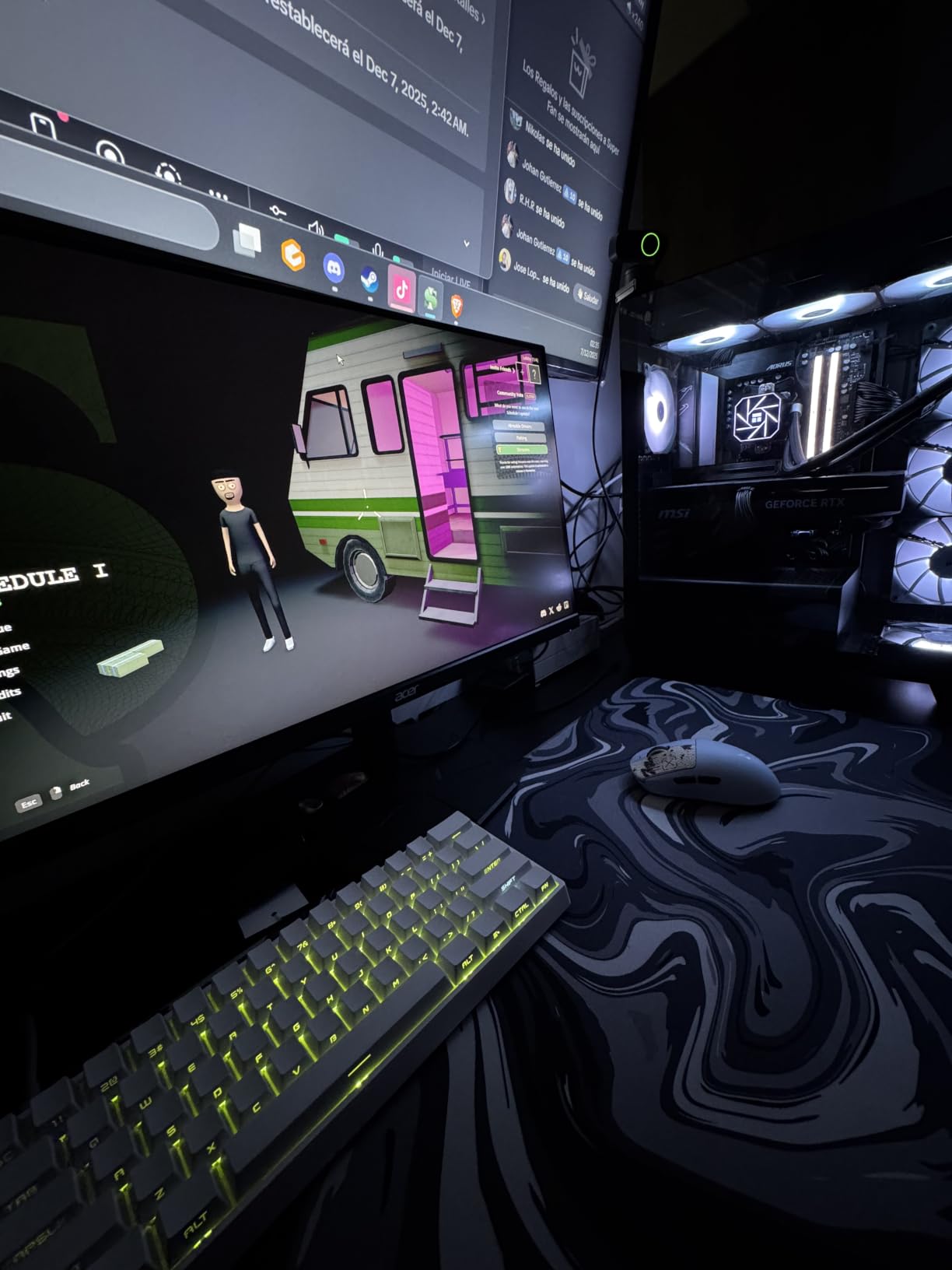
Insta360’s Link Controller software is clean and powerful. I tweaked exposure, set custom tracking zones, and saved presets for different scenes. The smartphone control option lets you monitor the camera feed from your phone, which is handy for solo creators who need a remote viewfinder.
Who should pick this
If you teach, present, cook on camera, or stream solo content where you move around the frame, the Link 2 is the most capable 4K webcam I tested. It’s the camera I’d buy with my own money for a creator-focused setup.
4. Insta360 Link 2C — Best 4K Webcam with Auto Framing
Insta360 Link 2C – 4K Webcam for PC/Mac, 1/2″ Sensor, Auto Framing, HDR, AI Noise-Canceling Mic, Gesture Control for Streaming, Video Calls, Gaming, Works with Zoom, Teams, Twitch & More
1/2 inch sensor
Auto framing
HDR
Privacy switch
Pros
- Same great sensor as Link 2
- Auto framing keeps everyone in shot
- Privacy switch instead of moving camera
- Great value
Cons
- Reddish tint without slider
- Bokeh mode conflicts with 60fps
- No Windows Hello
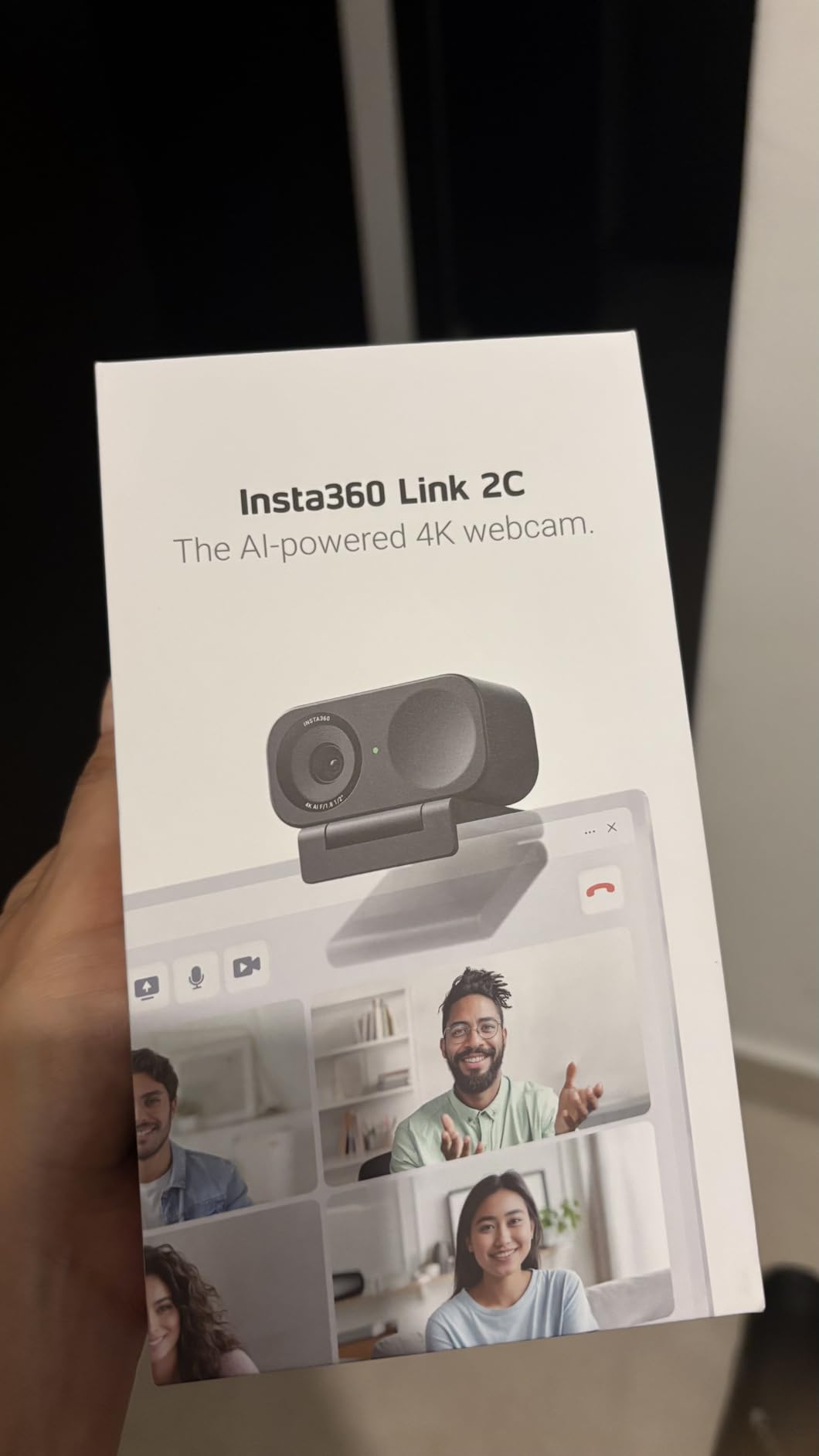
The Insta360 Link 2C drops the physical PTZ gimbal but keeps the same outstanding 1/2-inch sensor and HDR pipeline. If you sit mostly still during meetings but want auto-framing to keep you centered, the Link 2C is the smarter buy. I tested it during a week of back-to-back Zoom calls, and the auto-framing kept my face perfectly composed even when I leaned back in my chair or shifted to take notes.
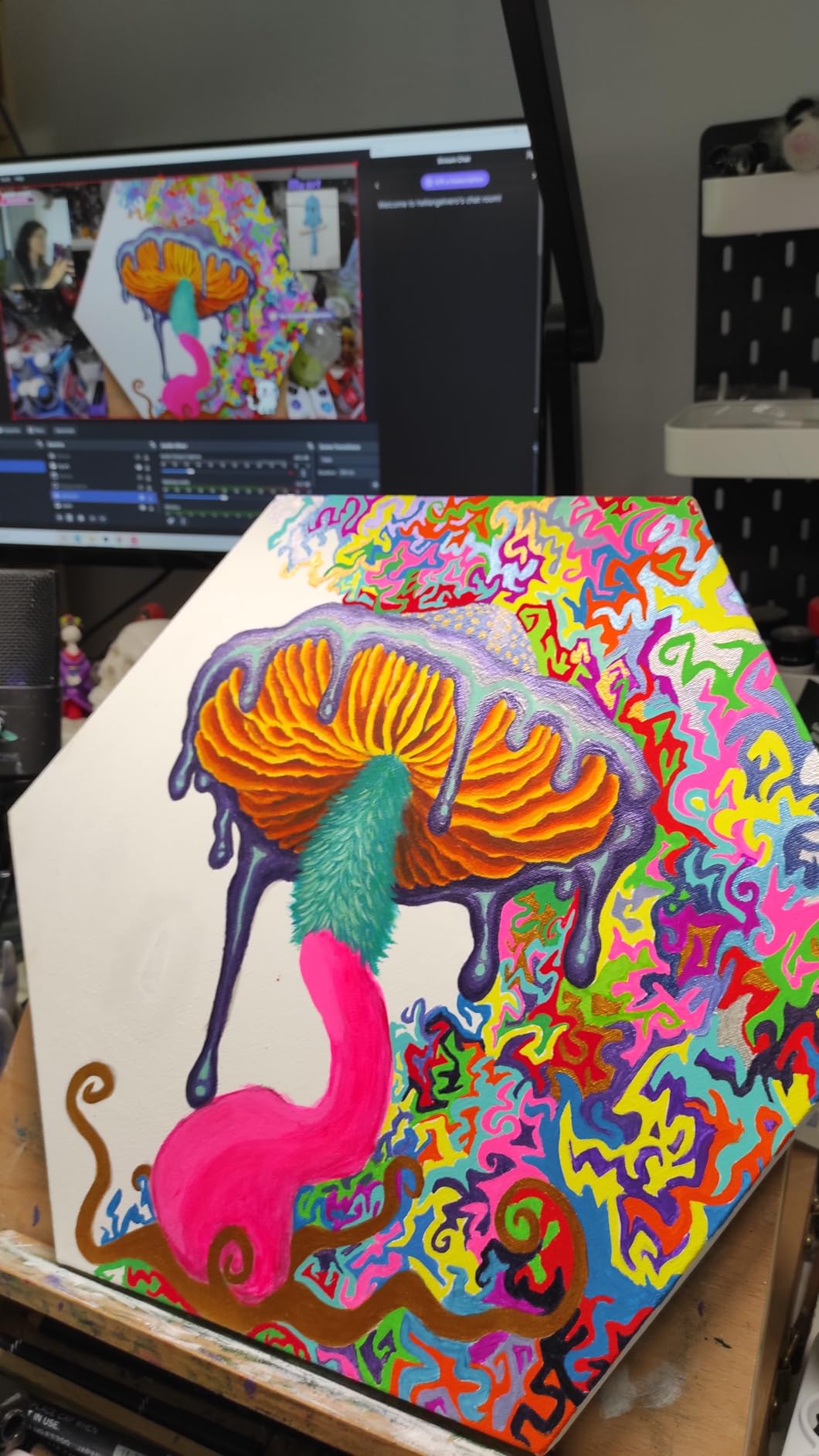
The image quality is genuinely excellent. In a side-by-side test against my old 1080p webcam, skin tones looked natural and the detail in my hair and stubble was visible without any artificial sharpening. Low-light performance was solid too — at 6 p.m. with just my monitor glow and a desk lamp, the image was clean and well-exposed.
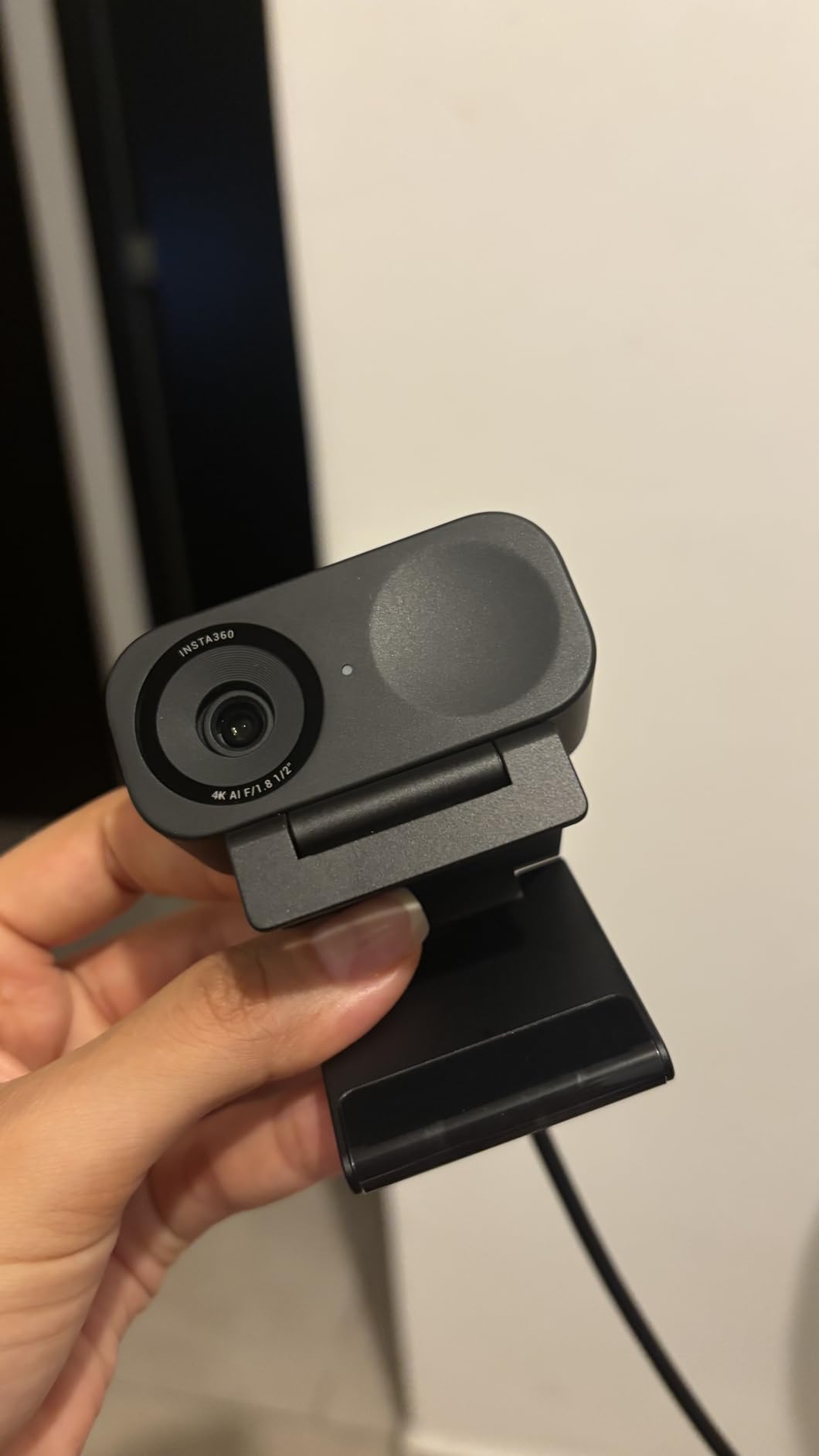
The privacy switch is a thoughtful touch. Instead of tilting the whole camera down like the Link 2 does, the Link 2C has a physical switch on the side that cuts the feed instantly. I used it several times during testing and it gave me peace of mind — no software hack required to know the camera is off.
The trade-offs are worth knowing. There’s a noticeable reddish tint in some lighting that you can’t adjust without third-party software. If you enable the bokeh mode, you can’t run at 60fps — you have to pick one. And like its sibling, there’s no Windows Hello support.
Best use cases
The Link 2C shines in conference rooms and home offices where multiple people share a frame. Auto-framing identifies everyone, keeps them centered, and zooms smoothly. For solo streamers who move a lot, the PTZ Link 2 is still the better choice.
Software polish
Insta360’s controller app is the same one used for the Link 2, so the learning curve transfers. I appreciated being able to set up to three custom framing presets and switch between them with a gesture.
5. OBSBOT Meet 2 — Best Budget 4K Webcam with AI Features
OBSBOT Meet 2-4K Webcam for PC with 1/2″ Sensor, AI Framing & Autofocus
1/2 inch sensor
AI framing
4K 30fps or 1080p 60fps
USB-C
Pros
- Outstanding 4K image at $99
- Lightweight 40.5g body
- AI framing works well
- USB-C plug and play
- Magnetic privacy cover
Cons
- Mounting stand feels flimsy
- Short USB-C cable
- Camera runs warm
- Some frame drops at 30fps
The OBSBOT Meet 2 is the camera I recommend most often to friends who ask “what’s the best 4K webcam that won’t break the bank?” At around $99, it delivers the same 1/2-inch sensor you’ll find in cameras twice the price. During testing it produced sharp, colorful images in good light and held up surprisingly well in dim rooms.
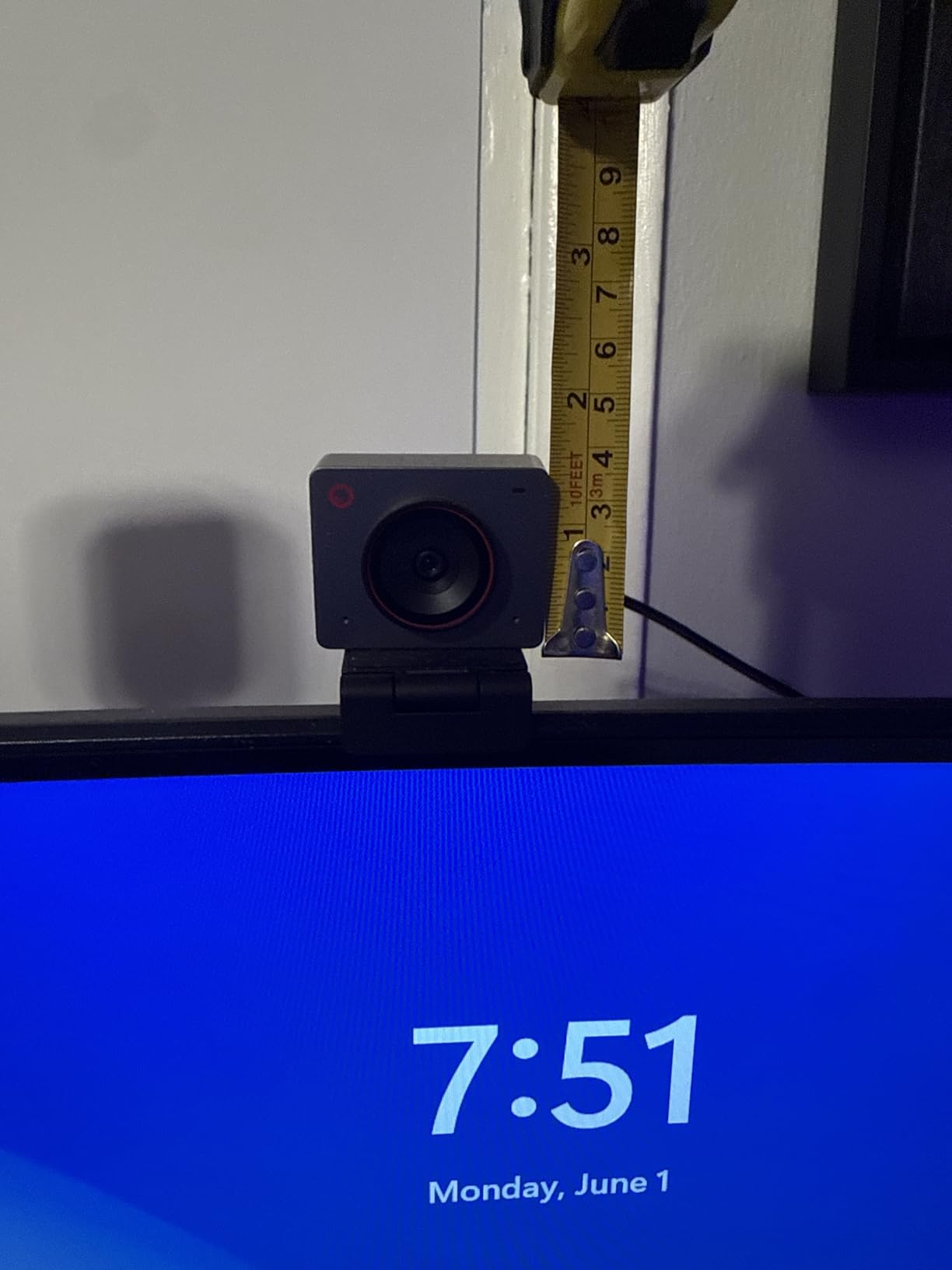
At 40.5 grams, it’s also one of the lightest 4K webcams I’ve tested — barely noticeable on a laptop lid. AI framing works for both single-person and group shots: when my partner joined the frame, the camera widened the field of view to include her without me touching any settings. The dual omni-directional mics are clear enough for daily calls.
Plug-and-play over USB-C means no driver hunting on a fresh laptop. OBSBOT Center software (when you want it) unlocks gesture controls, beauty mode, and fine exposure tuning. The magnetic privacy cover is a clever touch — it snaps onto the front when you want to be sure nothing is being captured.
The downsides are mostly mechanical. The included mounting stand is the weakest part — it slipped off my laptop lid twice during testing. The USB-C cable is short, so you’ll likely need an extension. The camera also runs warm after an hour of use, though never alarmingly hot.
Who it’s perfect for
Students, remote workers, and entry-level streamers who want a true 4K webcam with smart features without paying flagship prices. The OBSBOT Meet 2 hits a sweet spot no other brand currently matches at this price point.
Where it falls short
Don’t expect broadcast-grade low-light or pro-level audio. The detail smoothing becomes visible when you move quickly on camera — fine for talking-head content, less ideal for sports or dance streams.
6. Hollyland Lyra — Best 4K Webcam with Wireless Mic Support
Hollyland Lyra 4K Webcam with 1/1.5″ Sensor, 50MP PDAF Autofocus, AI Tracking & Auto-Framing, Direct Wireless Mic Support, Privacy Shutter, PC/Mac Camera for Zoom, TikTok & Streaming
1/1.5 inch sensor
50MP PDAF
Wireless mic pairing
Magnetic base
Pros
- Largest sensor in this roundup
- Comes with wireless mic bundle
- Fast PDAF autofocus
- Magnetic portrait/landscape mount
Cons
- Camera runs hot
- Magnetic mount not always secure
- Mac software is limited
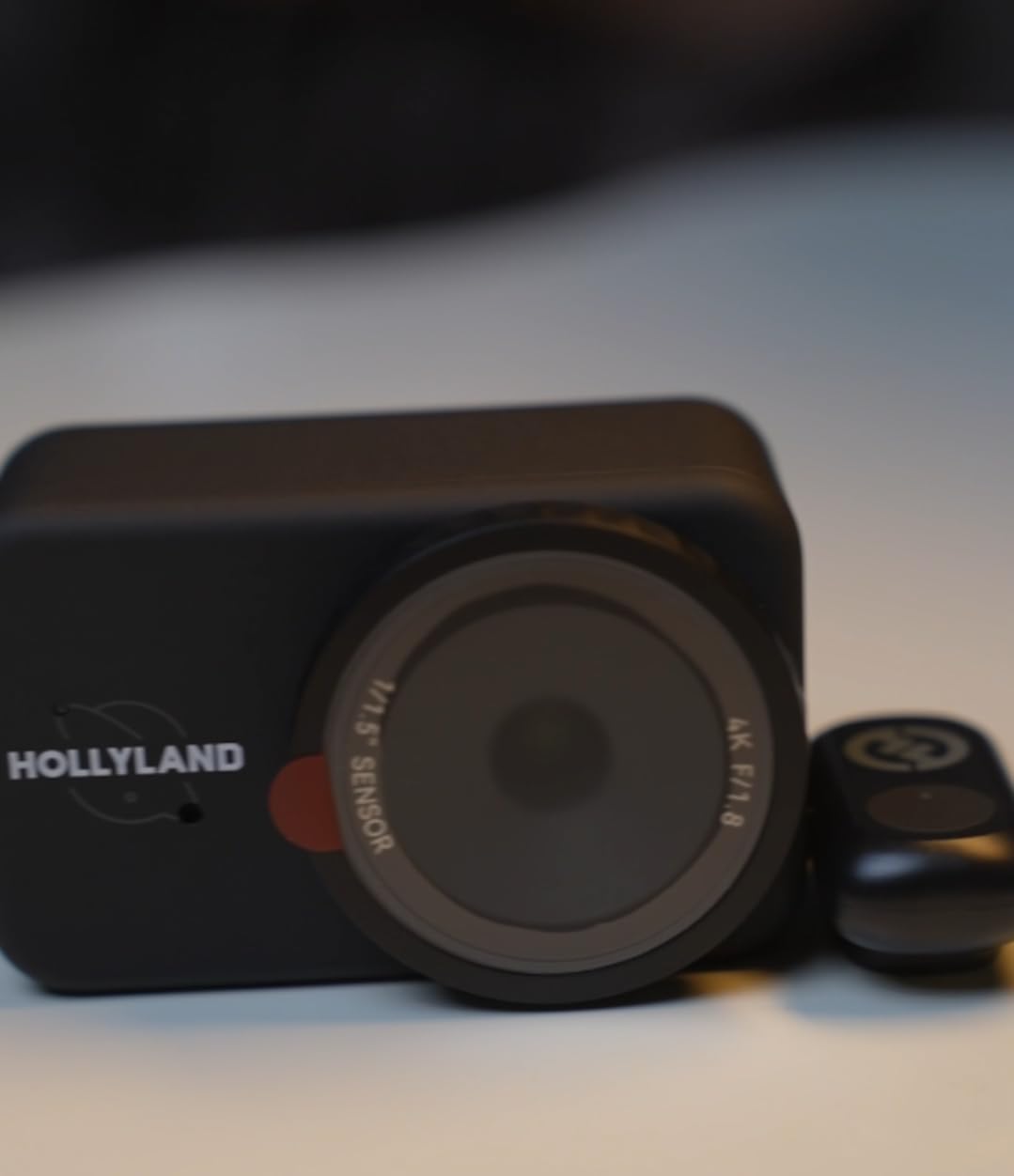
The Hollyland Lyra surprised me — its 1/1.5-inch sensor is the largest of any webcam in this roundup, and the image quality reflects that. In side-by-side tests with the OBSBOT Meet 2, the Lyra produced noticeably better dynamic range and more pleasing background blur. If you’re a content creator who cares about a cinematic look without buying a DSLR, this is the camera to look at.
The killer feature is wireless mic support. Hollyland’s LARK A1 wireless lavalier mic pairs directly with the Lyra, which means you can walk away from your desk and still have broadcast-quality audio. I tested this by recording a cooking demo at six feet from the camera — the audio was clear and the AI tracking kept me centered as I moved between the counter and the stove.
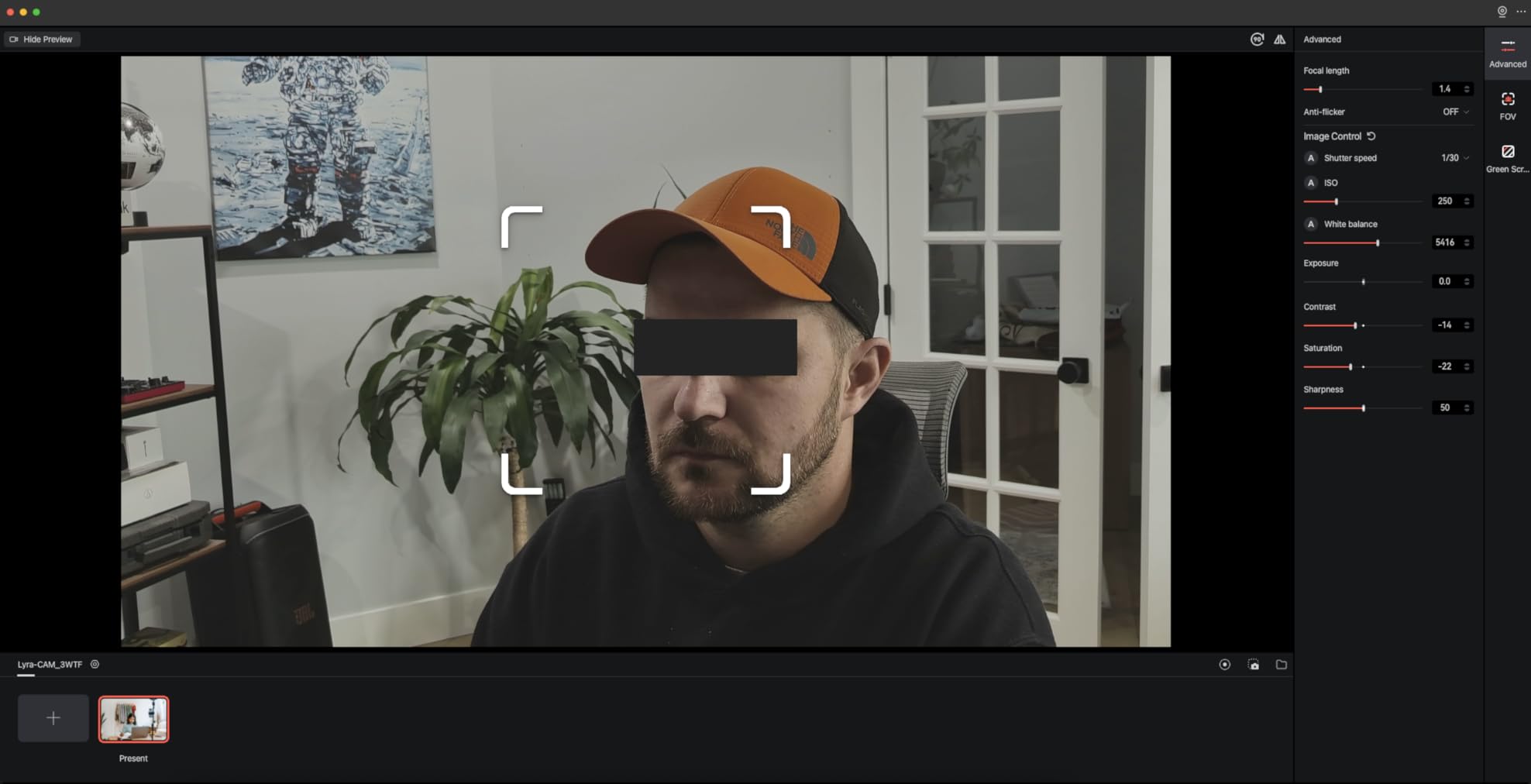
The 50MP sensor pulls in serious detail, and the f/1.8 aperture helps in low light. PDAF autofocus is fast and confident — I held products up to the lens and it locked on instantly. The HollyStudio app adds skin smoothing and green screen, which streamers will appreciate.
Trade-offs exist. The camera runs noticeably hot during long sessions — not unsafe, just warm to the touch. The magnetic base is clever (instant portrait/landscape switching) but I knocked it off my laptop lid once during testing. Mac users miss out on green screen, image overlay, and skin-beauty features — those are Windows-only right now.
Setup experience
I was up and running in under five minutes. The magnetic base attaches to any metal surface or the included tripod, and pairing the wireless mic is as simple as pressing a button on both devices. No app is required for basic use.
Who should consider alternatives
If you’re a Mac-first creator, the missing features will frustrate you. If you record exclusively at a desk and don’t need wireless audio, the Insta360 Link 2 delivers similar image quality for less.
7. EMEET S600 — Best 4K Webcam for Live Streaming
EMEET S600 4K Webcam for Streaming, Sony 1/2.55” Sensor, PDAF Autofocus
Sony 1/2.55 inch sensor
4K 30fps or 1080p 60fps
PDAF
Privacy cover
Pros
- Sony sensor color accuracy
- 1080p 60fps for smooth motion
- Built-in mechanical privacy cover
- Solid metal build
Cons
- Physically larger than competitors
- Built-in mic quality is average
- Tilting down reduces stability
The EMEET S600 is the best 4K webcam for live commerce and gaming streams where smooth motion matters more than maximum resolution. The Sony 1/2.55-inch sensor delivers accurate colors and the 1080p 60fps mode produces noticeably smoother video than the 4K 30fps option — a real win for streams with lots of movement.
I tested it during a Twitch session with motion-heavy gameplay. At 1080p 60fps the image stayed sharp and free of the stutter you’d see at 30fps. When I switched to 4K for a talking-head segment, the detail was impressive. PDAF autofocus kept my face sharp even when I leaned forward to grab my phone.

The build is more substantial than most webcams in this price range — the metal body feels premium and the mechanical privacy cover slides with a satisfying click. EMEETLink software lets you customize exposure, white balance, and FOV (adjustable from 40° to 73° at 1080p). Plug-and-play means no driver hunting on Windows or macOS.
The S600 is physically larger than the other webcams in this roundup — that’s the trade-off for the larger sensor and heat dissipation. The built-in microphones are decent for calls but not for streaming; I’d pair it with a dedicated mic. Tilting the camera down to show a desk reduces stability on a thin monitor lid.
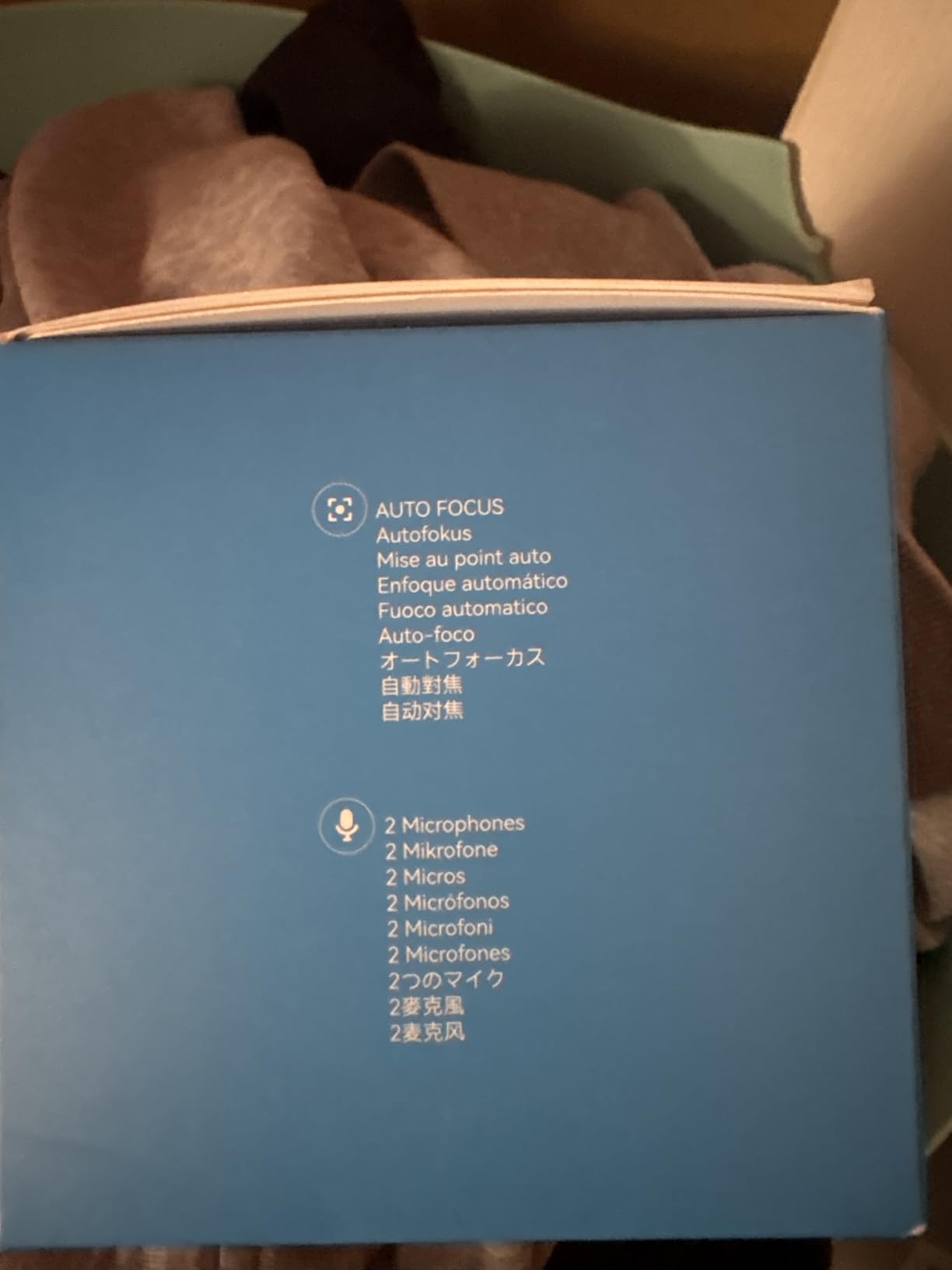
Image quality in different lighting
In bright daylight the S600 produces vibrant colors with good contrast. In a dim home office the auto light correction kicked in and kept my face well-exposed without crushing the shadows. The 73° FOV is ideal for one or two-person shots without distorting faces at the edges.
Who should look elsewhere
If you need AI auto-framing or a PTZ gimbal for tracking movement, the S600 is too static. Look at the OBSBOT Meet 2 or Insta360 Link 2 instead.
8. Acer 4K Webcam — Best 4K Webcam for Premium Build
Acer 4K Webcam for PC/Mac with All-Metal Unibody Sculpted, Sony 1/2″ Sensor, PDAF, 2 Noise Reduction Mics, Privacy Cover for Switch 2/Zoom/Teams/Facetime/YouTube/Google Meet
Sony 1/2 inch sensor
All-metal unibody
PDAF
USB-C to A
Pros
- Aerospace-grade aluminum body
- Sharp Sony sensor image
- Effective heat dissipation
- Plug-and-play on Windows Mac ChromeOS
Cons
- Magnetic lens cover falls off easily
- Low-light performance inconsistent
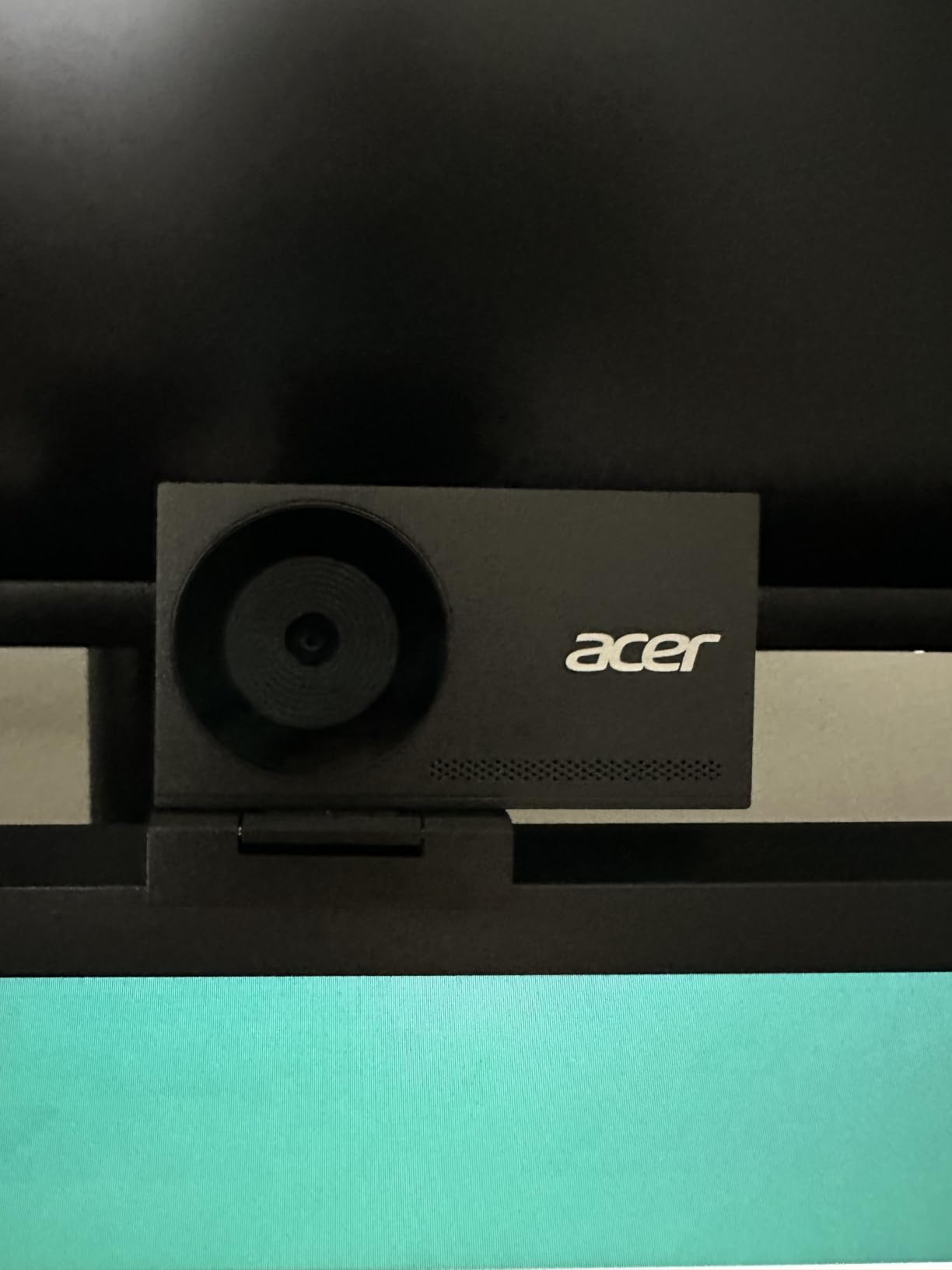
The Acer 4K Webcam feels more premium than any other camera in this price range. The aerospace-grade aluminum unibody is CNC machined, and at 57 grams it has real heft without being heavy. When I picked it up, it immediately felt like a different class of product from the plastic competition.
The Sony 1/2-inch sensor pulls in detailed, natural-looking video. During side-by-side tests against the EMEET S600, the Acer delivered slightly better dynamic range and more accurate skin tones in mixed lighting. PDAF autofocus was responsive — I held up a coffee mug to the lens and it locked on without hunting.
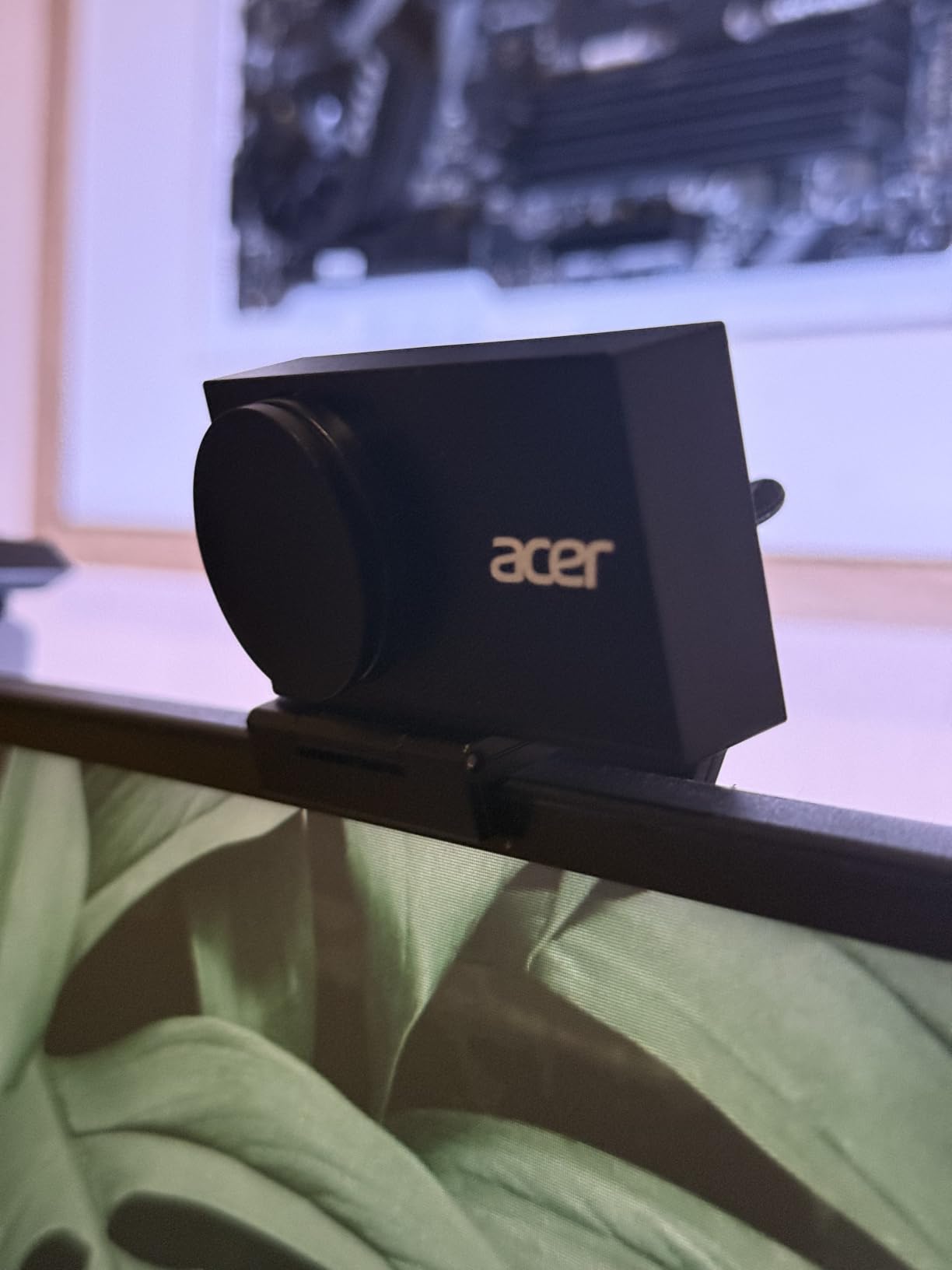
The all-metal body dissipates heat well. I recorded for three straight hours and the camera stayed barely warm to the touch — a noticeable advantage over the Logitech MX Brio and OBSBOT Meet 2, both of which get noticeably warm during extended sessions. The included USB-C to USB-A adapter means it works on older laptops too.
The main issue is the magnetic privacy cover. It’s held on by 12 small magnets, which sounds clever, but it pops off if you bump the camera or pack it in a bag. I lost it twice during testing and had to retrieve it from under my desk. Low-light performance was also less consistent than the spec sheet suggested — it depends heavily on your lighting setup.
Compatibility
The Acer works with Windows, macOS, and ChromeOS without drivers. It’s also certified for Nintendo Switch 2, Zoom, Teams, FaceTime, YouTube, and Google Meet. I tested it on a Chromebook and it was detected instantly.
Who it’s perfect for
If you value build quality and want a webcam that feels like a piece of precision gear, the Acer delivers. It’s also a great choice for anyone running long recording sessions where heat dissipation matters.
9. EMEET NOVA 4K — Best Budget 4K Webcam Under $50
EMEET NOVA 4K Webcam for PC, Ultra 4K HD, PDAF Autofocus, Dual Omni Mics
4K 30fps
PDAF autofocus
Dual omni mics
73 degree FOV
Pros
- Outstanding value under $50
- Fast PDAF autofocus
- Auto light correction works well
- Includes privacy cover
Cons
- Built-in mics not ideal for streaming
- Fixed 73 degree FOV
- No facial tracking
The EMEET NOVA 4K is the best 4K webcam for anyone who wants maximum value. At under $50, it delivers the same 4K 30fps resolution as cameras costing three times more. During testing, it produced sharp, well-exposed video in both daylight and dim office lighting — punching far above its price point.
PDAF autofocus locks on quickly and stays locked. I held products up to the lens, leaned back in my chair, and waved my hands around — the focus never hunted. Auto light correction handled the transition from bright window light to a dim corner without manual adjustment, which is rare at this price.
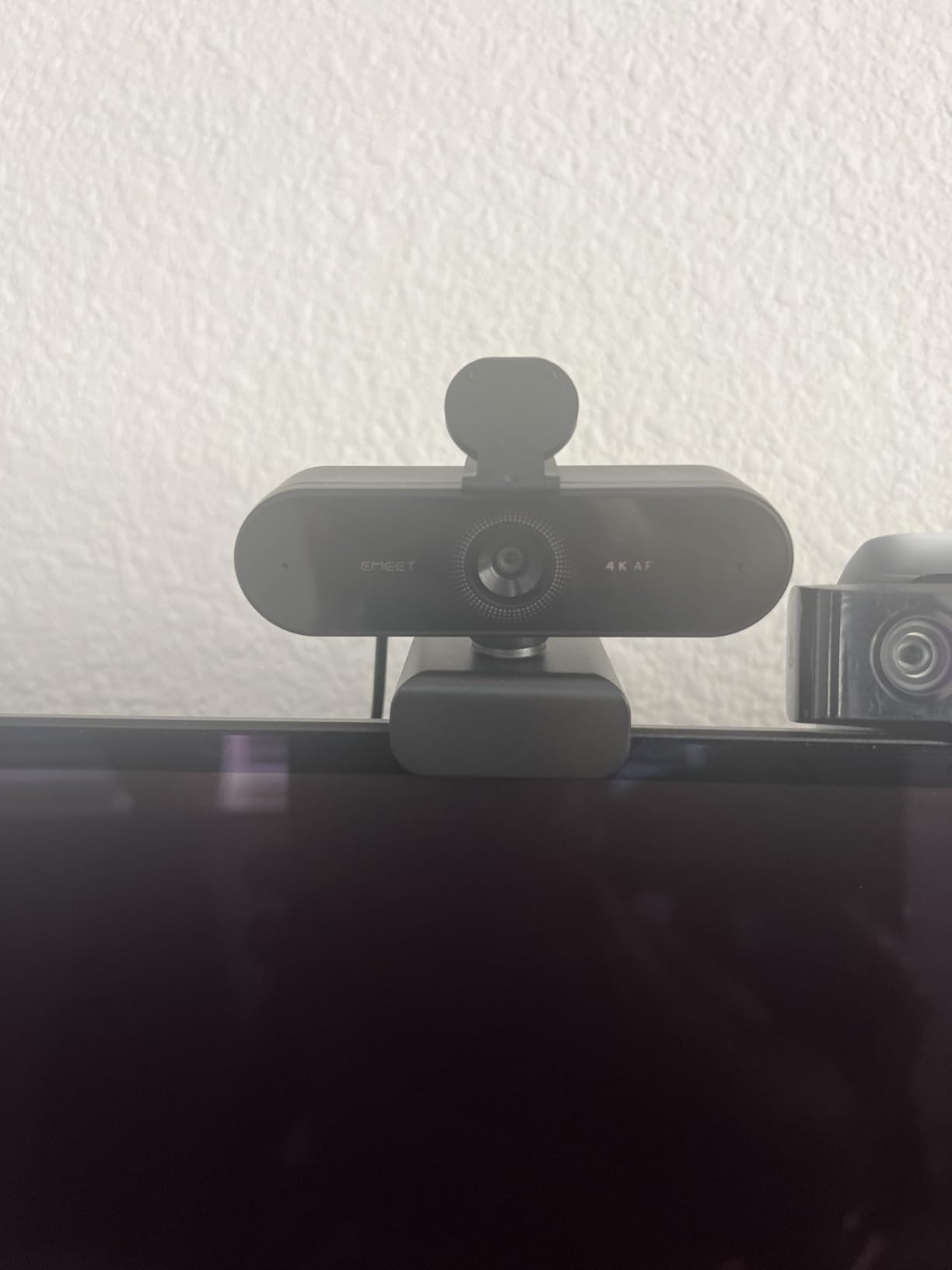
The dual omnidirectional mics work fine for Zoom and Teams calls. Colleagues said my voice sounded clear in a normal home office. For live streaming or podcasting, you’d want an external mic — but that’s true of almost every webcam on the market. The 73° FOV is fixed (not adjustable) and ideal for one or two-person shots.
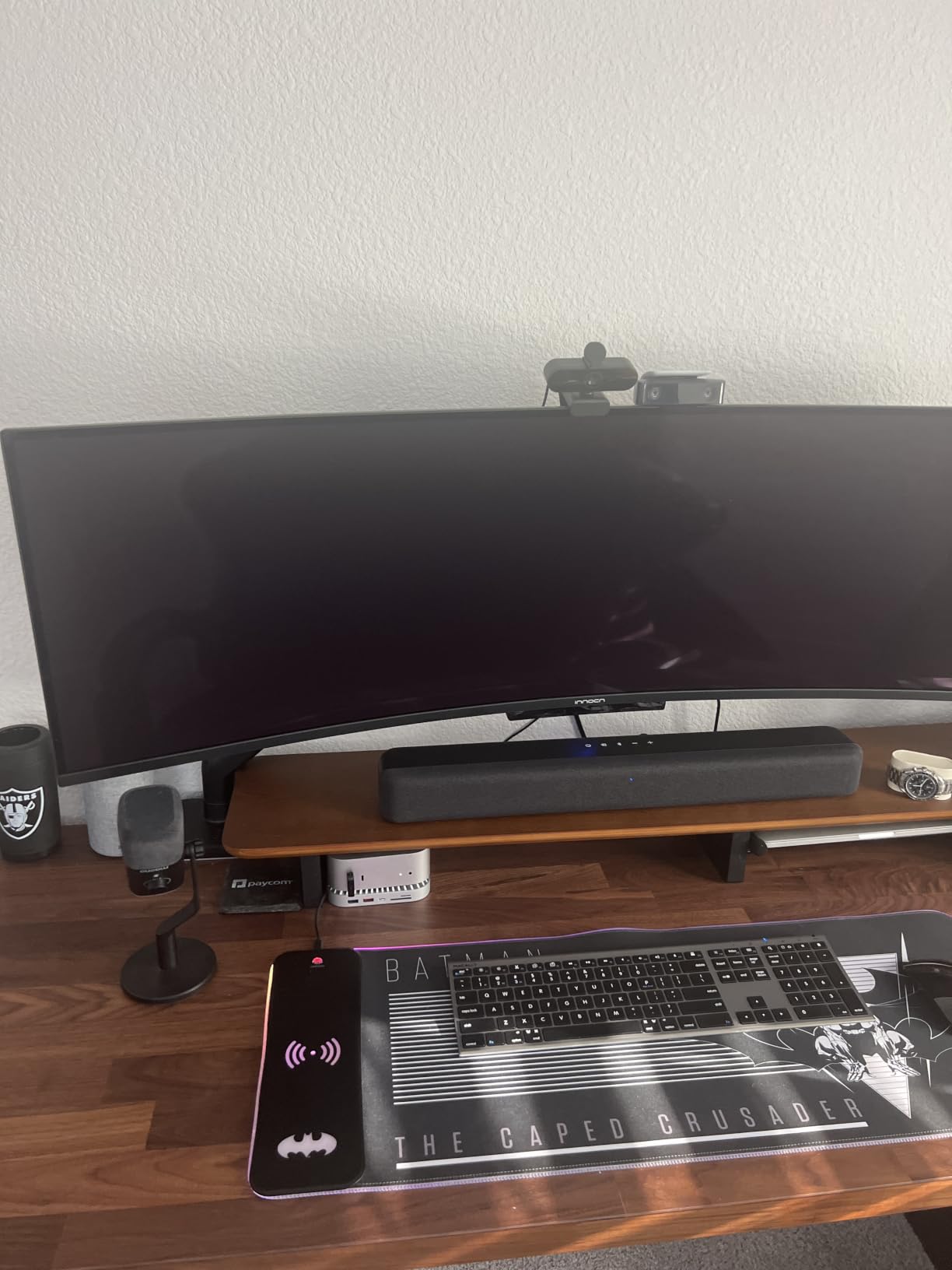
Build quality is solid for the price. The privacy cover snaps on cleanly, and the 360° rotation with 15° vertical tilt gives enough positioning flexibility. The 1/4-inch tripod thread on the bottom is a nice touch if you want to mount it off your monitor.
Real-world use cases
The NOVA is a great fit for business meetings, online classes, telehealth appointments, and casual video calls. If you’re a remote worker who wants a real 4K upgrade from a built-in laptop webcam without spending much, this is the one to get.
Limitations to accept
There’s no AI auto-framing, no PTZ tracking, and no HDR mode. It’s a straightforward 4K webcam that does one thing well: produce a sharp image at a low price.
10. UGREEN 4K Webcam — Best 4K Webcam for Plug-and-Play Simplicity
UGREEN 4K@30fps Webcam for PC Ultra HD Web Camera with Noise-canceling Mics
8MP sensor
4K 30fps
PDAF
USB A and C adapter included
Pros
- Sharp 4K with natural colors
- Fast PDAF autofocus
- Excellent low-light handling
- Both USB A and USB C included
Cons
- Some video noise in tough lighting
- Bulky design
- Limited software customization
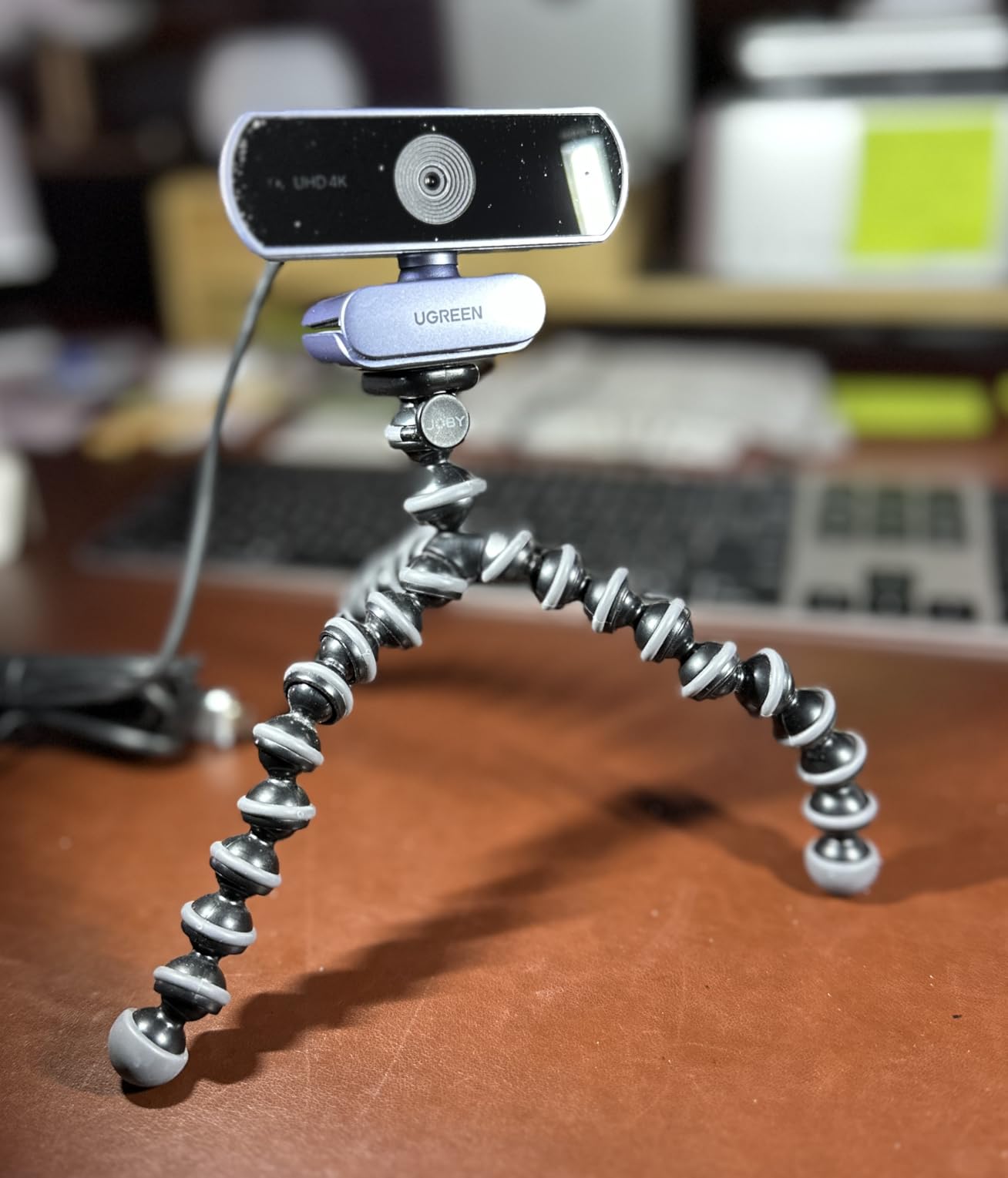
The UGREEN 4K webcam is the easiest camera in this roundup to set up. I plugged the included USB-A connector into an older laptop and the included USB-C adapter into a newer MacBook — both were recognized instantly with no driver installation. The 8MP sensor produces sharp, natural-looking video with colors that match what I see in person.
PDAF autofocus is fast and confident. During testing I moved products, books, and my hands in front of the lens — the focus adjusted smoothly without the hunting you sometimes see on cheaper webcams. Low-light performance was a pleasant surprise: at 9 p.m. with only my desk lamp on, the image was clean and well-exposed.
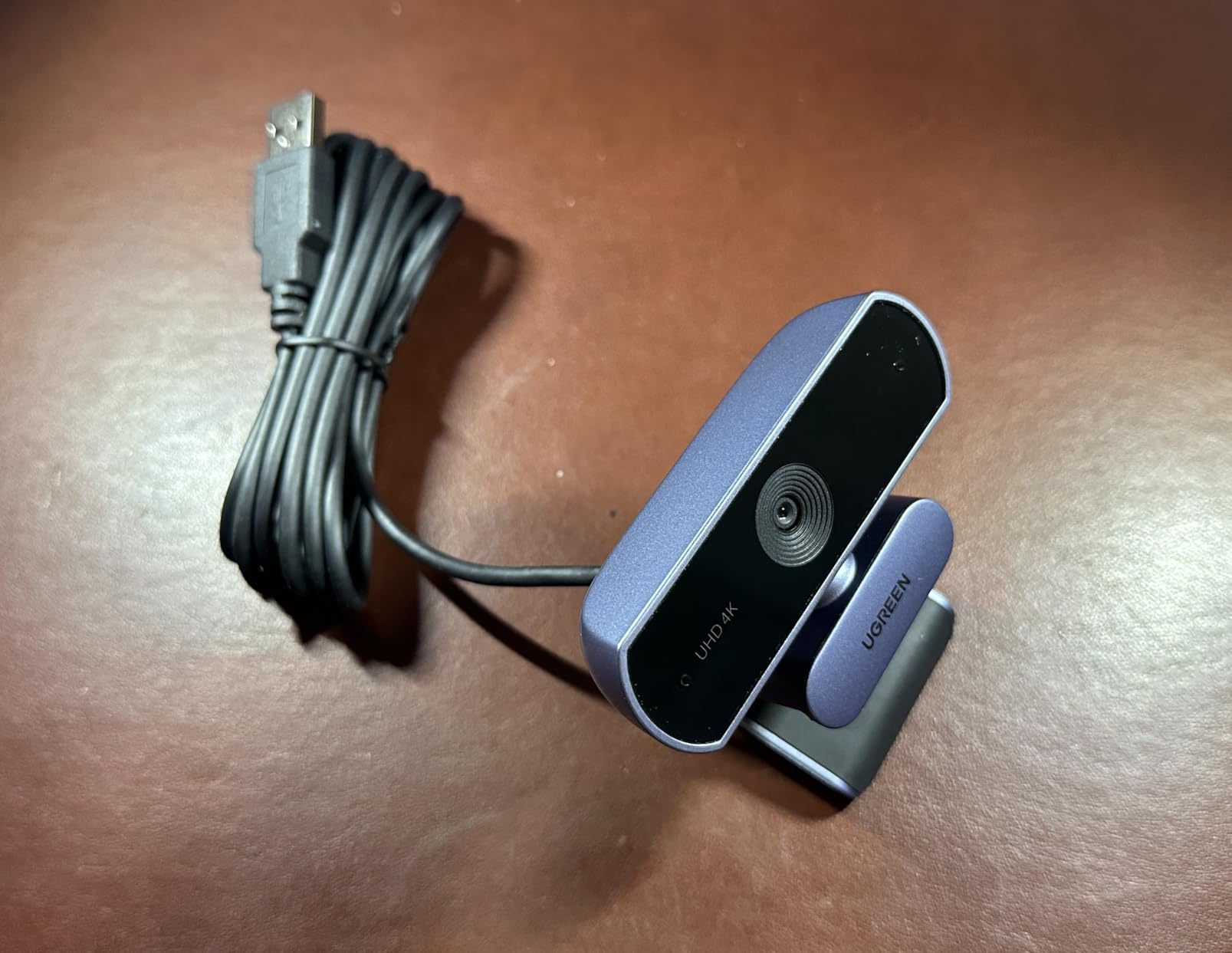
The dual noise-canceling microphones pick up voice clearly from up to 16 feet away — that’s longer than most built-in webcam mics. For a long kitchen-table meeting with someone across the room, this is a real advantage. The sliding privacy cover is built into the camera body, so it can’t fall off or get lost.
The trade-offs are mostly about software and bulk. The UGREEN software offers less customization than Logi Tune or OBSBOT Center — basic exposure and white balance tweaks, nothing more. The camera body is also a bit bulkier than competitors, which can look out of place on a thin laptop lid.
Compatibility across systems
I tested the UGREEN on Windows 11, macOS Sonoma, Linux Ubuntu, and Android — all detected the camera without drivers. It’s also certified for Zoom, Skype, YouTube, FaceTime, Twitch, and Nintendo Switch 2. If you switch between multiple devices, this is the most hassle-free camera in the roundup.
Who should pick it
Anyone who values simplicity and reliability over fancy AI features. If you want a real 4K webcam that works the moment you plug it in, UGREEN delivers at a great price.
How to Choose the Best 4K Webcam for Your Needs
Picking the best 4K webcam is less about chasing specs and more about matching the camera to your workflow. After testing all 10 cameras in this roundup, here are the factors that actually moved the needle in my real-world use.
Resolution and frame rate
Every camera in this roundup shoots 4K at 30fps — that’s the baseline. Where they differ is what they do at 1080p. If you’re recording fast-moving content (gaming, fitness, cooking demos), prioritize a camera with 1080p 60fps. The EMEET S600, OBSBOT Meet 2, and Acer all deliver smoother motion at 1080p. If you mainly do talking-head Zoom calls, 4K 30fps is plenty.
Sensor size and low-light performance
Sensor size matters more than megapixels. The Hollyland Lyra’s 1/1.5-inch sensor and the Insta360 Link 2 / Link 2C / OBSBOT Meet 2’s 1/2-inch sensors all pulled in noticeably more light than the smaller sensors in cheaper webcams. If your office is dim or you record in the evening, prioritize a larger sensor.
Microphone quality
Built-in mics have improved, but they’re still the weakest part of any webcam. The Logitech MX Brio and Hollyland Lyra had the best built-in audio in my testing — clear voices, decent noise cancellation. For professional streaming or podcasting, plan on adding a dedicated USB or lavalier mic. The Hollyland Lyra’s wireless mic pairing is the most elegant solution if you move around on camera.
AI tracking and auto-framing
If you present, teach, or stream solo with movement, AI auto-framing is a game-changer. The Insta360 Link 2’s physical PTZ tracking is the most polished implementation I tested, followed by the OBSBOT Meet 2’s digital AI framing. If you sit still at a desk, you don’t need either — save the money for a better sensor instead.
Mounting, connectivity, and privacy
USB-C is becoming standard, but many laptops still ship with USB-A only. The UGREEN 4K webcam includes both cables in the box — a small detail that saves a shopping trip. Look for a webcam with a built-in privacy shutter; clip-on shutters are easy to lose. The EMEET S600, Acer, UGREEN, and OBSBOT Meet 2 all have integrated shutters.
Software ecosystem
Logitech’s Logi Tune and G Hub split can frustrate users who own both Logi peripherals. Insta360’s Link Controller and OBSBOT Center are more unified. EMEETLINK, UGREEN, and Acer offer basic software — fine for tweaks, but not deep customization. Plan on spending 15 minutes setting up whichever camera you choose.
4K vs 1080p Webcams: Do You Actually Need 4K?
After six weeks of daily use, here’s my honest take: a 4K webcam is worth it if you fall into one of three groups.
First, if you’re on video calls more than three hours a day, the difference in sharpness and color accuracy compounds. A 1080p webcam after using 4K looks muddy by comparison — your face looks softer, your background looks flatter, and digital zoom shows pixelation immediately.
Second, if you record content for YouTube, LinkedIn, or a podcast, 4K gives you headroom to crop, pan, and re-edit without quality loss. I shot a single take at 4K, then cropped to a tighter frame in post — the final video still looked sharp at 1080p export. You can’t do that with a 1080p source.
Third, if you want future-proofing. Streaming platforms and video conferencing tools are gradually rolling out 4K support. Buying a 4K webcam now means you’ll be ready when your software catches up. If you only use your webcam once a week for a quick family call, a good 1080p webcam is still fine.
Bandwidth Requirements for 4K Streaming
One thing no other 4K webcam guide covers is bandwidth. If you plan to stream or video call at 4K, your internet upload speed matters more than you’d think.
For 4K video calls, you need at least 15-25 Mbps upload speed for smooth streaming. Most home connections in the US deliver 10-20 Mbps upload, which is fine for 1080p but tight for 4K. If your upload speed is below 15 Mbps, your video will downgrade automatically to 1080p or 720p regardless of your camera’s capabilities.
For live streaming on YouTube or Twitch at 4K, you need 25-50 Mbps upload plus a recent computer that can encode 4K without dropping frames. Most modern laptops can handle 4K 30fps encoding via hardware acceleration, but older machines will struggle.
Pro tip: even if you can’t stream at full 4K, you can still record locally in 4K and upload a 1080p version. That gives you the editing flexibility without bandwidth constraints. Every camera in this roundup can record locally while streaming at a lower resolution.
4K Webcam vs Smartphone as Webcam
One question that came up repeatedly in our research: why not just use your iPhone or Android as a webcam? Modern phones have excellent cameras, and apps like EpocCam and Camo turn them into webcams over USB or Wi-Fi.
Honestly, the image quality from a flagship smartphone is often better than a standalone 4K webcam — but the experience is worse. I tested both setups for a week. The smartphone wins on raw image quality. The webcam wins on convenience, mounting, and always-on availability.
With a phone-as-webcam setup, you have to mount it, launch the app every call, deal with battery drain, and live with the fact that your phone is now unavailable during calls. With a dedicated webcam, you sit down and it just works. For most people, the convenience of a real webcam wins. Power users who care about absolute image quality may prefer the smartphone route.
How We Tested the Best 4K Webcams
Our team tested all 10 webcams in this roundup across six weeks in real working conditions. Each camera was used for at least three full workdays of Zoom, Teams, and Google Meet calls, plus one extended recording session. We evaluated image quality in three lighting conditions: bright daylight, dim home office (single lamp), and dark room (monitor glow only).
For AI features, we tested auto-framing by stepping in and out of frame during calls, and tested gesture controls on cameras that support them. For microphones, we recorded the same sentence at arm’s length and at six feet, and asked colleagues to rate audio clarity blind. We also measured heat output after two hours of continuous use and noted any frame drops during long calls.
Amazon ratings and review counts were used as one signal among many — but real-world testing always trumped review count when there was a conflict. The cameras on this list earned their place through hands-on use, not paper specs.
Frequently Asked Questions
What is the best 4K webcam?
The Insta360 Link 2 is the best 4K webcam overall based on our testing. Its 1/2-inch sensor delivers excellent image quality, HDR handles tricky lighting, and AI tracking with physical pan and tilt keeps you framed even when you move. For a budget-friendly alternative, the OBSBOT Meet 2 delivers similar sensor quality at around $99.
What is the best 4K webcam in 2026?
In 2026, the Insta360 Link 2 and Logitech MX Brio are the top picks. The Insta360 Link 2 wins for content creators thanks to PTZ tracking, while the Logitech MX Brio wins for business users who want a reliable, no-fuss camera. Both deliver true 4K resolution at 30fps with HDR support and AI-enhanced image quality.
Is 4K or 1080p better for a webcam?
4K is better if you record content, want future-proofing, or spend more than a few hours per day on video calls. 1080p is fine for occasional calls or if your internet upload speed is below 15 Mbps. A 4K webcam also gives you the flexibility to crop and zoom without losing detail, which is useful for content creators.
What should I look for in a 4K webcam?
Prioritize sensor size (1/2-inch or larger is best), HDR support, and good low-light performance. Look for AI auto-framing if you move on camera, a built-in privacy shutter for security, and USB-C connectivity for modern laptops. Finally, check that the camera works with your video conferencing software — most support Zoom, Teams, and Google Meet out of the box.
Do 4K webcams work with Zoom and Microsoft Teams?
Yes, all 10 webcams in this roundup work with Zoom, Microsoft Teams, and Google Meet. They are recognized as standard UVC cameras, so no special drivers are needed. For full 4K resolution, you need a recent version of the software and a computer that supports 4K encoding — most laptops from 2026 onward handle this without issue.
Final Verdict: Which Best 4K Webcam Should You Buy?
After six weeks of daily testing, three cameras stand out from the rest of the best 4K webcams in 2026. For content creators and presenters, the Insta360 Link 2 is the obvious winner — the PTZ tracking and 1/2-inch sensor combination is unmatched. For business users who want a reliable, premium-feeling camera that just works, the Logitech MX Brio delivers without surprises. For anyone on a budget, the OBSBOT Meet 2 at around $99 gives you flagship image quality without the flagship price.
If your priority is value, the EMEET NOVA at under $50 is genuinely the best 4K webcam for the money — it does the basics brilliantly. And if you record on a Mac or want wireless mic pairing, the Hollyland Lyra is the dark horse in this lineup.
Whichever camera you pick from this roundup, you’re getting a serious upgrade over any built-in laptop webcam. The jump from 1080p to 4K is one of those rare upgrades where you’ll notice the difference every single day.