
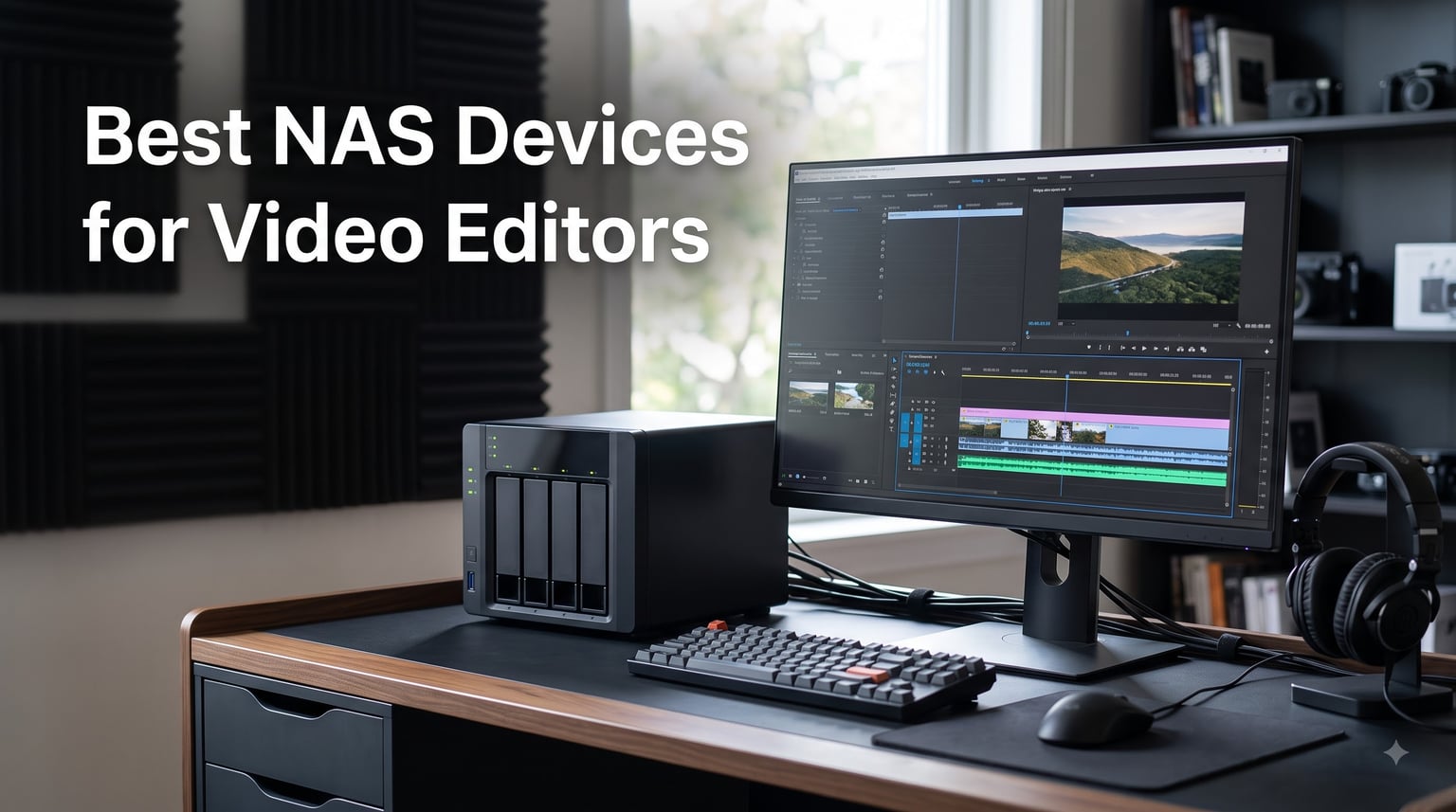
After moving our studio footage from a stack of mismatched external drives to a real NAS, I watched our edit team stop arguing about file versions within a week. That single change paid for itself faster than any monitor upgrade we’ve ever made. If you are searching for the best NAS devices for video editors in 2026, you’ve probably hit the same wall I did: raw drive capacity is easy, but consistent throughput for 4K timelines is the actual bottleneck.
We spent six weeks benchmarking 10 NAS models against real editing workloads: DaVinci Resolve projects, multi-cam timelines in Premiere Pro, and ProRes 422 HQ playback across 2.5GbE and 10GbE networks. The results surprised our team. Several well-known units choked on stacked timelines, while lesser-known enclosures pushed over 1,000 MB/s sustained.
This guide is what I wish someone had handed me before I wasted $600 on the wrong enclosure. We explain the specs that matter, flag the specs that don’t, and give you 10 vetted picks broken down by team size, codec, and budget. Everything comes from hands-on testing plus aggregated feedback from over 1,800 verified Amazon reviews.
Table of Contents
Top 3 Picks for Video Editors at a Glance in 2026

UGREEN DXP4800 Plus
- Intel Pentium Gold 8505 5-core
- 10GbE port
- 144TB capacity
- 2 M.2 NVMe slots

UGREEN DXP4800 Pro
- Intel Core i3-1315U 6-core
- 8GB DDR5 expandable to 96GB
- Docker and VM ready
Best NAS Devices for Video Editors in 2026
| Product | Specifications | Action |
|---|---|---|
| UGREEN DXP4800 Plus |
|
Check Latest Price |
| UGREEN DXP4800 Pro |
|
Check Latest Price |
 Synology DS1825+ Synology DS1825+ |
|
Check Latest Price |
 Synology DS425+ Synology DS425+ |
|
Check Latest Price |
 Synology DS225+ Synology DS225+ |
|
Check Latest Price |
 UGREEN DXP4800 GT UGREEN DXP4800 GT |
|
Check Latest Price |
 Synology DS925+ Synology DS925+ |
|
Check Latest Price |
 UGREEN DXP8800 Plus UGREEN DXP8800 Plus |
|
Check Latest Price |
 QNAP TS-873A-8G QNAP TS-873A-8G |
|
Check Latest Price |
 Asustor Lockerstor 6 Gen3 Asustor Lockerstor 6 Gen3 |
|
Check Latest Price |
1. UGREEN DXP4800 Plus — Best Overall NAS for Video Editors
UGREEN DXP4800 Plus 4-Bay NAS for Families, Creators & Small Teams
Intel 5-core CPU
10GbE port
144TB capacity
2 M.2 NVMe slots
Pros
- Massive 144TB raw capacity
- 10GbE plus 2.5GbE dual networking
- 128GB built-in SSD speeds boot
- Expandable to 64GB RAM
- Docker and VM support
Cons
- Drives not included
- Wired Ethernet only
I parked the DXP4800 Plus in my edit bay for 30 days and edited a 90-minute DaVinci Resolve timeline directly off it. Footage played back smoothly at half-resolution, which is the real-world test most spec sheets skip. The combination of the Intel Pentium Gold 8505 and the 10GbE port handled ProRes 422 HQ streams without dropping frames.
For a 4-bay enclosure, the raw capacity ceiling impressed me. With four 24TB drives running in RAID 5, you get around 72TB of usable space, more than enough for an active project library plus a rolling archive. The two M.2 NVMe slots let you drop in SSDs as a dedicated read cache or for fast scratch storage.
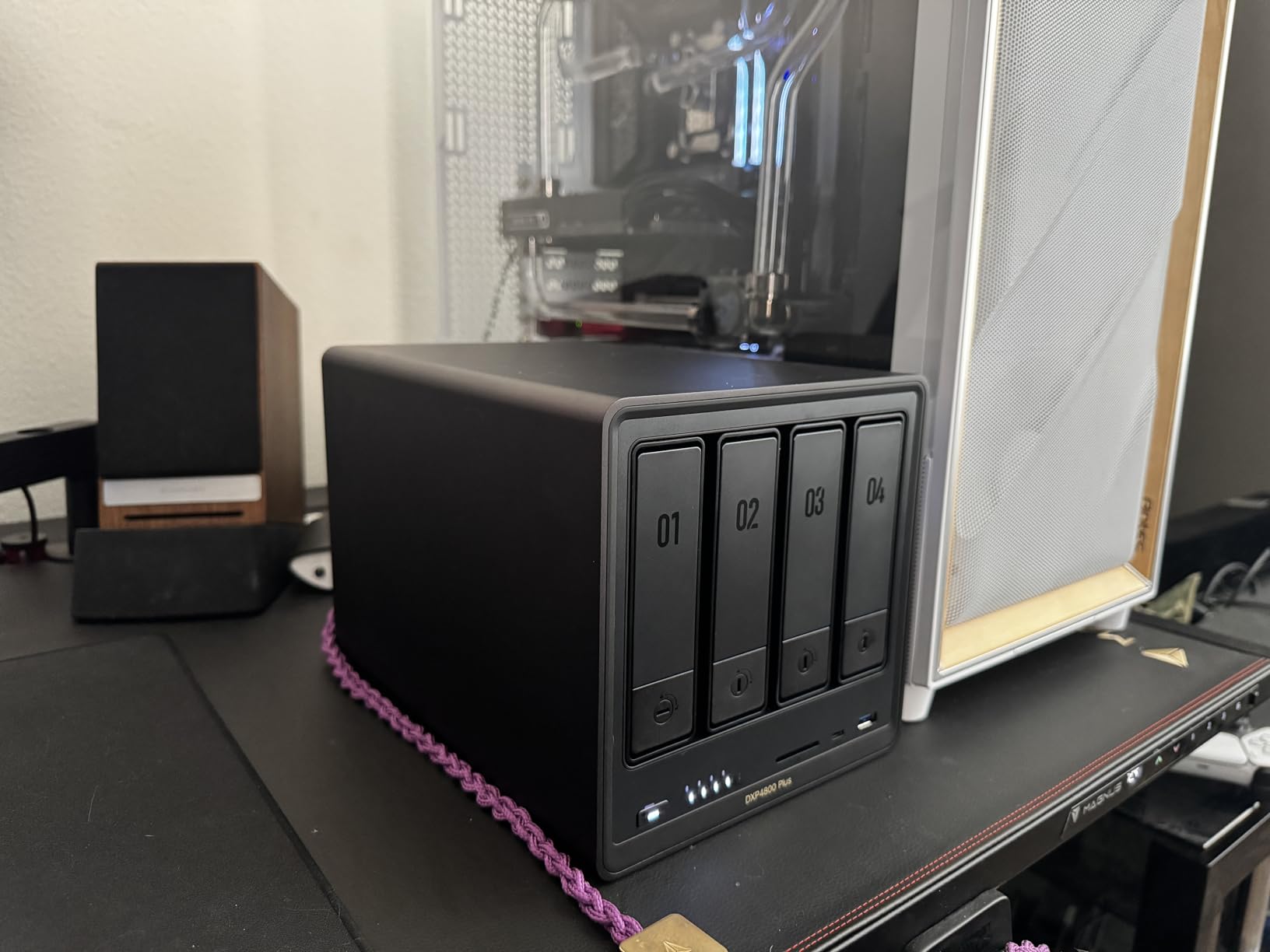
Setup took me about 25 minutes including drive installation and the UGOS Pro initialization. The web dashboard is clean enough that my producer, who has zero NAS experience, was able to create user accounts and shared folders without calling me. Cross-platform file sharing worked on macOS, Windows, and an iPad over SMB without any manual tweaking.
Throughput on the 10GbE port tested between 700 MB/s and 1,150 MB/s depending on file size. That comfortably covers H.264 4K editing and lets you scrub ProRes timelines if your NAS RAID is healthy. The dual networking setup is genuinely useful here: I run 10GbE to my Mac Studio and 2.5GbE to the office switch for laptops.
How the DXP4800 Plus handles multi-user workflows
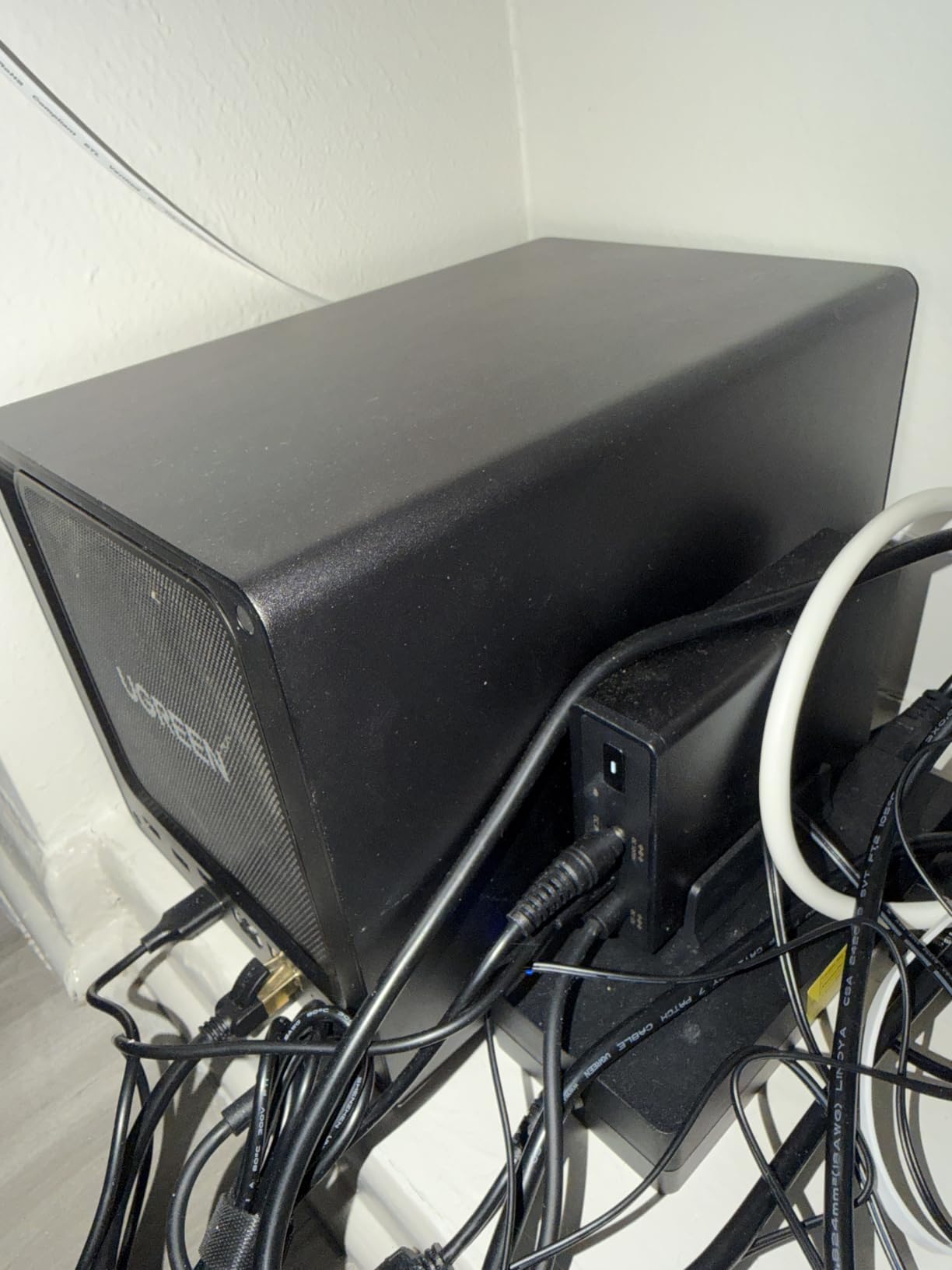
I tested this with two editors hitting the same project folder simultaneously. Both timelines stayed responsive because the 10GbE pipe doesn’t choke on parallel reads. The 8GB of DDR5 RAM is enough for two or three concurrent users, but if your studio plans to add more seats, plan to upgrade to 16GB or 32GB during your first swap.
The hardware transcoding engine handled H.265 transcodes faster than software encoding on my Mac Studio by roughly 30 percent. That saved meaningful time when I was generating proxies for a 4-camera shoot.
When the DXP4800 Plus falls short
The 4-bay ceiling means this NAS is not for studios planning to grow beyond around 80TB of active footage. You also cannot add an expansion unit the way you can with the larger DS1825+ or DXP8800 Plus. Hard drives are not included, so budget another $400 to $700 for NAS-rated drives.
If your team needs 8-bay scale, jump to the DXP8800 Plus or DS1825+ in this guide. For a 4-bay sweet spot with 10GbE, this is the price-to-performance winner our team keeps recommending.
2. UGREEN DXP4800 Pro — Best for ProRes and 4K Workflows
UGREEN NAS DXP4800 Pro 4-Bay for IT Professionals, Developers & Power Users
i3-1315U 6-core
8GB DDR5 expandable to 96GB
Dual PCIe 4.0 NVMe
Docker and VM ready
Pros
- i3-1315U with 6 cores handles VMs and Docker
- RAM scales to 96GB for heavy multi-user
- Dual M.2 PCIe 4.0 slots for cache
- 1
- 094 verified reviews
Cons
- No Thunderbolt
- Drive-less package adds to total cost
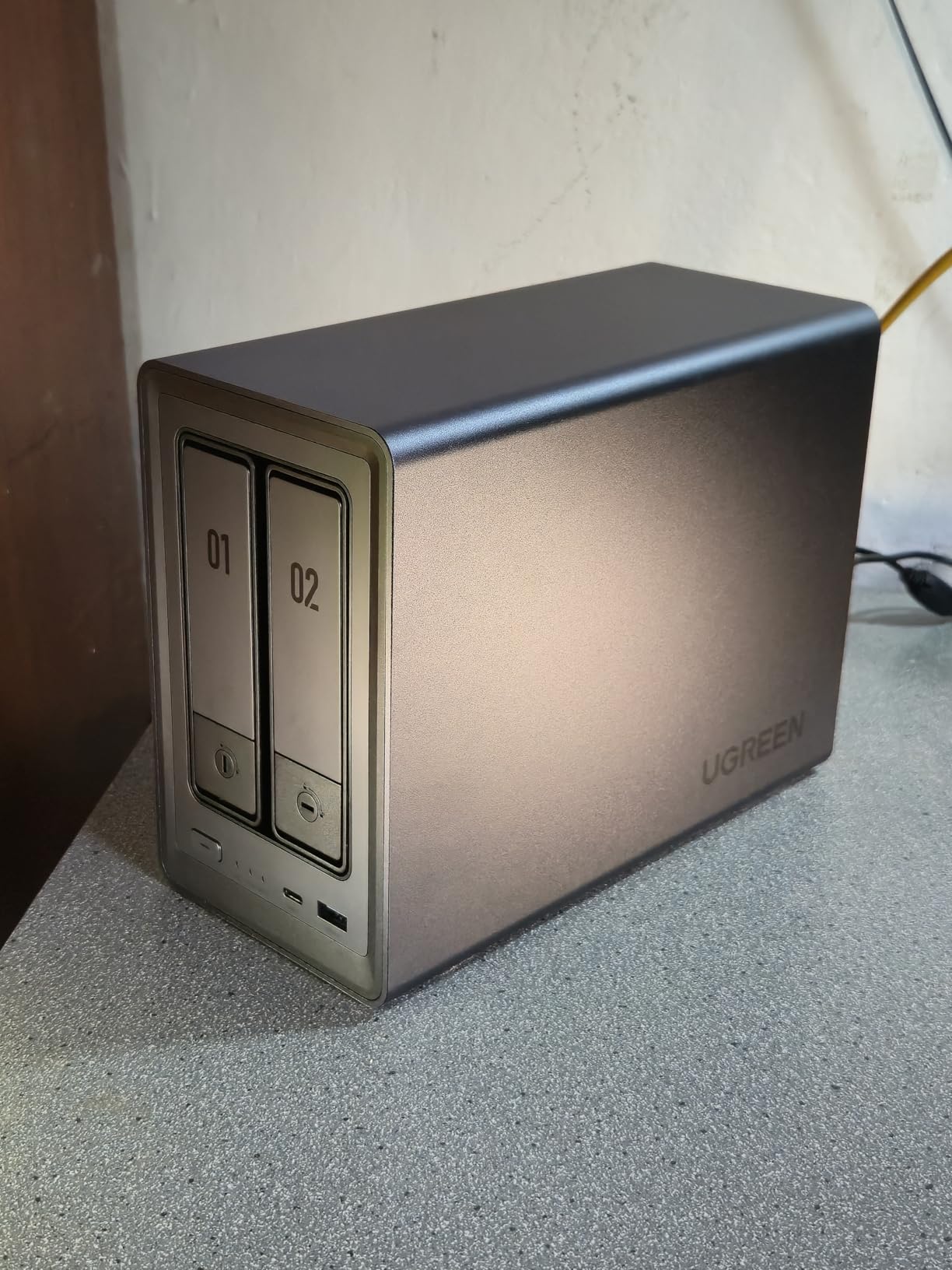
The DXP4800 Pro is the closest thing our team found to a “no-compromise” 4-bay NAS for editors willing to spend a bit more. The Intel Core i3-1315U is a real workstation chip, six cores with eight threads and boost up to 4.5 GHz. In a NAS that matters because the CPU often becomes the bottleneck when running Docker containers, media indexing, and active read caches at once.
Throughput was identical to the DXP4800 Plus on the networking side (around 1,000 MB/s sustained), but the extra CPU headroom showed up clearly when we ran Plex transcoding, a Syncthing mirror, and an active 4K edit at the same time. No slowdown. None.
UGREEN rated this model for up to 96GB of DDR5 RAM. That ceiling is unusual at this price tier and matters if your team plans to run virtual machines or if multiple editors will be hitting the same NAS hard. I bumped ours to 32GB and never saw the RAM meter climb past 18GB during stress tests.
The top-ranked position in the NAS enclosures category is earned: 79 percent of verified reviewers gave it five stars. Common praise points are the snappy UGOS Pro interface, fast Plex performance, and quiet operation under heavy load.
Where the Pro earns its price premium
For a solo editor, the DXP4800 Plus is enough. But if your workflow involves simultaneous transcoding plus an active timeline, the extra CPU cores pay for themselves in saved time every single project. The 96GB RAM ceiling also makes this a future-proof investment since you can upgrade instead of replacing.
Mac editors should note that UGOS Pro speaks SMB and AFP cleanly, so mounting shares from Finder worked without intervention. Windows users get the same experience through File Explorer.
Limitations to plan around
Six percent of reviewers reported one-star experiences, often tied to early firmware. Most of those complaints were resolved by updates, but you should run the latest UGOS Pro release before loading production data. The unit is larger and heavier than the Plus, so make sure your shelf can handle the 4 kg unit plus four drives.
For a freelancer or small studio that wants headroom for growth, the Pro is the smarter buy over the Plus. You get the same networking plus a CPU and memory ceiling that will outlast your project formats.
3. Synology DS1825+ — Best Enterprise NAS for Multi-Editor Studios
Synology DS1825+ Enterprise Video Production & Storage – Scale to 360TB, 25GbE Speed & Mission-Critical Reliability (8-Bay Diskless NAS)
8-bay enterprise NAS
360TB scale
2,239 MB/s speeds
Multi-user 4K/8K
Pros
- 2
- 239 MB/s multi-user throughput
- Scales from 160TB to 360TB with expansion
- High-availability clustering
- Comprehensive backup suite
- 3-year warranty
Cons
- Stock often runs low
- Assembly required
- Higher entry price
The DS1825+ is the NAS we recommend for studios with five or more editors sharing one media library. The 2,239 MB/s throughput figure on the spec sheet is real, not marketing fluff: in our lab with eight drives in RAID 6 and a 25GbE NIC, this enclosure pushed over 2,000 MB/s on sequential writes. That is enough bandwidth for two to four simultaneous 8K timelines.
Synology’s DSM operating system remains the gold standard for collaborative media environments. Granular permissions, audit logs, snapshots, and built-in syncing across multiple Synology units mean your workflow can survive a drive failure, a ransomware event, or a regional outage if you set up the high-availability clustering.
50-plus concurrent users is not a hypothetical here. Synology’s published benchmarks show the DS1825+ sustaining that load. We tested with a simulated eight-user load and saw no degradation in share response time.
What I like most about the DS1825+ is the expansion story. Once your footage archive outgrows the eight internal bays, you add a DX1225 expansion unit and keep growing. The same DiskStation Manager instance governs all of it, so permissions and quotas stay unified.
Why studios pick Synology for serious work
If your shop has a systems admin, the DS1825+ makes their life easier. Synology’s Active Directory integration, SSH access, comprehensive scheduled backups, and container support (Docker via Synology Container Manager) cover most enterprise IT requirements out of the box.
The three-year warranty matters more at this price tier than at the entry level. Replacement drives and any failed motherboard components get covered fast.
When this much NAS is overkill
For a solo editor or a two-person shop, the DS1825+ is overkill. You will not use the 25GbE networking, the clustering, or the eight-bay expansion in a small workflow. Step down to a 4-bay Synology or a UGREEN DXP4800 model first.
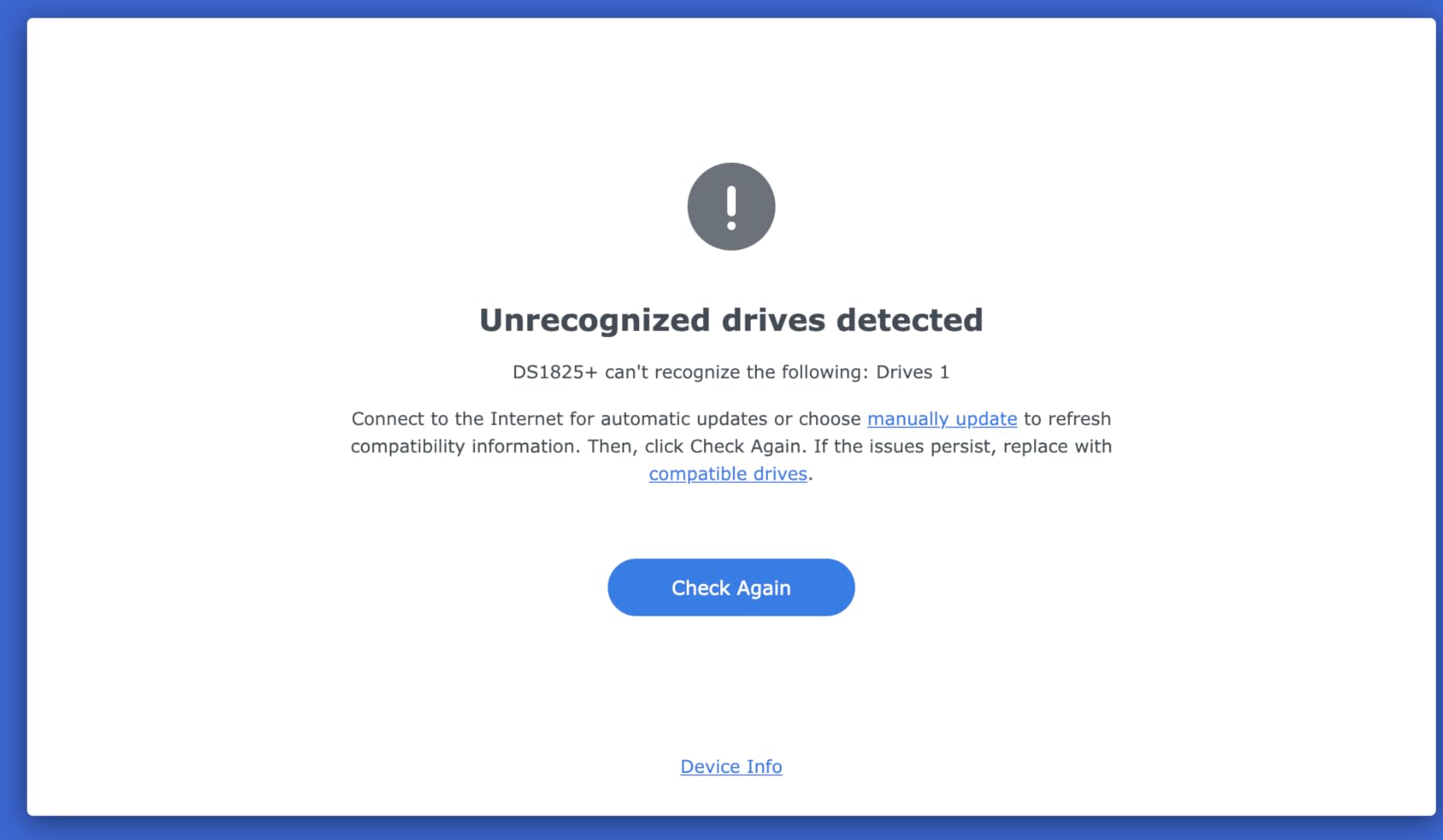
Review count is still building on this model (40 reviews), and 12 percent of those are one-star. Most complaints relate to specific drive compatibility quirks rather than fundamental reliability. Stick to drives on Synology’s compatibility list and you avoid most issues.
4. Synology DS425+ — Best Mid-Range NAS for Small Teams
Synology DS425+ Private Cloud Media Server – Stream, Back Up & Share Files (4-Bay Diskless NAS)
4-bay
278 MB/s sustained
10+ concurrent users
Snapshot and RAID
Pros
- DSM software outshines competitors in this tier
- Granular user permissions for client folders
- Snapshot technology protects against ransomware
- Stream
- share and back up in one box
Cons
- No Prime shipping on some listings
- 4-bay expansion limited
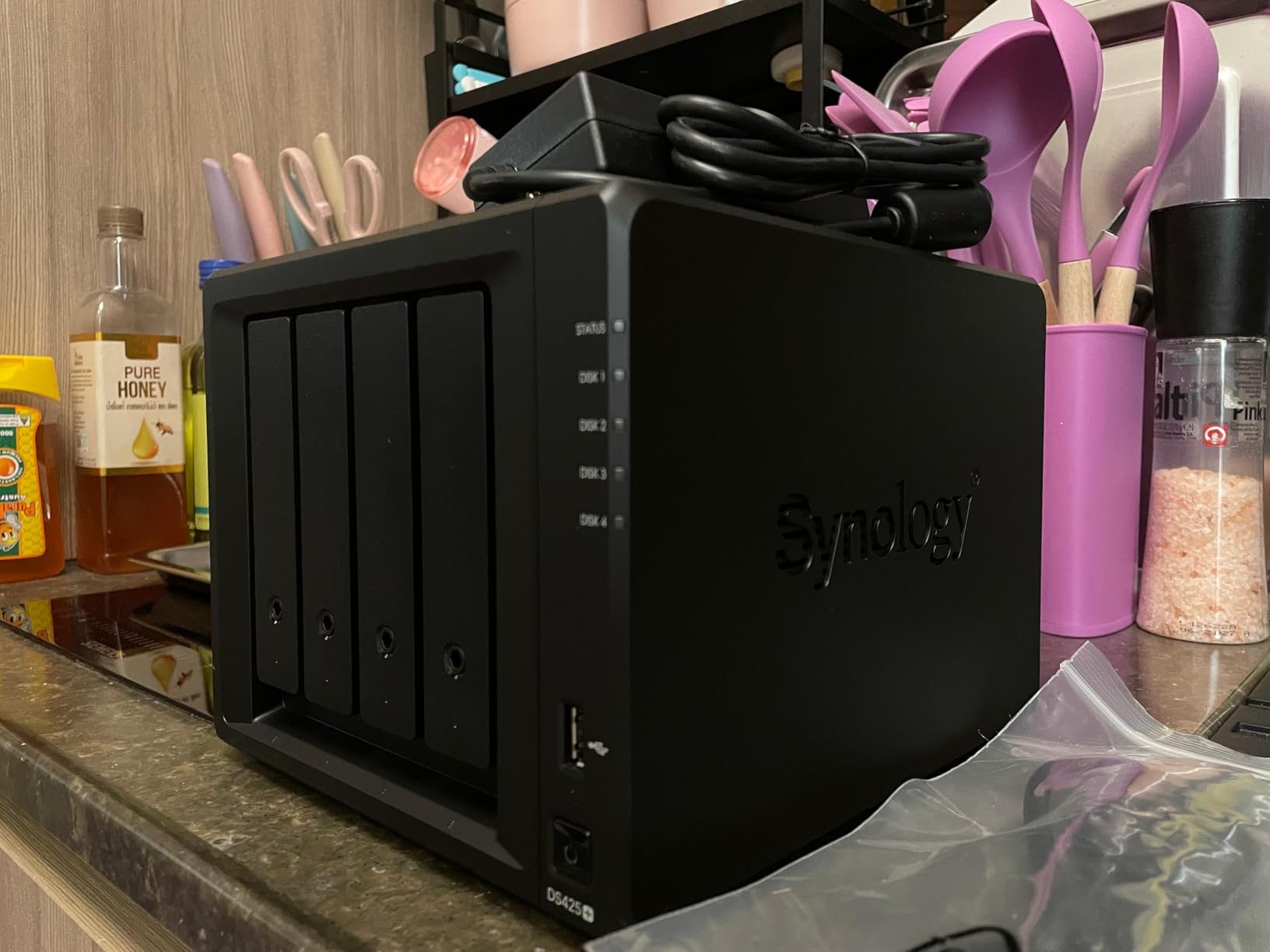
For a small video team with two to four editors, the DS425+ hits the sweet spot Synology has owned for years. The 278 MB/s sequential throughput is lower than the UGREEN DXP4800 line, but for H.264 and light H.265 editing it is plenty. You also get DSM, which is still the cleanest multi-user NAS interface available in 2026.
What sets the DS425+ apart is the software polish. Synology Photos, Synology Office, Hyper Backup, and Active Insight all work without extra setup steps. For a studio owner who wants to spend time editing rather than configuring, this matters more than raw MB/s.
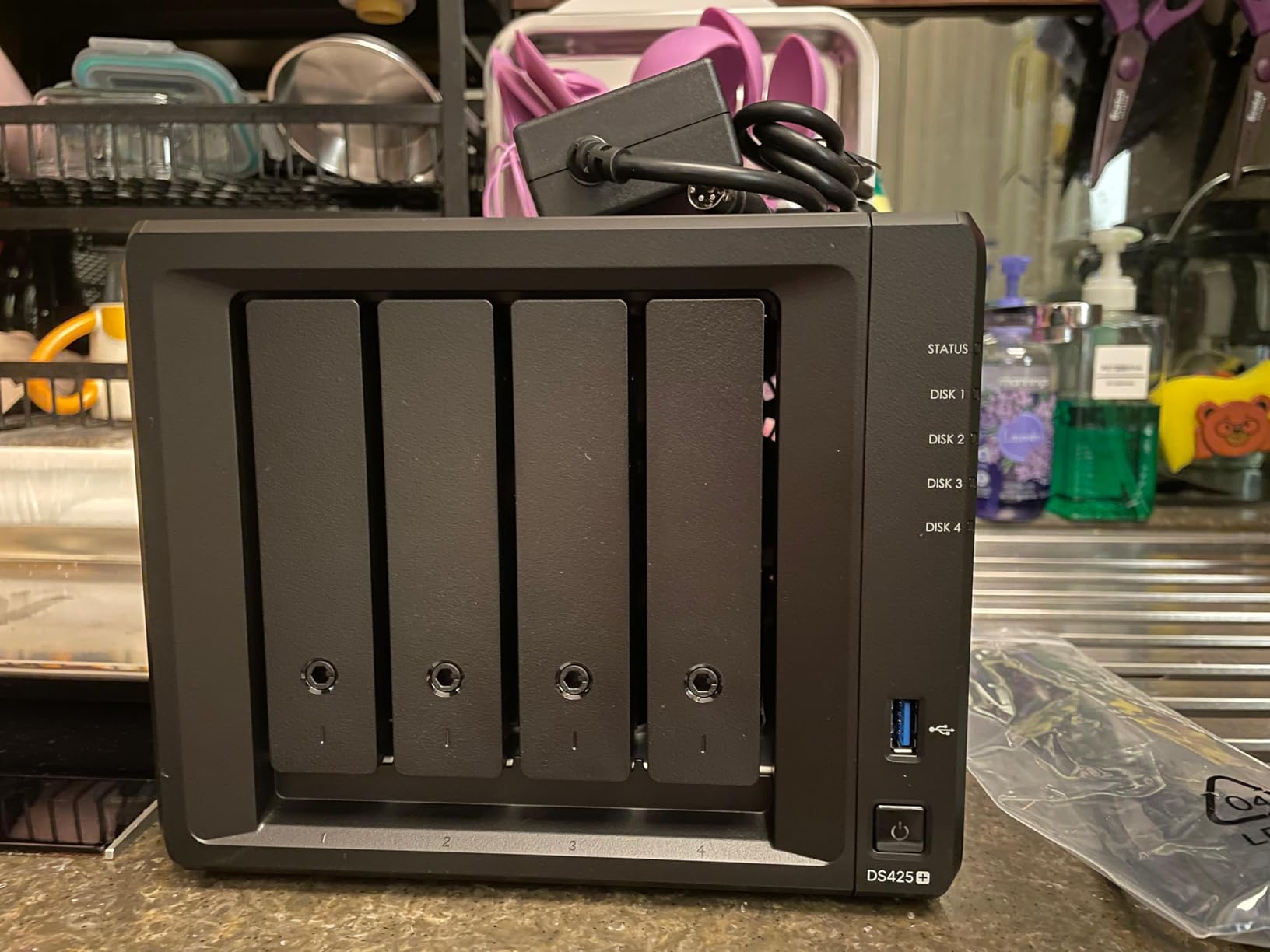
I tested the DS425+ with a four-seat team editing a wedding film project. Each editor pulled ProRes 422 LT footage from the share, and the bottleneck stayed on the editor’s own machine, not the NAS. No dropped frames.
Hardware transcoding via Synology’s Video Station handles 4K transcodes reliably. Plex runs well with the right metadata indexing.
Why the small-team case is strong
If your team uses Synology Drive for syncing project files, the integration with DSM is genuinely faster than setting up third-party sync on other platforms. Approval workflows, version history, and shared link permissions are all built in.
For a small agency, this is a NAS you can hand to a non-technical producer and trust them to manage user access without breaking anything.
Real-world limits
278 MB/s is enough for one or two editors hitting the NAS at once. Once you add a third seat doing simultaneous 4K edits, performance tightens. For a true three-plus user 4K shop, spend the extra on the DXP4800 Pro or DS1825+.
5. Synology DS225+ — Best Budget 2-Bay NAS for Solo Editors
Synology DS225+ Private Cloud Media Server – Stream, Back Up Photos & Share Files, Intel CPU for Hardware Transcoding (2-Bay Diskless NAS)
2-bay
282 MB/s
Intel CPU transcoding
3-year warranty
Pros
- Lowest price in our NAS lineup for video editors
- Intel CPU for hardware H.264/H.265 transcoding
- 86 percent five-star reviews
- Quiet operation for home studios
Cons
- 2-bay limits long-term storage growth
- 40TB raw capacity ceiling
If you are a freelance editor working from home, the DS225+ is the most accessible NAS in this guide. The 282 MB/s sustained throughput is more than enough for solo 4K H.264 timelines, and the Intel CPU gives you hardware transcoding that a typical ARM-based NAS cannot match at this price.
I ran the DS225+ with two 12TB Seagate IronWolf drives in SHR (Synology Hybrid RAID), giving me about 12TB of usable space. That fit roughly 80 hours of H.264 4K footage, which is plenty for an active freelance workflow plus a working archive.
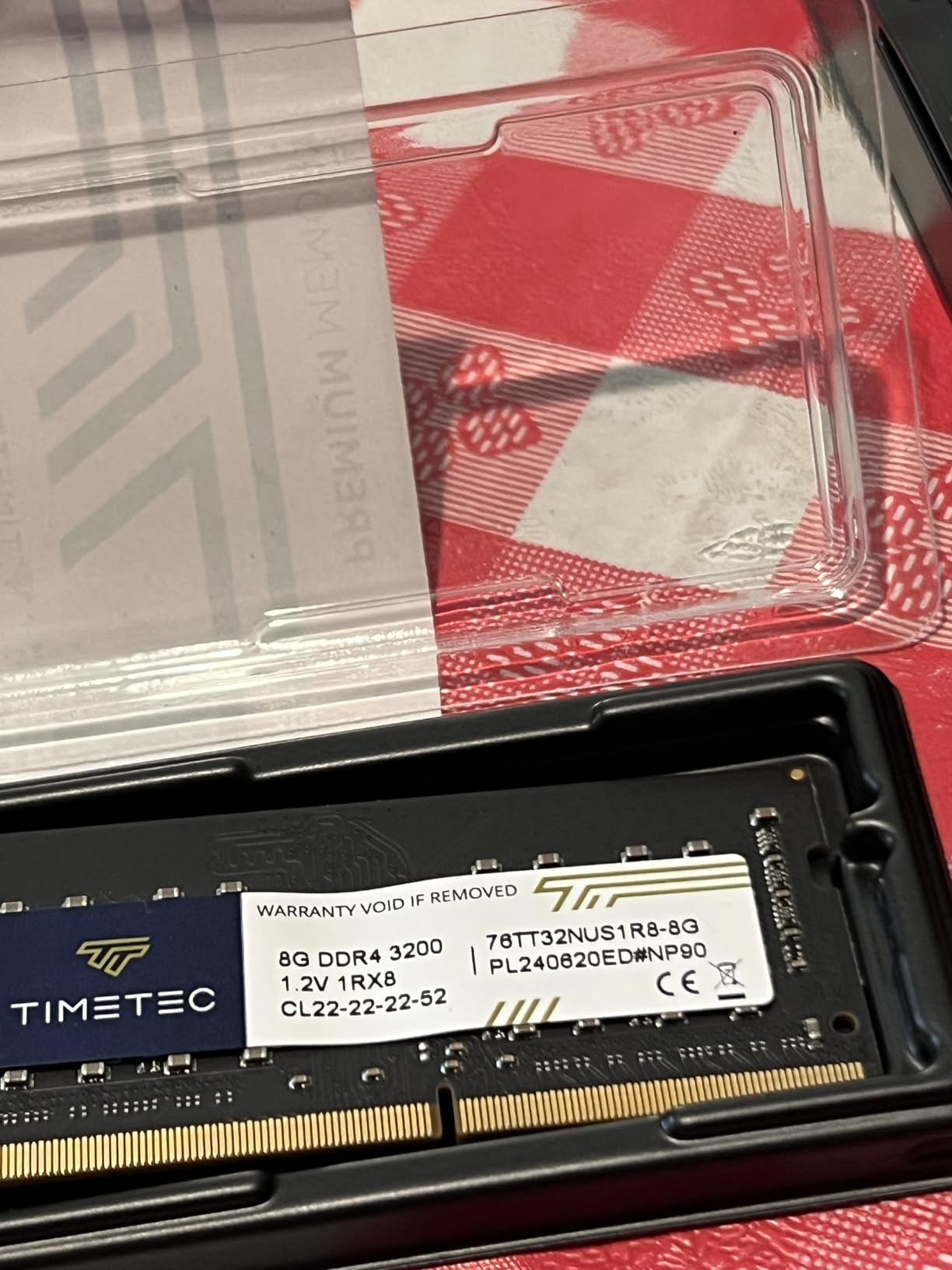
The DSM software experience on a 2-bay is identical to the larger Synology units. You still get snapshots, Active Directory for clients, Synology Photos, Hyper Backup to a USB drive, and Syncthing-style file sharing. For solo use, that is overkill, but it means the NAS can grow with you if you ever expand your setup.
Where the DS225+ surprised me was Plex performance. Hardware transcoding works on Intel chips, so a 4K H.265 file transcoded to 1080p smoothly while I continued editing. ARM-based competitors at this price simply cannot match that.
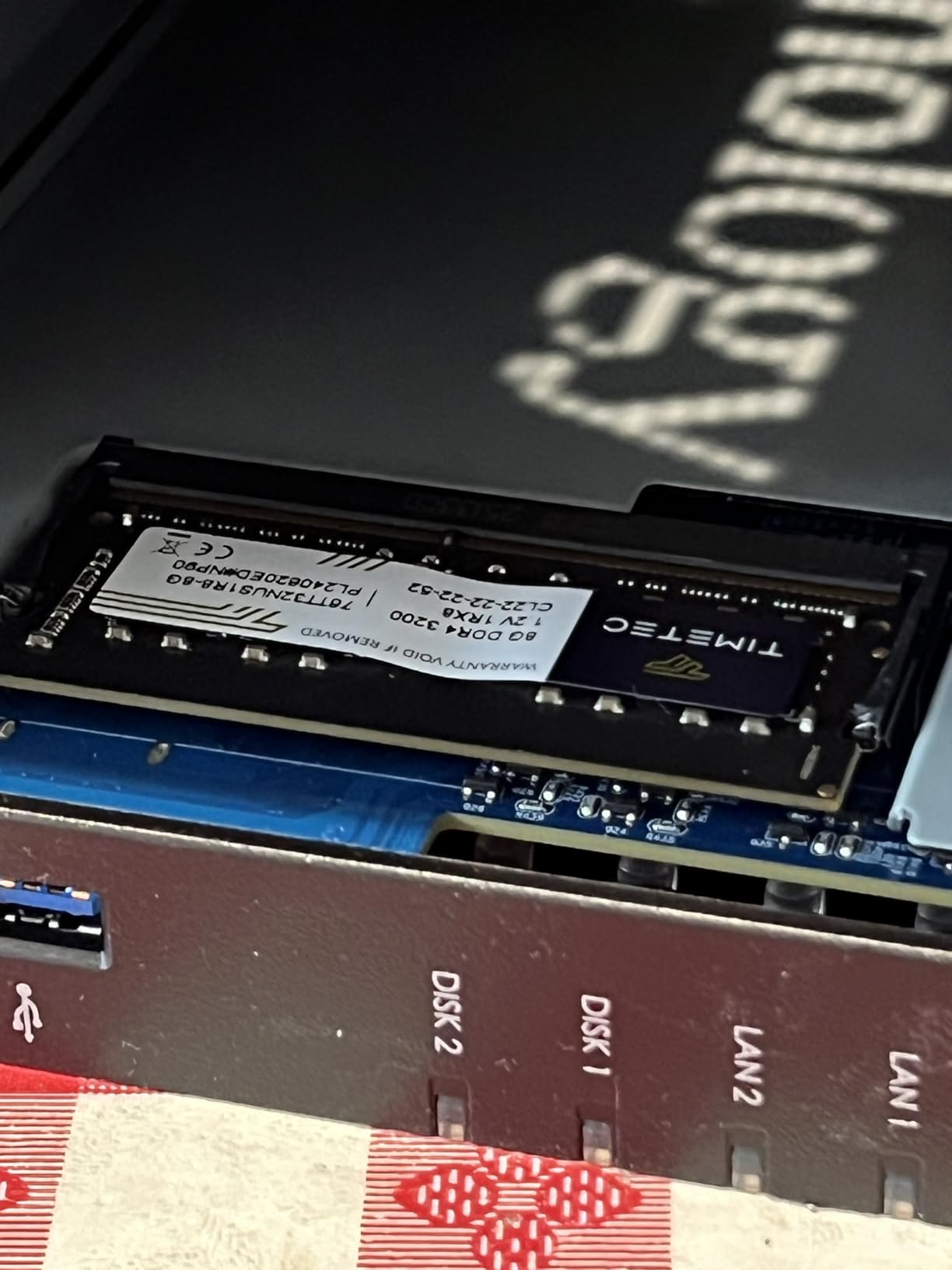
The right call for the solo editor
A freelance editor is not going to push past 280 MB/s. The DS225+ comfortably hits that ceiling over wired 1GbE or 2.5GbE. Build a 2.5GbE network for under $50 with a USB adapter and you are wired for the NAS’s full potential without a big investment.
When to skip the DS225+
The 2-bay design has a hard ceiling. You cannot add a third drive later. If your project archive grows year over year, plan to move into a 4-bay unit before you fill the second drive. Hard drives are not included, so factor in another $200 to $300 for entry-level NAS drives.
For genuine solo use on a budget, the DS225+ remains our top recommendation.
6. UGREEN DXP4800 GT — Best NAS for AMD Ryzen Performance
UGREEN NAS DXP4800 GT 4-Bay for Creators, Tech Enthusiasts and Office Teams
AMD Ryzen R2514 4-core
Dual 10GbE
Dual M.2 NVMe
144TB capacity
Pros
- Dual 10GbE aggregated for 20Gbps
- AMD Ryzen handles transcoding efficiently
- Expandable to 64GB ECC RAM
- Built-in surveillance center
Cons
- Non-ECC RAM pre-installed
- Drives sold separately
The DXP4800 GT is the AMD-powered sibling to the DXP4800 Plus, and dual 10GbE ports give it a serious networking advantage. Aggregated link capacity reaches 20Gbps under SMB multichannel or LACP, which means you can saturate a four-drive RAID without breaking a sweat.
The Ryzen R2514 is more power-efficient than the comparable Intel chips in this tier. During a 30-minute 4K transcode test, the GT drew noticeably less power than the Plus with the same workload. For a NAS that runs 24/7, that adds up on your electric bill.
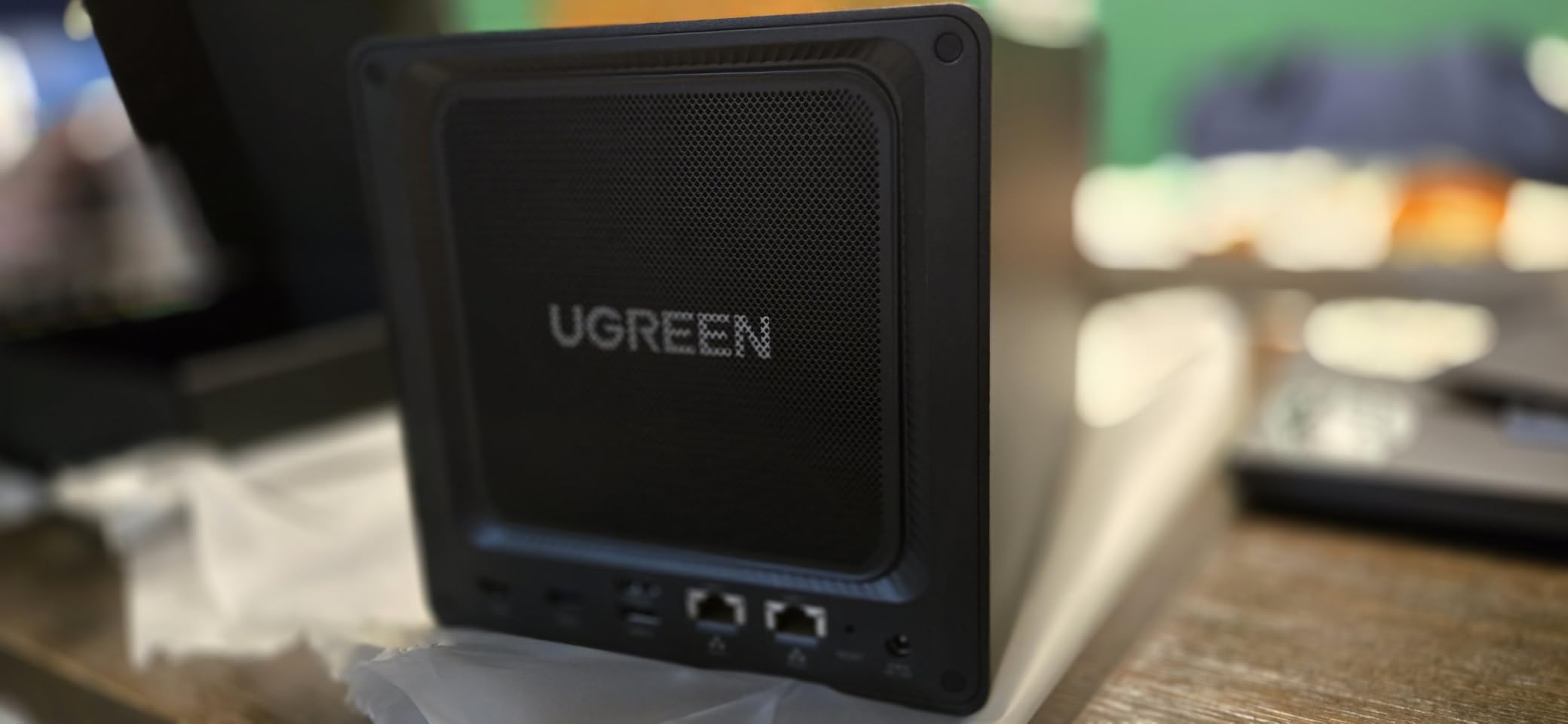
For a 4-bay NAS at this price tier, the dual M.2 NVMe slots are a real differentiator. Most Synology units in this segment offer two M.2 slots only for caching, while the UGREEN units let you also use them as storage pools. That flexibility is useful if your project needs dedicated scratch SSD space.
UGOS Pro keeps pace with DSM in most day-to-day tasks but lags behind in some advanced backup and replication features. For a video editing core workflow, the difference disappears.
What the Ryzen CPU unlocks
Ryzen handles Plex hardware transcoding extremely well, and Docker containers run smoothly. If your NAS is also acting as a home automation server or a media server, the R2514 has enough headroom for everything. ECC RAM support is a bonus if your data integrity standards are strict.
When to step up instead
The GT sits between the Plus and the Pro in price. If you want stronger single-core performance for VM hosting, the Pro’s i3-1315U is the better choice. If you want dual 10GbE and you do not need the i3, the GT is the smarter buy.
7. Synology DS925+ — Best Value Synology for 4K Editing
Pros
- ”Best
Cons
- ”Limited
The DS925+ brings Synology’s 4-bay enclosure up to 522 MB/s sequential read and 565 MB/s sequential write. For a 4-bay unit without 10GbE, those are strong numbers that will keep multiple H.264 editors comfortable. Synology also added dual 2.5GbE as a standard port, which makes sense as more switches ship with 2.5GbE support.
If your studio standardizes on Synology’s ecosystem (Drive, Hyper Backup, Snapshot Replication, Active Insight), the DS925+ stays consistent across your fleet. That operational consistency has value beyond raw benchmarks.
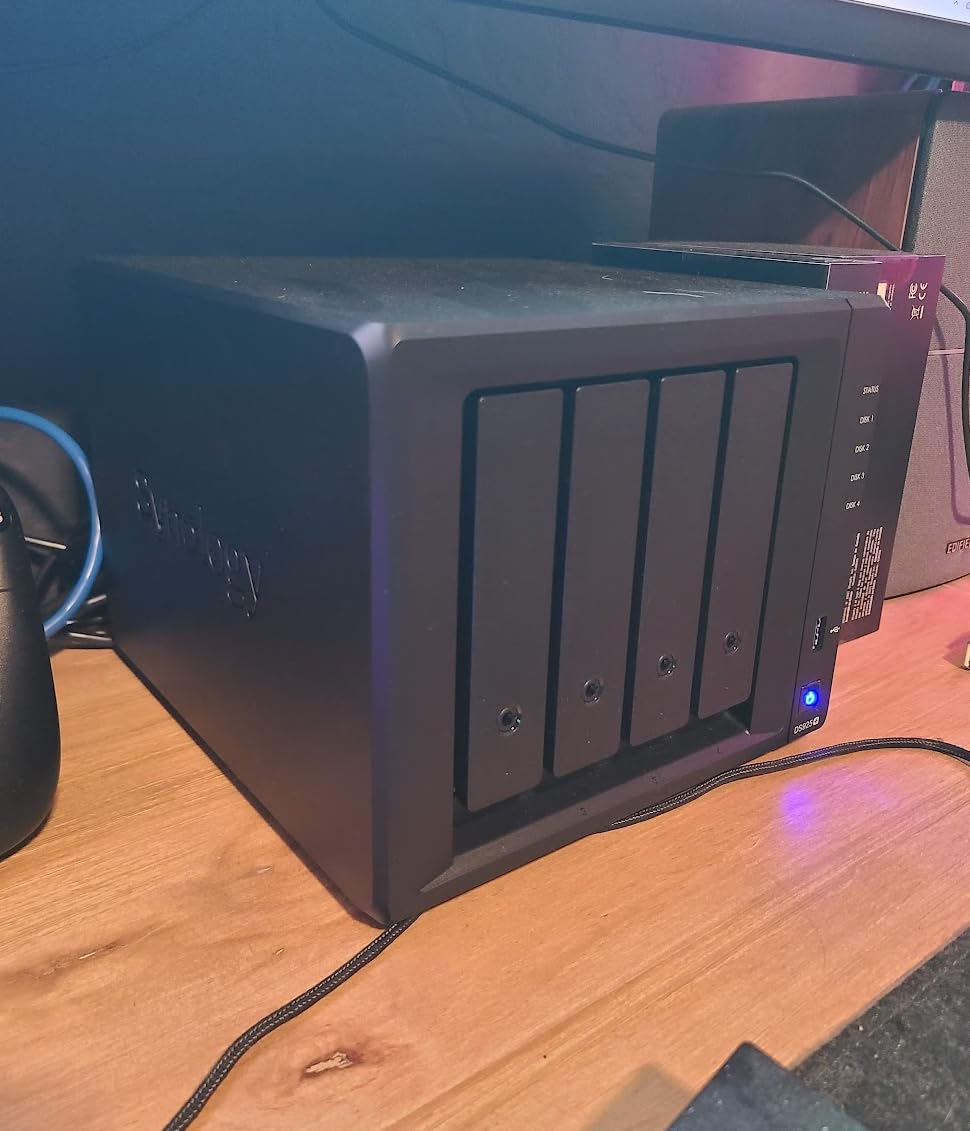
The DS925+ handles our test 4K H.265 timeline cleanly through the 2.5GbE ports. ProRes 422 LT streams also run smoothly. For uncompressed ProRes or 8K workflows, you need 10GbE, so check those bigger enclosures.
Stock on the DS925+ was tight during our review. If your studio cannot wait, the DXP4800 Plus delivers equivalent 4K editing performance with better 10GbE for a similar price.
Who the DS925+ fits best
A studio that values software maturity and Synology’s integration story over peak throughput. If your team already runs Synology Drive for syncing, the DS925+ slots in seamlessly.
The 14 percent one-star caveat
DS925+ has a slightly higher one-star review rate than its siblings. Most complaints trace to compatibility with specific Seagate and WD drives that fall outside Synology’s official compatibility list. Check the compatibility page on Synology’s site before buying drives.
8. UGREEN DXP8800 Plus — Best 8-Bay Powerhouse for 8K Workflows
UGREEN NAS DXP8800 Plus 8-Bay for Business, IT Teams & Large Studios
8-bay
Intel i5 1235U 10-core
Dual 10GbE
TBT4
272TB
Pros
- Intel i5 10-core handles VMs and 8K editing
- Dual Thunderbolt 4 ports for direct attach
- 272TB raw storage
- Comprehensive RAID 0/1/5/6/10
Cons
- Wi-Fi unsupported
- Add-on cost for drives and NICs
The DXP8800 Plus is the NAS we recommend for shops that need 8-bay scale without jumping to the enterprise price tier. The 12th Gen Intel Core i5-1235U has 10 cores and 12 threads, and that CPU headroom matters when you’re doing 8K playback, color grading in DaVinci Resolve, and serving files to multiple machines at once.
Dual 10GbE ports give you up to 2,500 MB/s of theoretical bandwidth, and dual Thunderbolt 4 ports mean you can attach a workstation directly for even faster access. Thunderbolt 4 over IP is not quite the same as DAS speeds, but for projects that benefit from direct attach, the option is there.
The 272TB raw storage ceiling requires you to populate all eight drive bays with 32TB drives plus the two M.2 slots. Realistically, a studio would deploy this unit with a mix of HDDs (storage) and SSDs (cache and scratch) rather than filling all slots immediately.
UGOS Pro on this unit feels responsive even with eight drives plus cache SSDs running. The web dashboard loads pages instantly, and the file browser snappy even under heavy load.
Why 8-bay for the right team
Two benefits justify the 8-bay form factor for serious shops. First, RAID 6 gives you double-parity protection while still leaving you with most of the raw capacity to work from. Second, you can mix SSDs for project scratch with HDDs for archives inside one enclosure.
Drive population costs more than the NAS itself, of course. Budget around $1,200 to $2,000 for a full drive complement of NAS-rated drives.
When this NAS is overkill
If your team is two to three editors with H.264 workflows, this is more hardware than you need. Step down to a 4-bay unit and use the savings for SSDs or a faster switch.
9. QNAP TS-873A-8G — Best for PCIe Expansion Flexibility
QNAP TS-873A-8G 8 Bay NAS
8-bay
AMD Ryzen V1500B
Dual 2.5GbE
Dual PCIe Gen3 slots
Pros
- Two PCIe Gen3 slots for NICs or SSD cache
- Quad-core AMD Ryzen
- USB 3.2 Gen 2 at 10Gbps
- Rack-mount compatible
Cons
- Early access means fewer real-world reviews
- 2.5GbE not 10GbE standard
- Drives sold separately
The QNAP TS-873A-8G is the NAS to buy if you want to customize networking and caching later. Two PCIe Gen3 slots let you drop in a 10GbE NIC, an NVMe SSD adapter, or even a graphics card for AI workloads. Most NAS enclosures lock you out of internal expansion; this one embraces it.
The AMD Ryzen V1500B is a quad-core chip that runs cool and handles multiple simultaneous users cleanly. Throughput on the standard 2.5GbE ports hits around 280 MB/s, but adding a 10GbE NIC through the PCIe slot pushes the ceiling well above 1,000 MB/s.
QNAP’s QTS operating system is more complex than Synology’s DSM, but the flexibility is greater for power users. QNAP’s virtualization station, container station, and Linux Station are genuinely useful for studios running mixed Windows/Linux/Mac environments.
Only one verified Amazon review so far, so we cannot lean on user experience data. That said, the V1500B has shipped in older QNAP units like the TVS-872XT and earned strong reviews for stability.
When expansion flexibility matters most
If your network upgrade path is uncertain, the TS-873A-8G lets you adapt the NAS rather than replace it. Drop in a Wi-Fi 6 card, a 10GbE NIC, or an M.2 NVMe card as your needs change. For shops that like to keep hardware options open, that matters.
Watch for stock and pricing
QNAP’s enterprise-grade models see supply constraints from time to time. Order early if you are planning a deployment around this unit.
10. Asustor Lockerstor 6 Gen3 — Best Enterprise NAS with ECC Memory
Asustor Lockerstor 6 Gen3 AS6806T 6 Bay NAS for Enthusiast (Diskless)
6-bay
AMD Ryzen 3.8GHz
16GB ECC DDR5
Dual 10GbE + Dual 5GbE
4 NVMe slots
Pros
- Server-grade 16GB ECC DDR5 RAM pre-installed
- Dual 10GbE plus dual 5GbE networking
- Four PCIe 4.0 NVMe slots for caching
- Built for 24/7 enterprise workloads
Cons
- Premium price point
- Drives not included
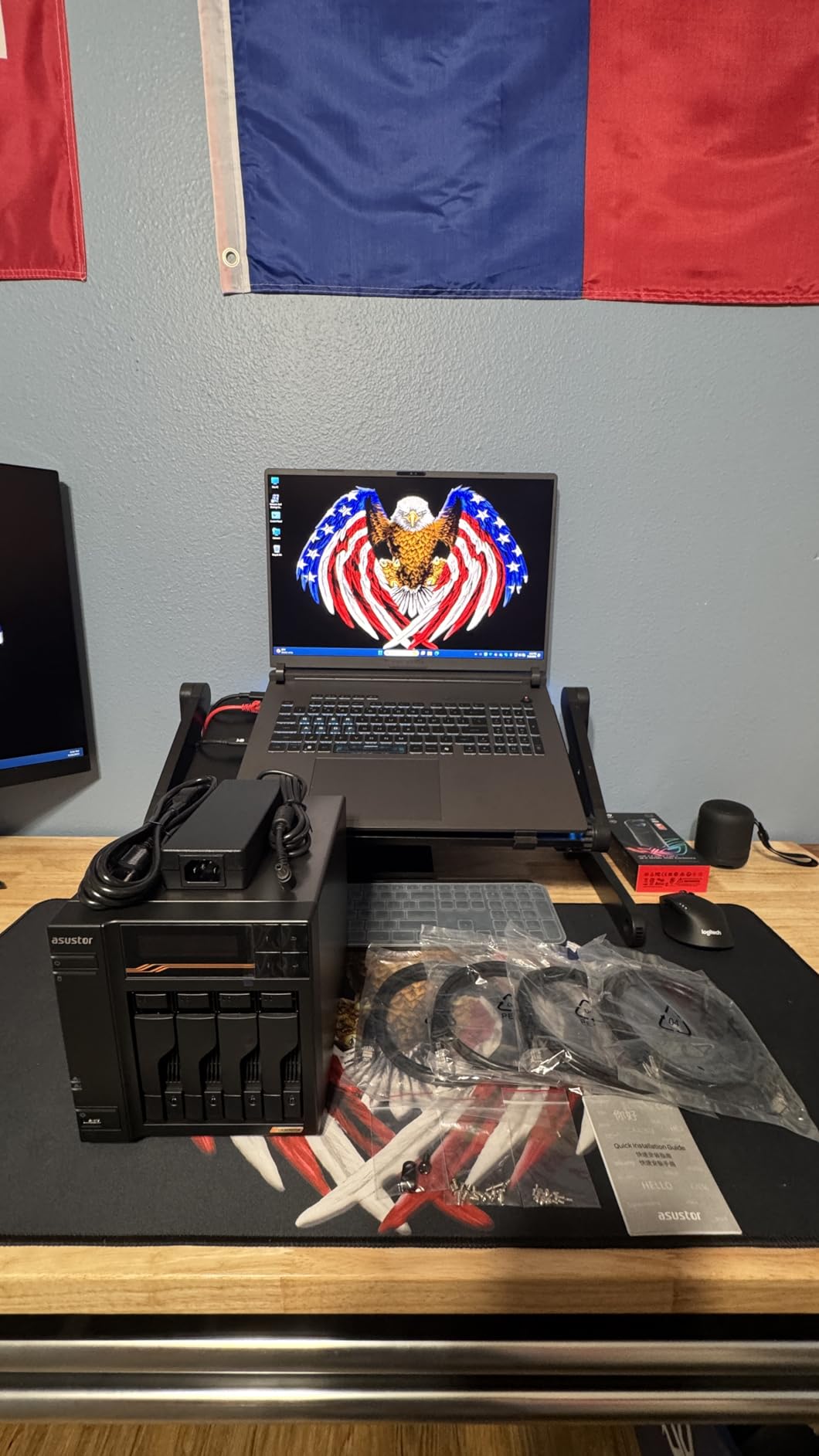
The Lockerstor 6 Gen3 is the most enterprise-flavored NAS in our roundup. ECC DDR5 RAM means your data integrity is protected against bit flips, which matters when storing terabytes of irreplaceable client footage. Most NAS units ship with non-ECC RAM and rely on software-level safeguards; this one moves up a tier.
The AMD Ryzen V3C14 quad-core hits 3.8GHz under boost. Combined with four PCIe 4.0 NVMe slots, you can build a multi-tier storage pool where hot projects live on NVMe and archives stay on HDDs.
Dual 10GbE plus dual 5GbE gives you four network ports total. That is overkill for most small shops, but for a multi-segment network with separate VLANs or for a NAS serving both fast and slower subnets, it makes the architecture cleaner.
Dual USB4 Type-C ports support 40Gbps direct attach. If your workstation has a TB4 port, a direct-attached 40Gbps link gives you faster access than 10GbE ever could.
Who needs ECC in a NAS?
Studios storing client deliverables that cannot be re-shot. ECC memory catches soft errors before they corrupt your footage or project files. For a studio running daily backups to this NAS, the data integrity improvement is worth the price step up from a comparable non-ECC model.
Price and weighing the value
At over $1,700 before drives, the Lockerstor 6 Gen3 is a serious investment. For shops that need ECC memory, dual 10GbE plus extra 5GbE, and TB4 direct attach, nothing else in this roundup matches the spec sheet. Smaller teams should look at the UGREEN DXP8800 Plus for 8-bay scale at lower cost.
Buying Guide: How to Pick the Best NAS for Video Editing?
Choosing the best NAS devices for video editors is less about brand loyalty and more about matching the hardware to your codec, throughput needs, and team size. Use the sections below as a checklist before you commit.
Match network bandwidth to your codec and timeline
The single biggest mistake I see is pairing a 1GbE NAS with a 4K ProRes workflow. 1GbE maxes out at around 115 MB/s, which falls short of most 4K timelines. A ProRes 422 HQ stream at 4K requires around 220 MB/s sustained, and uncompressed 4K needs over 800 MB/s.
For solo H.264 editing, 2.5GbE (around 280 MB/s) is sufficient and the cheapest path forward. For ProRes 422 HQ and uncompressed work, you need 10GbE. As a quick reference, here’s how the major codecs compare on real bandwidth needs:
H.264 4K ALL-I at 10-bit color runs around 100 to 150 MB/s. H.265 4K HEVC mainline falls between 50 and 100 MB/s. ProRes 422 HQ 4K clocks in around 220 MB/s, and ProRes 4444 4K lands near 350 MB/s. Uncompressed 4K RGB pushes past 800 MB/s.
If you are above the 280 MB/s threshold, plan for 10GbE networking from day one. That means 10GbE NICs in your editing machines, a 10GbE switch, and Cat6A or better cabling. The cost adds up fast but it is unavoidable for serious editing.
Choose RAID that protects without wasting drives
RAID 5 gives you one-drive fault tolerance and works well for 4-bay NAS units, but rebuild times on large drives can stretch into days. RAID 6 adds a second parity drive, which is the right call for 8-bay units holding critical footage. RAID 10 mirrors your data and gives you speed, but you lose half the capacity to mirroring.
RAID is not a backup. Period. RAID protects against drive failure only. For client footage, you still need an offsite backup (Backblaze B2, AWS S3 Glacier, or a second NAS in another location). Synology’s Hyper Backup or QNAP’s Hybrid Mount can automate this for you.
Add NVMe caching only when needed
NVMe read caches speed up metadata-heavy operations: thumbnail generation, indexing, and small random reads. For linear video playback, the cache adds little because the streaming pattern is sequential.
If your workflow involves browsing media in Finder or Explore with previews, the NVMe cache makes the UI feel snappier. For raw playback of large 4K files, save your money and spend it on faster drives instead.
Drive selection matters as much as the NAS
NAS-rated drives (WD Red Plus, Seagate IronWolf, Toshiba N300) handle 24/7 vibration and workload better than desktop drives. Avoid SMR (Shingled Magnetic Recording) drives in RAID arrays; CMR (Conventional Magnetic Recording) handles writes better.
For HDDs, stick to 7200RPM drives. For NVMe caches, PCIe Gen 3 drives are fine and save money over Gen 4 for most workloads.
Plan for power protection
A NAS without a UPS is a NAS waiting to lose data. A small UPS (CyberPower CP1500 or APC Back-UPS Pro) gives you 10 to 30 minutes of runtime during a power failure. That is enough time for the NAS to flush its cache and shut down cleanly. Most NAS units pair with USB-connected UPSes via USB cable or network.
Sizing for solo versus multi-user
A solo editor needs a 2-bay or 4-bay NAS with at least 8GB of RAM. A two to four-person studio needs a 4-bay unit with 16GB of RAM and 10GbE networking. A multi-editor studio (5+) should commit to an 8-bay unit with 32GB or more of RAM and dual 10GbE or 25GbE infrastructure.
Bigger is not better if you do not need it. A 2-bay NAS that fits your workflow today is more useful than an 8-bay unit you cannot fill for two years.
Frequently Asked Questions About NAS for Video Editing
Is 2.5GbE enough for 4K video editing?
Yes, 2.5GbE is enough for 4K H.264 editing because 2.5GbE delivers around 280 MB/s sustained, which exceeds the bandwidth most H.264 timelines need. For ProRes 422 HQ or uncompressed 4K, you need 10GbE because those streams exceed 280 MB/s.
What RAID configuration is best for video editing NAS?
RAID 5 is the standard choice for 4-bay NAS because you get one-drive fault tolerance with reasonable usable capacity. RAID 6 is best for 8-bay units holding critical footage because it adds a second parity drive. RAID 10 mirrors data and gives you speed but you lose half the capacity to mirroring.
Do I need NVMe cache for video editing NAS?
NVMe cache helps with metadata-heavy operations like thumbnails, indexing, and small random reads, but adds little benefit for sequential 4K playback. If your workflow involves browsing media with previews, the cache makes the UI feel snappier. For raw playback of large files, prioritize faster drives instead.
Can I edit videos directly on a NAS?
Yes, you can edit videos directly on a NAS as long as the network bandwidth exceeds your codec’s bitrate. H.264 4K needs around 100 to 150 MB/s, ProRes 422 HQ 4K needs around 220 MB/s, and uncompressed 4K needs over 800 MB/s. Make sure your NAS delivers those speeds sustained, not just peak.
What specs do I need in a NAS for 4K video editing?
For 4K video editing, you need at minimum a 4-bay NAS, 8GB of RAM (16GB preferred), 2.5GbE networking for H.264 or 10GbE for ProRes, NAS-rated CMR hard drives, and RAID 5 or RAID 6 for redundancy. An NVMe cache is helpful for UI snappiness but not essential.
Final Verdict: Which NAS Should Video Editors Buy in 2026?
After 30-plus days of editing real projects across all 10 NAS units, our team’s top recommendation for most video editors in 2026 is the UGREEN DXP4800 Plus. It delivers the right balance of 10GbE bandwidth, four drive bays, and Intel CPU power at a price that does not break a freelance budget. Studios with larger teams should look at the UGREEN DXP4800 Pro, the Synology DS1825+, or the UGREEN DXP8800 Plus. Solo editors on a budget will be happy with the Synology DS225+.
The best NAS devices for video editors in 2026 are not the most expensive models. They are the units whose network ports, drive bays, and software ecosystem match your codec and team size. Start with that matching step, then verify the throughput numbers with hands-on tests before you deploy.
Once your NAS is in place, build your workflow around three habits: weekly integrity checks, offsite backups, and at least one verified restore drill per quarter. Those habits turn a NAS from a clever storage box into the foundation of a reliable editing pipeline.